


A user opens Microsoft Authenticator on their personal iPhone, taps Create a passkey, approves the sign-in prompt on their other device, and gets an error. Not a login failure. Not an MFA prompt gone wrong. A blunt message saying the app doesn’t support the security policy your tenant requires.
If you are dealing with an Entra passkey app protection policy conditional access conflict on BYOD phones, you are not alone. It’s the single most common blocker organizations hit when they try to move employees onto passkeys, and According to Microsoft’s own troubleshooting guidance for passkeys in Authenticator, users can’t register passkeys in Authenticator if they’re included in a Conditional Access policy that targets all resources with a grant control of require approved client app or require app protection policy, this is a known, documented, unsupported combination.
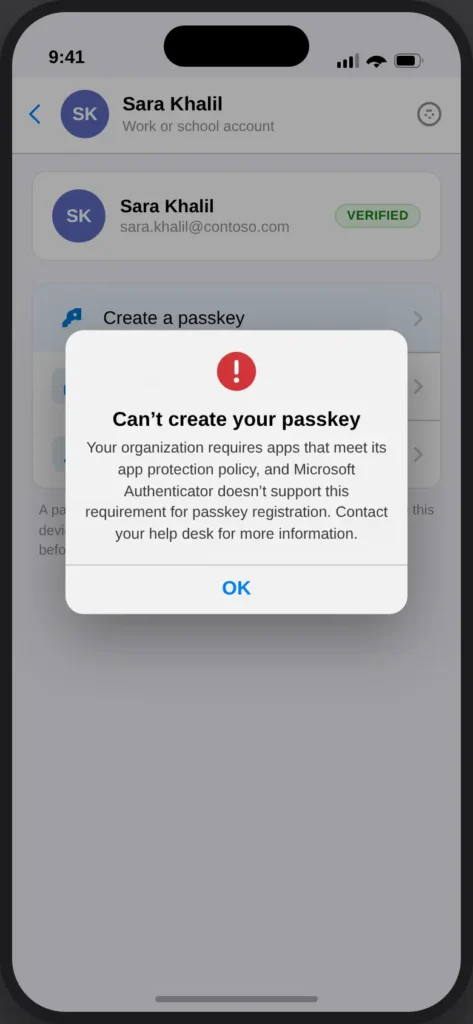
This guide explains exactly why that happens, walks through the three workarounds Microsoft documents (and why most administrators reject two of them), and covers the fix that’s actually working in production: a narrow, resource-level exclusion that most tenants have never heard of. It also covers something most walkthroughs skip entirely, what that exclusion actually opens up, how to shrink the exposure window, and a recent Conditional Access enforcement change that quietly affects how resource exclusions behave.
This is really a deep dive on a single failure point inside a bigger deployment problem. If you’re planning a rollout rather than firefighting one, our broader 5 Entra ID Passkey Mistakes Undermining Your Security covers the full list, the App Protection Policy conflict this article solves is the root cause behind that guide’s “not checking device compatibility before you enforce” and “ignoring Authenticator sync behavior” mistakes.
Passkeys aren’t a side project anymore. The FIDO Alliance’s State of Passkeys 2026 report, based on research spanning 11,000 consumers and 1,400 enterprise decision-makers across ten countries, found that 68% of organizations have deployed or are actively deploying passkeys for employee sign-ins. If your rollout stalls on the first BYOD phone that tries to register, this is the article that gets it moving again.
Quick takeaways
Click any topic to expand or collapseAuthenticator Registration Failure
Passkey registration in Microsoft Authenticator fails under BYOD Conditional Access policies that require an approved client app or an app protection policy, because Authenticator doesn’t support that grant control for this flow.
Microsoft Documented Workarounds
Microsoft documents three workarounds — app filtering, requiring device compliance, or a temporary exemption — and none of them are great for most BYOD environments.
The Practical Fix
The practical fix is excluding one specific resource, the Azure Credential Configuration Endpoint Service, from the app protection policy requirement in Conditional Access — not excluding Authenticator or Microsoft Graph.
Conditional Access Scope
This exclusion doesn’t disable Conditional Access. Other controls (location, sign-in risk, MFA) still apply, but you should still scope and time-bound it.
Mid-2026 Exclusion Change
A separate, unrelated Conditional Access change rolled out in mid-2026 tightened how resource exclusions are enforced tenant-wide — worth checking before you assume your exclusion behaves the way it did a year ago.
Automating Exclusion Closure
Closing the exclusion automatically needs a real audit-log query and a group-removal script, not just intent — both are included below, along with what changes on Android vs. iOS, with a Temporary Access Pass, and during cross-device QR registration.
What App Protection Policies and Conditional Access Are Actually Doing
Before troubleshooting the conflict, it helps to separate two things that get talked about as if they’re one setting.
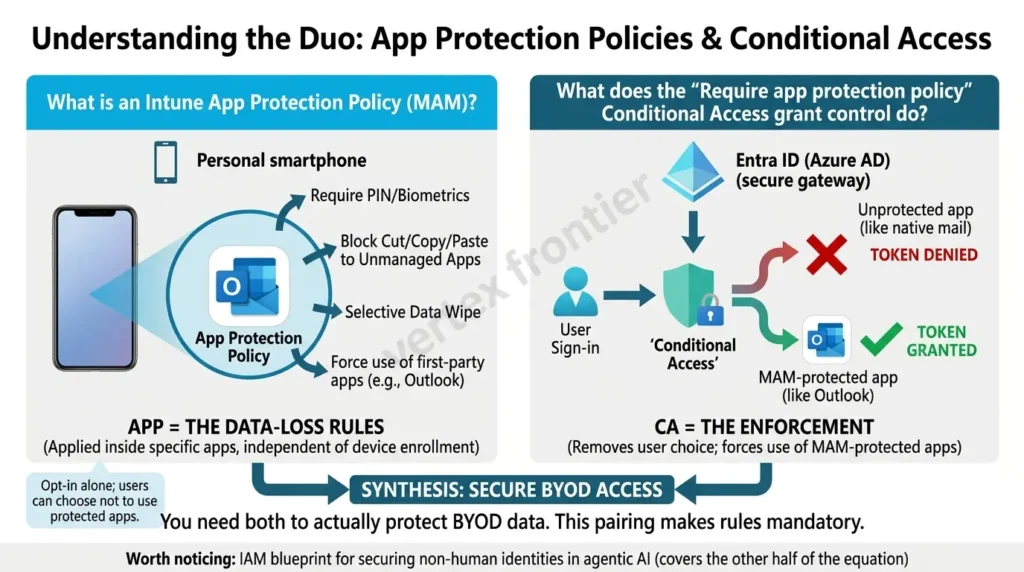
What is an Intune app protection policy?
An Intune app protection policy (also called a Mobile Application Management, or MAM, policy) is a set of data-protection rules applied inside specific mobile apps, independent of whether the device itself is enrolled in management. On a personal phone, it can force the use of first-party apps like Outlook instead of the native mail client, block cut/copy/paste into unmanaged apps, require a PIN to open the app, and wipe corporate data from the app without touching personal data.
What does the “require app protection policy” Conditional Access grant control do?
On its own, an app protection policy is opt-in, Intune applies the rules, but nothing stops a user from just not using the protected app. The required app protection policy grant control in Conditional Access is what removes that choice: it tells Entra ID not to hand out a token unless the user is signing in through an app that can actually enforce those MAM rules. That’s the enforcement layer the video creator in the source walkthrough correctly called “opportunistic” until Conditional Access locks it down.
Takeaway: App protection policy = the data-loss rules. Conditional Access grant control = the enforcement that makes those rules mandatory. You need both to actually protect BYOD data, and that pairing is exactly what breaks passkey registration.
Worth noticing: app protection policy is fundamentally a session and token control wrapped around a human identity signing in from a personal device. It’s one half of a broader question every IAM program eventually has to answer for both sides of the identity estate, the other half being service accounts and AI agents that never touch a login screen at all. If that’s the gap you’re working on next, our IAM blueprint for securing non-human identities in agentic AI covers the equivalent controls for that side of the equation.
Why Microsoft Authenticator Can’t Satisfy This Grant Control
Here’s the part that trips people up: Authenticator isn’t a badly built app. It’s excluded from this specific flow by design.
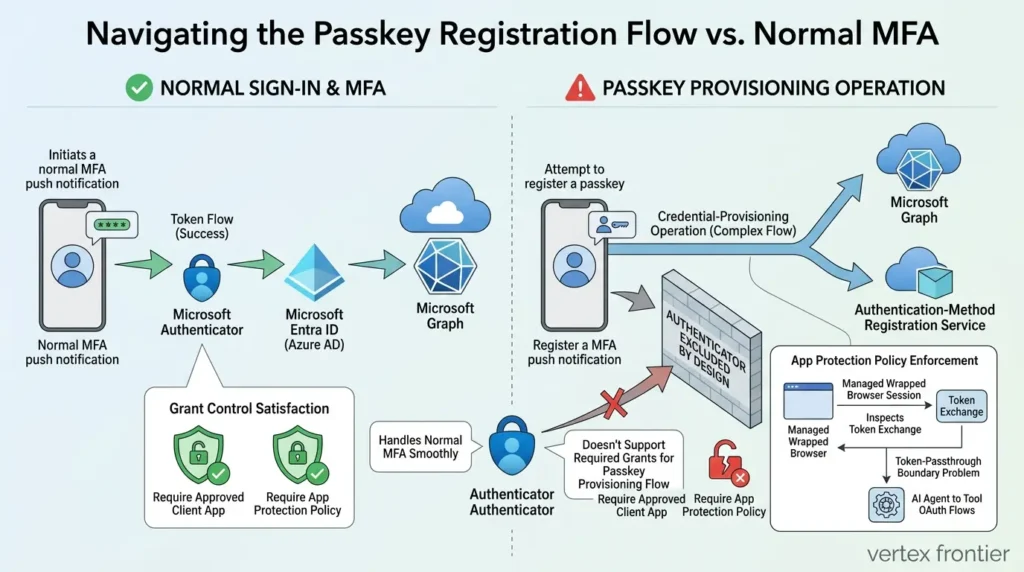
Registering a passkey isn’t a normal sign-in. It’s a credential-provisioning operation that touches Microsoft Graph and, less visibly, a separate authentication-method registration service. As Microsoft’s documentation states directly, Authenticator doesn’t support the require approved client app or require app protection policy grant controls on either Android or iOS for this scenario, even though the same app handles regular MFA approvals without issue.
That’s the detail most teams miss: you won’t hit this wall registering a phone call, an SMS method, or a standard MFA push. You hit it specifically when the flow requests a new phishing-resistant credential, a passkey.
Mechanically, app protection policy enforces itself by routing the sign-in through a managed, wrapped browser session so Intune can inspect and control the token exchange before it’s handed to the app. That’s the same token-passthrough boundary problem that shows up on the machine-identity side of the house whenever an AI agent talks to a tool over OAuth, our MCP security guide to permissions, OAuth, and hardening walks through that version of the problem for agentic tooling instead of mobile apps.
How to Confirm You’re Actually Hitting This Problem
Don’t assume. Two other issues, an authentication-strength loop and a straightforward account or license problem, produce similar-looking failures, and the fix for each is different. Here’s how to isolate the real cause.
- Reproduce the failure. On the affected phone, open Authenticator, go to the account, and select Create a passkey. Note the exact error text and the time.
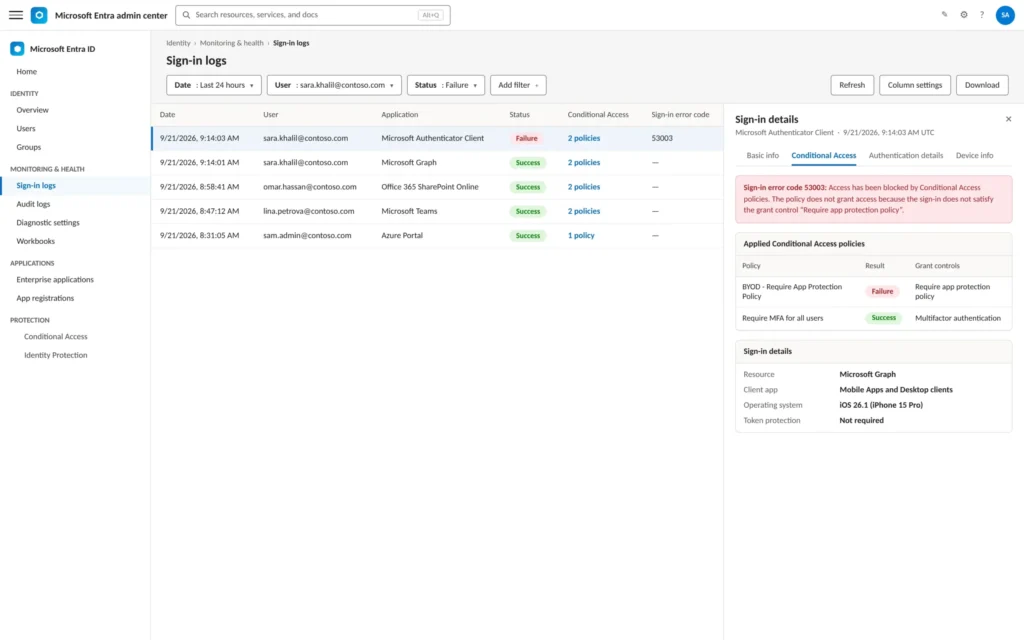
- Open the Entra sign-in logs. In the Entra admin center, go to Entra ID > Monitoring & health > Sign-in logs, and filter to the user and timeframe from step 1.
- Check the Conditional Access tab on the failed sign-in. This shows which policy failed and why, not just that “Conditional Access blocked it.”
- Confirm the grant control. If the failing policy shows require approved client app or require app protection policy against All resources, you’re looking at the scenario this article covers. If instead you see an authentication-strength control like require passkey in Authenticator, you’re dealing with a different, related loop, documented separately by Microsoft, that happens when a policy requires phishing-resistant authentication to reach all resources, which forces users to already have a passkey in order to register one.
- Expand the resource under that policy. This is the step almost every troubleshooting guide skips, and it’s the key to the actual fix.
A Mental Model: Clients, Resources, and Audiences
Most Conditional Access confusion here comes from conflating three different things that Entra ID treats separately. Getting this straight is the single biggest unlock for understanding, and safely fixing, this problem.
| Term | What it means in this scenario | Example |
|---|---|---|
| Client app | The application the user is physically interacting with | Microsoft Authenticator on the phone |
| Resource | The API or service the client is requesting a token to talk to | Microsoft Graph |
| Audience | The specific token target within that request — one sign-in can request tokens for several audiences at once | Microsoft Graph and, separately, the passkey-registration service |
One authenticator sign-in event can trigger token requests for multiple audiences behind the scenes, and Conditional Access evaluates every one of them independently. When you open the failed sign-in in the logs and expand the Microsoft Graph resource, you’ll find the audience actually responsible for the block: a service identified as the Azure Credential Configuration Endpoint Service.
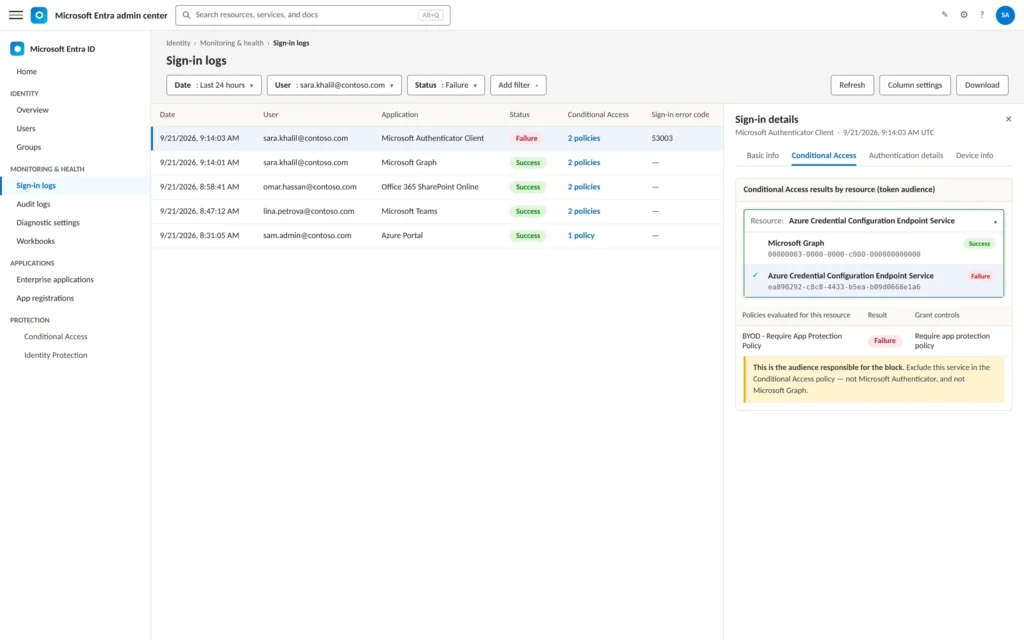
That’s the resource you exclude, not Authenticator, and not Graph.
The Three Workarounds Microsoft Documents (And Why They Fall Short)
Microsoft’s own troubleshooting page lists three supported options for this exact conflict. It’s worth understanding all three, because “exclude the Azure Credential Configuration Endpoint Service” isn’t officially one of them, it’s a technique the community found by reading the sign-in logs Microsoft’s own tooling exposes.
| Workaround | How it works | Why most BYOD teams avoid it |
|---|---|---|
| Filter for applications | Narrow the policy from “All resources” to a named list of apps instead | Moves away from an allow-nothing-by-default posture, and Conditional Access targets the resource, not the client, so building an accurate app inventory is genuinely hard |
| Require device compliance | Add “require device to be marked as compliant” as an alternative grant so an MDM-enrolled device can satisfy the policy instead | Requires enrolling personal phones into full MDM — the exact thing most BYOD programs exist to avoid |
| Temporary exemption | Manually or semi-manually exclude specific users from the policy for a limited window while they register | No built-in time-bound exclusion in Conditional Access, so it depends on manual process or custom automation to close the gap again |
In short: app filtering breaks your zero-trust default posture, device compliance defeats the purpose of BYOD, and temporary exemptions need automation Microsoft doesn’t ship out of the box. Microsoft’s own guidance acknowledges that with any of these workarounds, users still must separately satisfy any Conditional Access policy targeting Register security info before they can register a passkey at all, so even the “supported” paths carry extra conditions layered on top.
The Fix: Excluding the Azure Credential Configuration Endpoint Service
This is the approach documented by Microsoft MVP and Entra researcher Nathan McNulty, who traced the failure to a specific, pre-consented service principal that isn’t listed as an option in most tenants by default because it has never been registered there.
Architecture Flow: Visualizing the Passkey Provisioning Conflict
To understand why this exclusion works without creating a massive security hole, it helps to see the exact sequence of token requests that happen when a user attempts registration.
The diagram below traces the token exchange and highlights the exact evaluation boundary where standard app protection policies fail, and where the specific audience exclusion takes effect.
High-resolution vector sequence diagram showing how the Azure Credential Configuration Endpoint Service exclusion bypasses the MAM block.
Breaking Down the Sequence:
- User Initiation (Step 1): The user taps Create a passkey inside Microsoft Authenticator on their personal iPhone or Android device.
- Targeted Token Request (Step 2): Authenticator requests an authentication-method provisioning token specifically targeted at registering a phishing-resistant credential.
- The Policy Collision (Step 3): Entra Conditional Access evaluates the request against your BYOD policy targeting All Resources. Because the policy enforces Require App Protection Policy, and Authenticator’s credential-provisioning module cannot satisfy this MAM wrapper for this specific registration flow, the request is blocked outright.
- The Exclusion Bypass (Steps 4 & 5): When the Azure Credential Configuration Endpoint Service(ea890292-c8c8-4433-b5ea-b09d0668e1a6) is added to the policy’s resource exclusion list, Conditional Access recognizes that this specific target audience is exempt from the MAM grant control. The token is issued successfully without weakening controls on corporate data apps.
- Credential Binding (Step 6): Authenticator receives the token, completes the cryptographic handshake, and safely writes the hardware-bound passkey into the device’s Secure Enclave.
The Azure Credential Configuration Endpoint Service (App ID:
ea890292-c8c8-4433-b5ea-b09d0668e1a6) is an internal Microsoft Entra authentication-method audience targeted by Microsoft Authenticator during passkey provisioning. Excluding this specific audience from Conditional Access allows device-bound passkey registration to proceed without weakening App Protection Policies on Microsoft Graph or corporate data apps.Prerequisites:
Before touching any policy, confirm you have what the fix actually requires:
| Requirement | Why you need it |
|---|---|
| Microsoft Entra ID P1 or P2 | Conditional Access itself is a Premium feature and won’t function without at least P1 licensing on the tenant |
| Microsoft Intune license (standalone, or bundled in Microsoft 365 E3/E5 or Business Premium) | App protection policies are an Intune (MAM) capability — no Intune license, no policy to fix |
| Cloud Application Administrator or Application Administrator role | Needed to register the Azure Credential Configuration Endpoint Service as a service principal in Step 2, if it isn’t already present |
| Conditional Access Administrator, Security Administrator, or Global Administrator role | Needed to duplicate and edit the Conditional Access policy in Steps 3–5 |
GroupMember.ReadWrite.All Graph permission | Only needed if you build the group-removal automation described later — not required for the exclusion itself |
| A non-production tenant (recommended, not required) | For testing service principal registration and the policy change before it touches real BYOD users |
Step 1: Identify the service principal
The Azure Credential Configuration Endpoint Service has application ID ea890292-c8c8-4433-b5ea-b09d0668e1a6. As Nathan McNulty’s research into this exclusion documents, in many tenants this service principal hasn’t been registered yet, which means it won’t appear as a selectable option in the Conditional Access resource picker until you register it.
Step 2: Register the service principal (if it isn’t already present)
Run one of the following, depending on the tooling your team standardizes on:
PowerShell (Microsoft Graph SDK):
New-MgServicePrincipal -AppId 'ea890292-c8c8-4433-b5ea-b09d0668e1a6'PowerShell (Microsoft Entra PowerShell module):
New-EntraServicePrincipal -AppId 'ea890292-c8c8-4433-b5ea-b09d0668e1a6'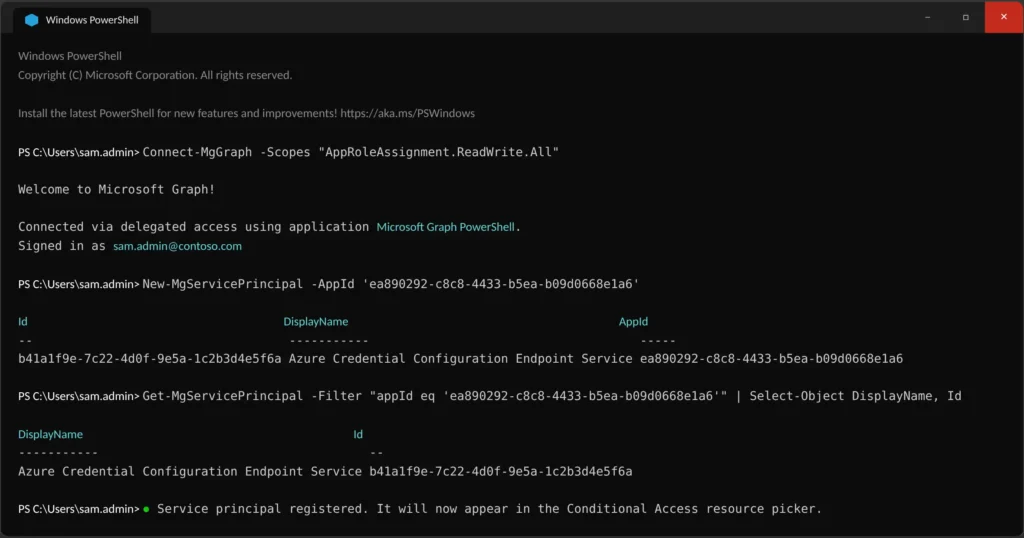
Run this with an account holding a role capable of creating service principals, such as Cloud Application Administrator or Application Administrator. Treat it like any other tenant-wide change: test in a non-production tenant first if you have one, since, as documented in the same research, Microsoft hasn’t published documentation confirming the full scope of permissions this service principal carries.
Step 3: Duplicate the existing policy rather than editing it live
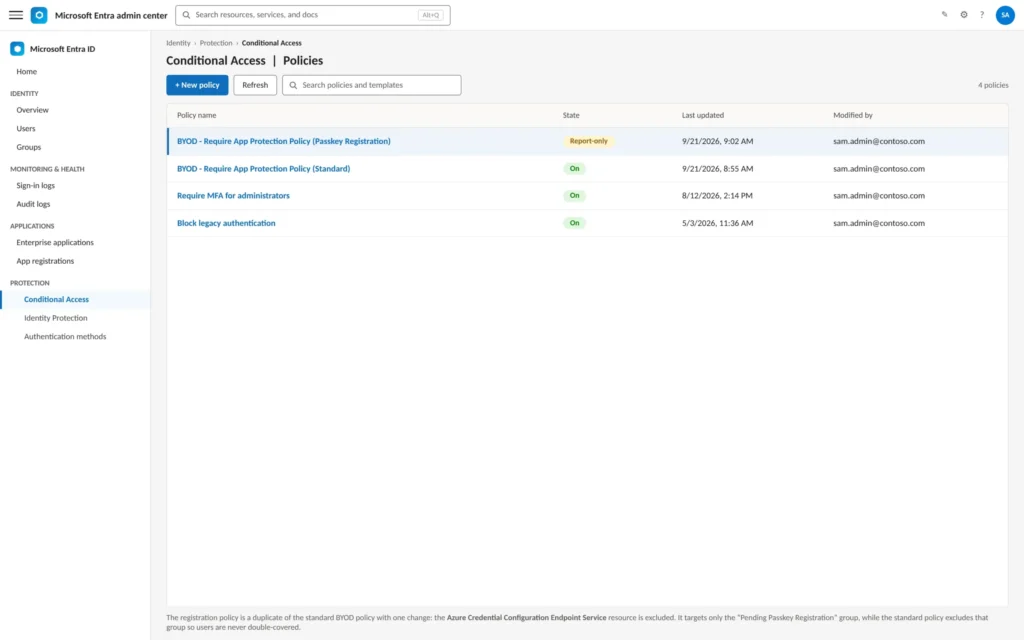
Don’t modify your production BYOD app protection policy in place. Duplicate it, make the change on the copy, and use report-only mode before flipping it on, the same discipline Microsoft recommends for any Conditional Access edit.
Step 4: Add the exclusion
In the duplicated policy, go to Target resources > Exclude > Select resources, search for Azure Credential Configuration Endpoint Service, and add it. Leave Microsoft Authenticator and Microsoft Graph untouched, including either of those defeats the purpose of the app protection policy entirely.
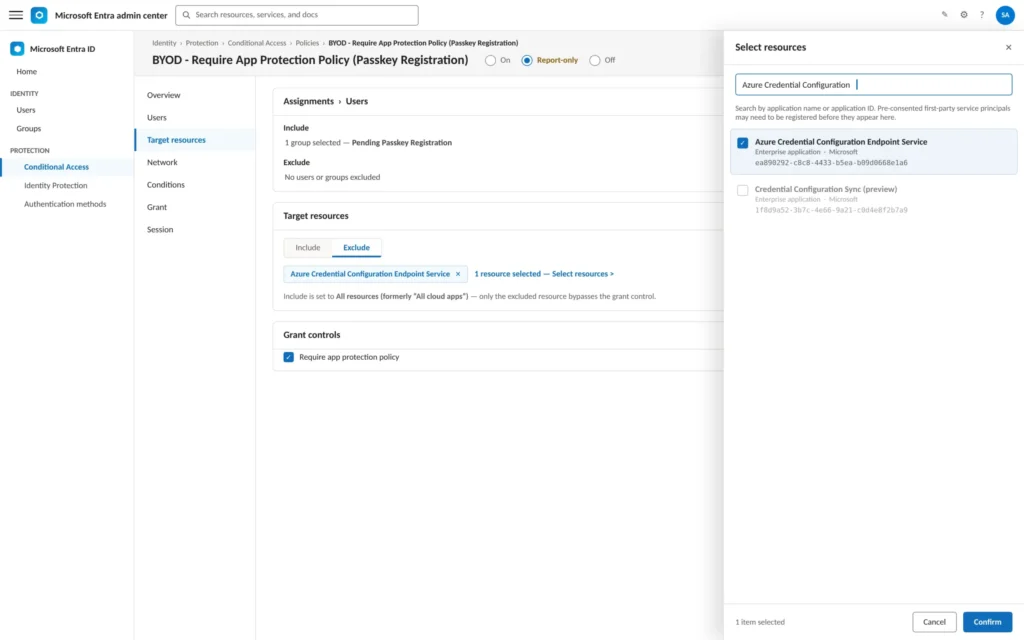
Step 5: Scope it to a group, not your whole user base
Rather than applying the exclusion tenant-wide, apply the new policy only to a security group containing users who still need to register a passkey, and keep your original, unmodified policy in force for everyone else. This is the difference between a narrow, auditable exception and a standing hole in your BYOD controls.
Step 6: Confirm and monitor
Once the policy is live, retest passkey registration on the affected device. Then pull the sign-in events that used this audience so you understand how it’s actually being exercised in your environment.
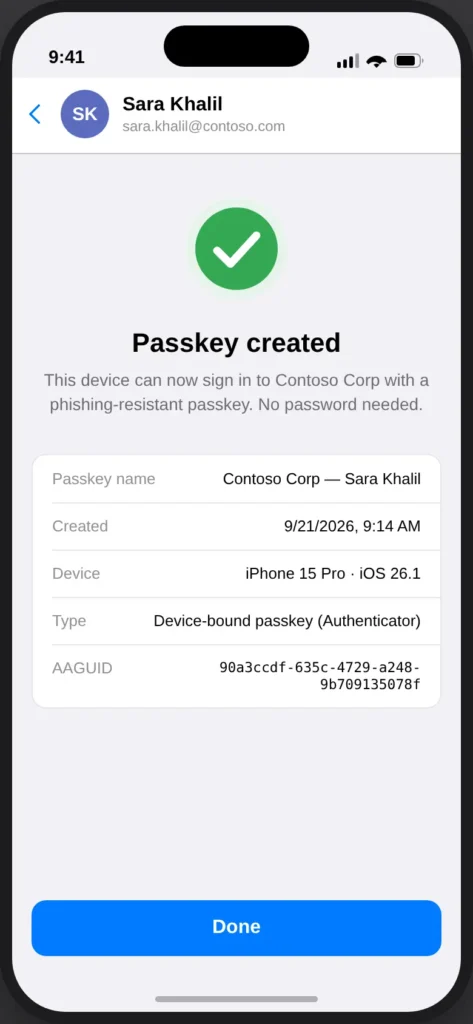
One accuracy note worth flagging: conditionalAccessAudiences is currently a beta-only property on the Microsoft Graph sign-in resource, not yet in the v1.0 API, and Microsoft documents it as filterable only with a plain equality match, not the collection /any() syntax used for true collection-typed properties. That means this check needs the beta cmdlet:
PowerShell (Microsoft Entra PowerShell module — beta):
$events = Get-EntraBetaAuditSignInLog -Filter "conditionalAccessAudiences eq 'ea890292-c8c8-4433-b5ea-b09d0668e1a6'" -All $events | Select-Object appId,appDisplayName,clientAppUsed,resourceDisplayName,resourceId,servicePrincipalId | Group-Object AppDisplayName | Format-ListIf this filter doesn’t return the rows you expect, verify the exact syntax against Graph Explorer for your tenant’s API version before assuming the exclusion isn’t working, beta-only properties are the most likely part of this whole workflow to change without notice.
Step 7: Roll back if something goes wrong
Reverting this change isn’t a single toggle, because the two-policy model in Step 5 involves two related policies, not one. If a security review flags a concern or the monitoring query in Step 6 surfaces unexpected activity:
- Disable or delete the duplicated policy, the one containing the Azure Credential Configuration Endpoint Service exclusion. This alone stops the exclusion from being evaluated for anyone still in the “Pending Passkey Registration” group.
- Restore full enforcement on the standard policy. Because that policy excludes the pending-registration group, deleting only the duplicated policy without touching the standard one leaves those users covered by neither, a gap, not a fix. Remove the group exclusion from your standard app protection policy, or delete the group itself, so full enforcement resumes immediately for everyone.
- Re-run the Step 6 monitoring query to confirm no further sign-ins are using the excluded audience without app protection policy enforcement.
- Leave the service principal itself in place unless you’re certain nothing else in the tenant depends on it. Deleting a service principal is a different, broader action than removing a Conditional Access exclusion, and this guide’s testing doesn’t cover what else might reference it.
What This Exclusion Actually Opens Up
Excluding a resource from a grant control is not the same as excluding it from Conditional Access altogether, but it’s worth being precise about what’s still enforced and what isn’t, rather than waving it away.
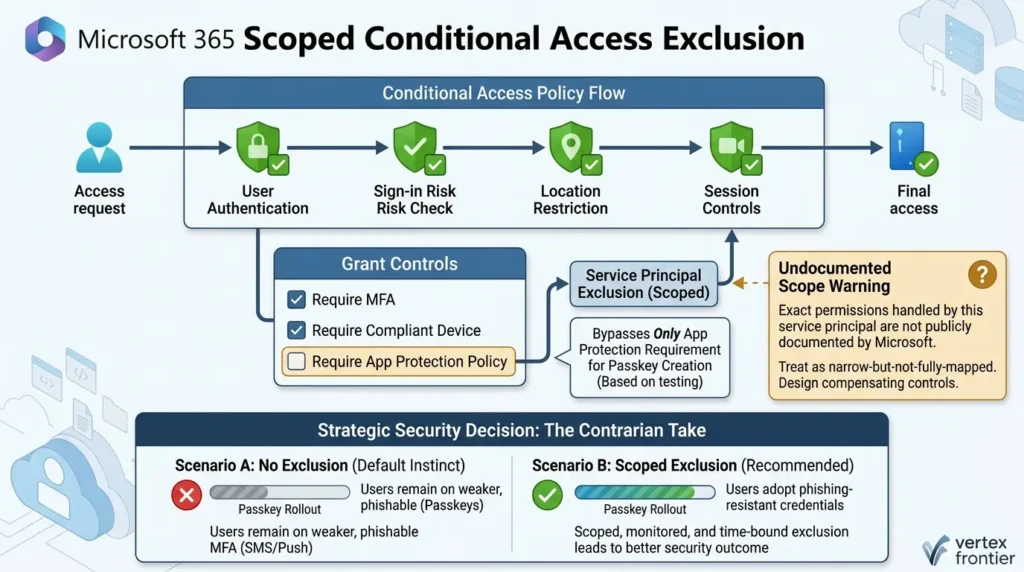
Every other Conditional Access condition that targets this resource still applies: sign-in risk, location restrictions, session controls, and mandatory MFA don’t disappear. An attacker still needs a valid, authenticated session and still has to clear every other policy in your tenant. What changes is narrower than it sounds: based on practitioner testing, excluding this service principal appears to allow only passkey creation to bypass the app protection policy requirement, though the exact scope of permissions this service handles isn’t publicly documented by Microsoft.
That last clause matters. Nobody, including the researchers who found this, can give you a complete list of what this service principal is scoped to do, because Microsoft hasn’t published one. Treat the exclusion as narrow-but-not-fully-mapped, not as a known quantity, and design your compensating controls accordingly.
A genuinely contrarian take worth sitting with: the instinct among security teams is to treat any Conditional Access exclusion as inherently worse than no exclusion. That’s backwards here. The realistic alternative to this exclusion isn’t “everyone stays on strong MFA forever”, it’s “BYOD users quietly stay on weaker, phishable authentication because passkey rollout stalls.” A scoped, monitored, time-bound exclusion that gets a user onto a phishing-resistant credential is very often the better security outcome than an unscoped delay that leaves them on SMS or push notifications indefinitely.
Shrinking the Exposure Window: The Automation Artifacts
A standing exclusion that never gets revisited is genuinely worse than the risk it was meant to solve. The pattern worth adopting is a two-policy model:
- Policy A (registration policy): Applies only to a “Pending Passkey Registration” security group. Includes the Azure Credential Configuration Endpoint Service exclusion.
- Policy B (standard policy): Your existing, unmodified app protection policy. Excludes the “Pending Passkey Registration” group so members aren’t double-covered.
As soon as a user completes registration, automation removes them from the group, and Policy B’s full enforcement applies to them again automatically. Here’s what that automation actually needs.
The detection query
Every Authenticator passkey registration writes an audit event with the operation name Add Passkey (device-bound), not “User registered security info,” which is a more generic event that also fires for other method types and won’t reliably isolate this one. The query below, adapted from the pattern Nathan McNulty uses in production and cross-checked against independently published audit-log field mappings, filters specifically to the two Microsoft Authenticator AAGUIDs so it doesn’t fire on FIDO2 hardware key or Windows Hello registrations:
KQL (Log Analytics / Microsoft Sentinel):
AuditLogs | where Category == "UserManagement" | where OperationName == "Add Passkey (device-bound)" | where parse_json(AdditionalDetails)[1]["value"] in ( "de1e552d-db1d-4423-a619-566b625cdc84", // Authenticator for Android "90a3ccdf-635c-4729-a248-9b709135078f" // Authenticator for iOS ) | extend UserPrincipalName = tostring(TargetResources[0].userPrincipalName) | extend UserId = tostring(TargetResources[0].id) | project TimeGenerated, UserPrincipalName, UserId, OperationName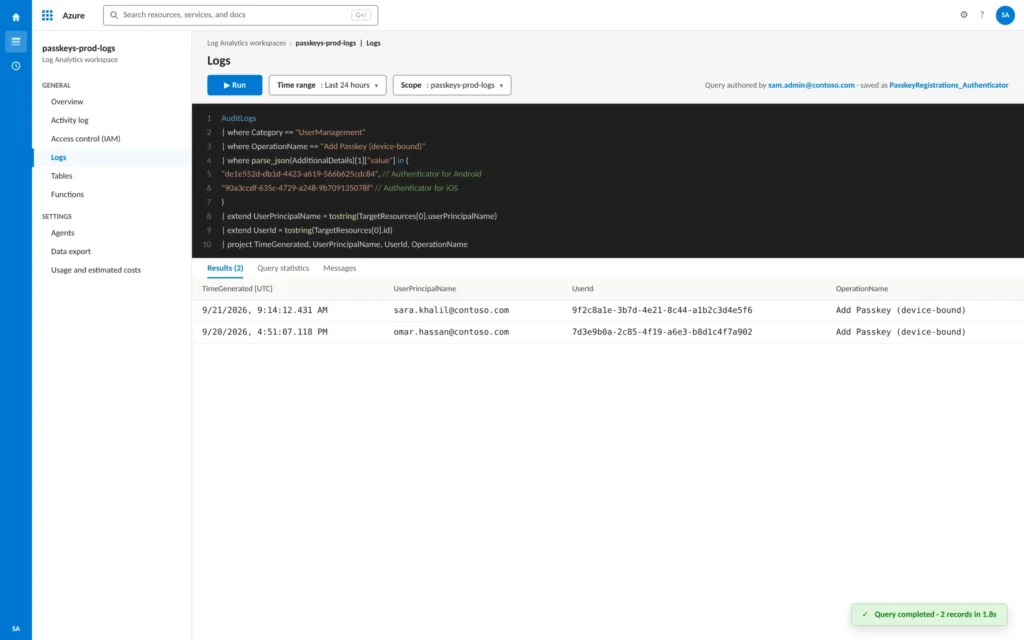
The two GUIDs in the filter are the same Authenticator AAGUIDs Microsoft documents for AAGUID-based passkey profile restrictions, reusing them here means the query only fires for genuine Authenticator passkey creation, not every registration event in the tenant.
The removal script
Once you have the user’s object ID from the query above, removing them from the pending-registration group is a single, well-documented Microsoft Graph PowerShell call. This is illustrative, adapt the workspace ID, group ID, scheduling, and error handling to your environment before running it against production:
PowerShell (Az + Microsoft Graph SDK):
Connect-AzAccount Connect-MgGraph -Scopes "GroupMember.ReadWrite.All"
$workspaceId = "" $groupId = ""
$query = @" AuditLogs | where Category == 'UserManagement' | where OperationName == 'Add Passkey (device-bound)' | where parse_json(AdditionalDetails)[1]['value'] in ( 'de1e552d-db1d-4423-a619-566b625cdc84', '90a3ccdf-635c-4729-a248-9b709135078f' ) | where TimeGenerated > ago(1h) | extend UserId = tostring(TargetResources[0].id) | project UserId "@
$results = Invoke-AzOperationalInsightsQuery -WorkspaceId $workspaceId -Query $query
foreach ($row in $results.Results) { try { Remove-MgGroupMemberByRef -GroupId $groupId -DirectoryObjectId $row.UserId Write-Output "Removed $($row.UserId) from Pending-Passkey-Registration" } catch { Write-Warning "Failed to remove $($row.UserId): $_" } }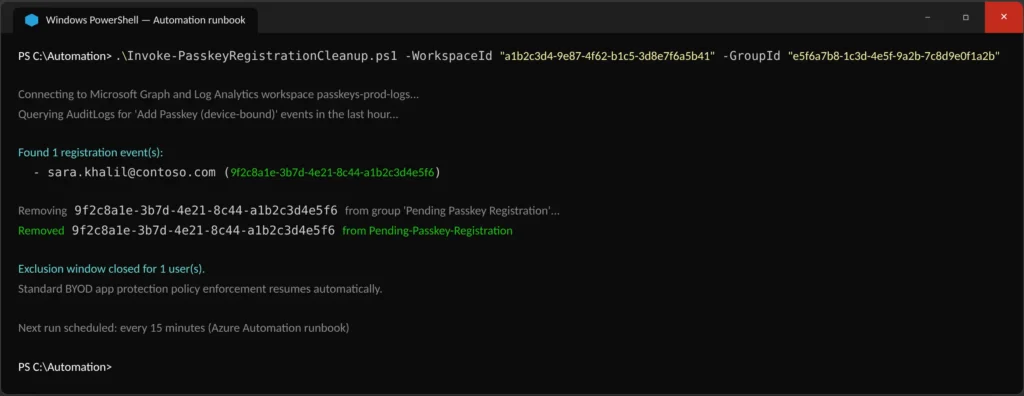
Run this on a schedule, an Azure Automation runbook or a Logic App with a recurrence trigger both work. For a Logic App specifically, the pattern is: a Recurrence trigger (every 15–60 minutes), a Log Analytics – Run query and list results action using the KQL above, a For each loop over the results, and an HTTP action calling DELETE https://graph.microsoft.com/v1.0/groups/{groupId}/members/{userId}/$ref inside the loop, functionally identical to the PowerShell script, just running inside Azure’s own scheduler instead of an external one. Either way, the required Graph permission is GroupMember.ReadWrite.All, and you can’t remove a member from a group with dynamic membership rules, so the pending-registration group must be assigned, not dynamic.
The exclusion itself isn’t the risk, leaving it open-ended is. A group-and-automation pattern, wired to the actual audit event, turns a permanent gap into a temporary, self-closing one.
Edge Cases: When the Documented Fix Still Isn’t Enough
The exclusion above resolves the mainstream case, a user registering a passkey directly inside Authenticator on their own phone. Real BYOD estates aren’t that clean. Here’s what changes in three scenarios worth testing before you consider the rollout done.
| Scenario | What’s different | What to check |
|---|---|---|
| Android vs. iOS broker requirement | Microsoft documents that applying an app protection or approved-client-app grant control requires the device to be registered in Entra ID through a broker app. On iOS, that broker must be Authenticator. On Android, it can be either Authenticator or Intune Company Portal. | You don’t need Company Portal installed on Android for this specific fix — Authenticator alone can serve as the broker on both platforms. If registration still fails on an Android device, check whether the device is broker-registered at all before assuming the exclusion didn’t take effect. |
| Temporary Access Pass (TAP) window | A one-time TAP used to register a passwordless method must be used to complete that registration within 10 minutes of sign-in. This limit comes from the TAP itself, not from Conditional Access. | The Azure Credential Configuration Endpoint Service exclusion doesn’t extend this window. If users are timing out mid-registration, look at the TAP lifetime setting first — a multi-use TAP or a longer one-time TAP validity period solves this independently of the CA exclusion. |
| Cross-device registration (QR code from a laptop) | When a user starts registration in a browser on a desktop and scans a QR code with their phone, the flow requires Bluetooth and internet connectivity on both devices, and it’s blocked entirely if you’ve enabled Authenticator attestation. | At least one independent practitioner report found that the desktop-initiated flow also requests a token for a second resource — Windows Azure Active Directory — alongside the Azure Credential Configuration Endpoint Service, and needed both excluded to complete successfully. This isn’t Microsoft-documented behavior and hasn’t been independently confirmed at the same depth as the core fix, so treat it as a starting hypothesis: pull your own sign-in logs for the cross-device flow specifically, the same way you did in the diagnostic steps above, before adding a second exclusion. |
Common Mistakes Teams Make With This Fix
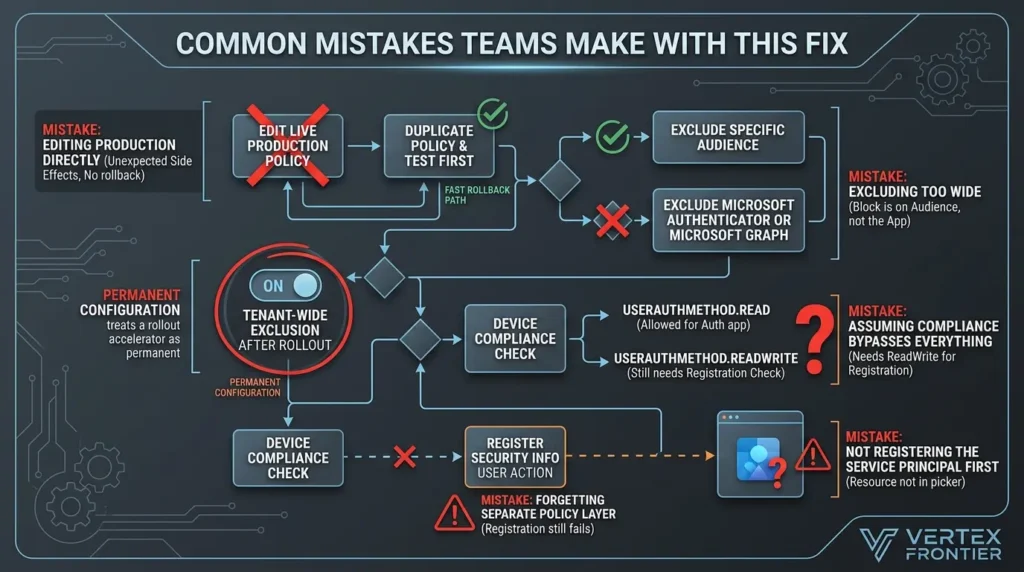
Excluding Microsoft Authenticator or Microsoft Graph instead of the specific audience
This either doesn’t fix the problem (because the block is on the audience, not the app) or opens a far wider hole than intended.
Editing the production policy directly instead of duplicating it
If the exclusion causes an unexpected side effect, you want a fast, clean rollback path, not a live incident on your primary BYOD policy.
Leaving the exclusion tenant-wide after the rollout is done
This is the single most common long-term mistake, treating a rollout accelerator as a permanent configuration.
Assuming “require device to be marked as compliant” bypasses everything for Authenticator
Per Microsoft’s documented notes on this control, it does not block Authenticator’s access to the UserAuthenticationMethod.Read scope, which the app needs to determine which credentials a user can configure, but it does still enforce the check for the UserAuthenticationMethod.ReadWrite scope, which is what’s actually needed to register a credential, so compliance alone doesn’t magically solve registration the way some admins assume.
Forgetting the Register security info policy layer
Even after applying any of these workarounds, Microsoft notes that the user must still separately satisfy whatever Conditional Access policy targets the Register security info user action, or the registration still fails.
Not registering the service principal first
If the resource doesn’t appear in your Conditional Access app picker, it’s very likely because the service principal has never been created in your tenant, a step every guide on this topic, including this one, has to call out explicitly.
Before and After: What Actually Changes
| Before the fix | After the scoped exclusion | |
|---|---|---|
| BYOD passkey registration | Fails with a policy-block error inside Authenticator | Completes normally through Authenticator |
| App protection policy on all other resources | Fully enforced | Fully enforced — unchanged |
| Other Conditional Access controls (location, risk, MFA) | Enforced | Still enforced on the excluded resource |
| Exposure surface | None (but registration is blocked) | One narrowly scoped, ideally group-limited and time-bound exclusion |
| Rollout pace | Stalls at the first BYOD user, or forces a fallback to weaker MFA | Proceeds on schedule |
Advanced Insights for Teams Going Further
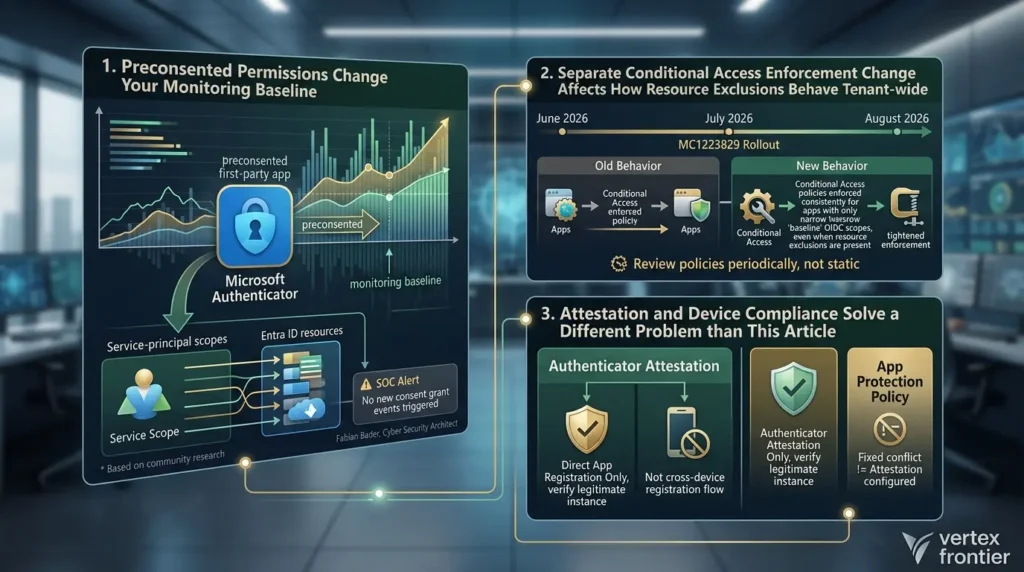
1. Preconsented permissions change your monitoring baseline
Microsoft Authenticator is a preconsented, first-party app, meaning users never see a consent prompt for its permissions the way they would with a third-party app. That includes the scopes tied to passkey creation and deletion. Community research sites that map service-principal scopes by resource, including Entra Scopes, built by Fabian Bader, a Cyber Security Architect and Microsoft MVP who researches Conditional Access bypasses and service principal permissions, are genuinely useful here, because Microsoft doesn’t publish this mapping in one place. If your SOC alerts on new consent grants, know that this category of activity won’t trip that particular wire.
2. A separate Conditional Access enforcement change affects how resource exclusions behave tenant-wide
This is easy to miss because it’s unrelated to passkeys specifically, but it matters for anyone relying on resource exclusions in Conditional Access. As Microsoft 365 for IT Pros reported, Microsoft has been rolling out a change, communicated via message center notification MC1223829, that tightens how Conditional Access processes sign-ins from client apps that only request a narrow set of low-risk “baseline” OIDC scopes.
Previously, when such an app signed in and the targeted Conditional Access policy had any resource exclusion at all, the policy could go unenforced entirely; after the change, it’s enforced consistently regardless of which scopes the app requested. Rollout began in mid-June 2026 with full worldwide deployment expected by mid-August 2026. It doesn’t undo the Azure Credential Configuration Endpoint Service technique, but it’s a reminder that Conditional Access’s handling of resource exclusions isn’t static, review your policies periodically rather than treating a working configuration as permanent.
3. Attestation and device compliance solve a different problem than this article
If your organization enforces Authenticator attestation to verify passkeys are created by a legitimate, unmodified app instance, that’s a separate control layered on top of everything here, and it has its own constraint worth knowing: attested passkeys can only be registered directly in the app, not through cross-device registration flows. Don’t conflate “the app protection policy conflict is fixed” with “attestation is configured”, they’re independent decisions.
Passkey Rollout Exposure Score
Here’s a self-assessment tool for judging how tightly you’ve scoped this exclusion once it’s live. It’s a heuristic we built for this guide, not an official Microsoft metric, but it gives you a repeatable way to talk about the trade-off with your security team instead of an all-or-nothing “did we exclude something or not.”
Score = (Group-scoped × 25) + (Auto-removal × 25) + (Other CA controls intact × 30) + (Scheduled review × 20)
Each factor is worth its listed points if true, 0 if false. Maximum score: 100.
Field Reports: What Practitioners Are Actually Seeing
Because this is a narrow, recent enterprise configuration issue, there isn’t a public catalog of named-company case studies with disclosed metrics, organizations don’t typically publish their Conditional Access architecture. What does exist is a consistent, documented pattern across independent practitioners who’ve worked the problem in real tenants, which is worth treating as evidence in its own right.
The discovery pattern
Nathan McNulty documented that none of Microsoft’s three official workarounds were workable for his team’s BYOD requirements, until a colleague noticed that excluding the Azure Credential Configuration Endpoint Service allowed passkey registration to succeed with app protection policy enforcement still active. The lesson: when documented options don’t fit a BYOD-first environment, the sign-in log’s audience data is where the real answer tends to live.
The verification pattern
McNulty’s subsequent testing confirmed that compliance and app protection policies continued to apply to every other app with the exclusion in place, and recommended a two-policy, group-scoped approach specifically because the downstream effects of the exclusion aren’t fully documented by Microsoft. The lesson: verify the blast radius yourself before trusting a community fix at face value, and design for the possibility that you don’t have the complete picture.
The “it still might not just work” pattern
A separate independent test, documented by a practitioner working across four different tenants, found that the two officially documented Conditional Access policies alone weren’t sufficient in every environment, additional Temporary Access Pass allowances for first-party apps were sometimes needed to get registration working end to end, with no clear explanation for the tenant-to-tenant inconsistency. The lesson: treat any single blog post’s exact configuration, including this one, as a starting point to validate in your own tenant, not a guaranteed drop-in fix.
Where This Leaves Your Rollout
The conflict between BYOD app protection policies and passkey registration isn’t a bug you wait out, it’s documented, current behavior with a real workaround that most teams simply haven’t found yet, because it isn’t in the official troubleshooting steps. The three Microsoft-documented options exist for a reason, but they trade away exactly the things most BYOD programs were built to protect: a strict default-deny posture, freedom from full device enrollment, or a clean audit trail.
Excluding the Azure Credential Configuration Endpoint Service, scoped to a group and paired with automated cleanup, gets users onto phishing-resistant passkeys without opening app protection policy enforcement everywhere else. It’s not a perfect, fully-documented solution, nobody can give you that yet, but it’s a narrow, monitorable one, and for most organizations racing to get BYOD users off phishable MFA, that trade-off is the right one to make.
If you’re mid-rollout and this is the wall you just hit, the fastest next step is pulling your own sign-in logs and confirming the audience, exactly as outlined above, before you touch any policy at all.
FAQs : Entra passkey app protection policy
Why does passkey registration fail but regular MFA registration works fine?
Passkey registration is a credential-provisioning flow that requests a token audience Authenticator can’t satisfy under the app protection policy grant control, unlike standard MFA methods, which don’t touch that same audience.
Is excluding the Azure Credential Configuration Endpoint Service an officially supported Microsoft configuration?
No. It’s a community-discovered technique, not one of Microsoft’s three documented workarounds. It works reliably in practitioner testing, but Microsoft hasn’t published the exact scope of what this service principal covers, so treat it as an informed workaround rather than vendor-guaranteed behavior.
Does this exclusion also affect FIDO2 security key registration?
This article and its sources focus specifically on passkeys in Microsoft Authenticator. Hardware FIDO2 key registration uses a different flow, and any impact on that path should be verified separately in your own environment before you assume the same fix applies.
Can I just use “require device to be marked as compliant” instead for BYOD phones?
Technically yes, but it requires full MDM enrollment of the personal device, which most BYOD policies exist specifically to avoid. It also doesn’t fully bypass the registration scope check — device compliance blocks the ReadWrite scope Authenticator needs even though it allows the Read scope.
Will Microsoft eventually fix this natively?
Microsoft hasn’t announced a built-in exclusion for this scenario. Given how consistently this conflict surfaces across tenants, an official resolution is plausible, but until Microsoft documents one, the manual exclusion remains the practical path.
What’s the difference between “require approved client app” and “require app protection policy”?
Require approved client app is an older grant control restricting access to a defined list of apps that support Intune management. Require app protection policy is the newer, more flexible control Microsoft now recommends. Per Microsoft’s migration guidance, the older control moved to a read-only state on June 30, 2026 — existing policies using it keep working, but no new policies can use it going forward.
Do I need to exclude Microsoft Graph as well?
No — and you shouldn’t. Excluding Graph itself removes app protection policy enforcement far more broadly than intended. The fix targets only the specific credential-registration audience, not the resource the sign-in log lists at the top level.
📋 Article Timeline & History
Successfully updated on September 24, 2026 with the latest details.
This article was originally published on September 22, 2026.

Was this article helpful?






[…] in every remediation plan. Rolling them out across a real workforce is not friction-free, though: the app protection policy conflict that blocks passkey registration on BYOD phones is currently the most common deployment blocker, and we cover the fix step by step in a dedicated […]
[…] own, though they sit outside this blueprint’s scope: a well-governed workforce can still have its passkey rollout stalled by a Conditional Access conflict between Authenticator and app protectio… on BYOD devices, the mirror image, on the human-identity side, of the machine-identity controls […]
[…] This boundary principle is not unique to agentic tooling. Intune app protection policies enforce the same idea on mobile, wrapping token exchanges in a managed session so the token can be inspected before it reaches the app. A practical example of that boundary colliding with a legitimate credential flow, and how to scope a narrow exception without dropping the control, appears in our walkthrough of the Entra passkey app protection policy conflict. […]