
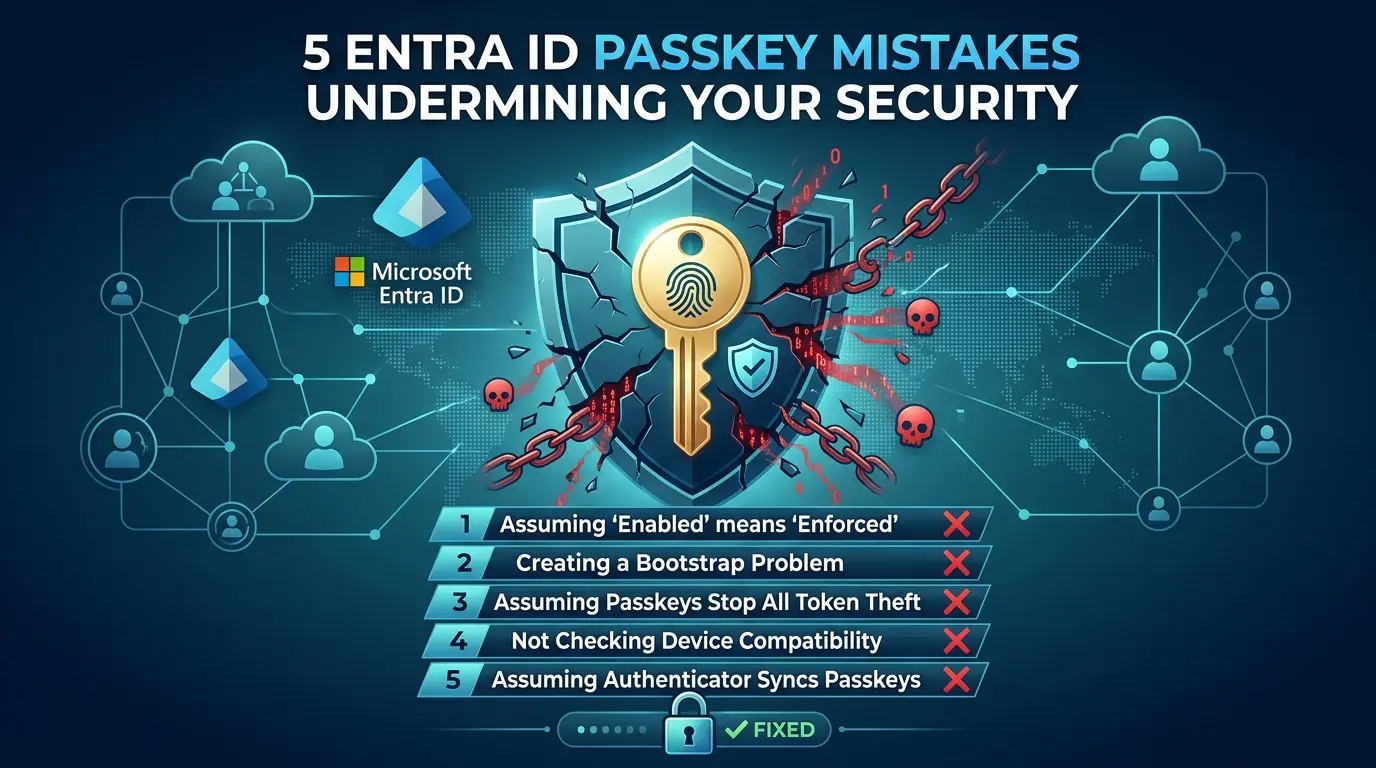

Microsoft has made passkeys easy to switch on in Entra ID. That’s the problem.
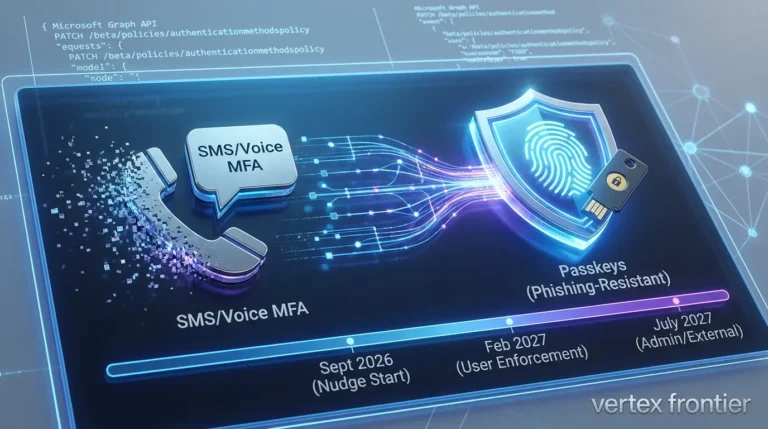
A single toggle in the admin center is not a deployment plan, and right now a lot of IT teams are flipping that toggle under pressure. Microsoft has confirmed that passkeys are becoming the default authentication method in Entra ID, and starting September 1, 2026, any user currently registered for SMS or voice MFA gets auto-enrolled into passkeys whether their admin has planned for it or not. For the full retirement timeline, here’s our admin breakdown.
Telecom-based MFA isn’t disappearing overnight, but the default is changing under your feet, and a lot of organizations are scrambling to get ahead of it.
I’ve been through a fair number of Entra ID passkey rollouts by now, as an admin and as a Microsoft MVP who spends most of his time in this part of the tenant. The lesson that keeps repeating is the same one: rushing a passkey rollout doesn’t just risk a bad user experience.
It risks giving you a false sense of security while your actual exposure barely moves. You end up with users who technically “have passkeys” and a conditional access policy that still lets an attacker walk in the side door.
Here are five mistakes I see constantly, some technical, some just misunderstandings about what a setting actually does, and what to do about each one.
What you’ll walk away with
Click any topic to expand or collapsePasskey enforcement & Entra ID P1 licensing
Enabled ≠ enforced. Passkeys only stop phishing once Conditional Access requires them — and that needs Entra ID P1 licensing.
Solving the passkey bootstrap & lockout problem
Plan the bootstrap onboarding sequence before requiring passkeys, or you’ll lock users out of registering the very authentication method you’re forcing on them.
Passkey threat boundaries vs. token theft
Passkeys stop time-of-issuance phishing, not post-issuance token theft. Infostealer malware operates at the OS level regardless of the MFA method used.
OS compatibility & synced vs. device-bound keys
Device compatibility varies widely across OS versions, native apps, and whether the passkey is cloud-synced or strictly hardware/device-bound.
Microsoft Authenticator sync limitations
Microsoft Authenticator does not sync passkeys across mobile devices, even though the app supports standard cloud backup and sync for OTP tokens.
Mistake 1: Assuming "Enabled" Means "Enforced"
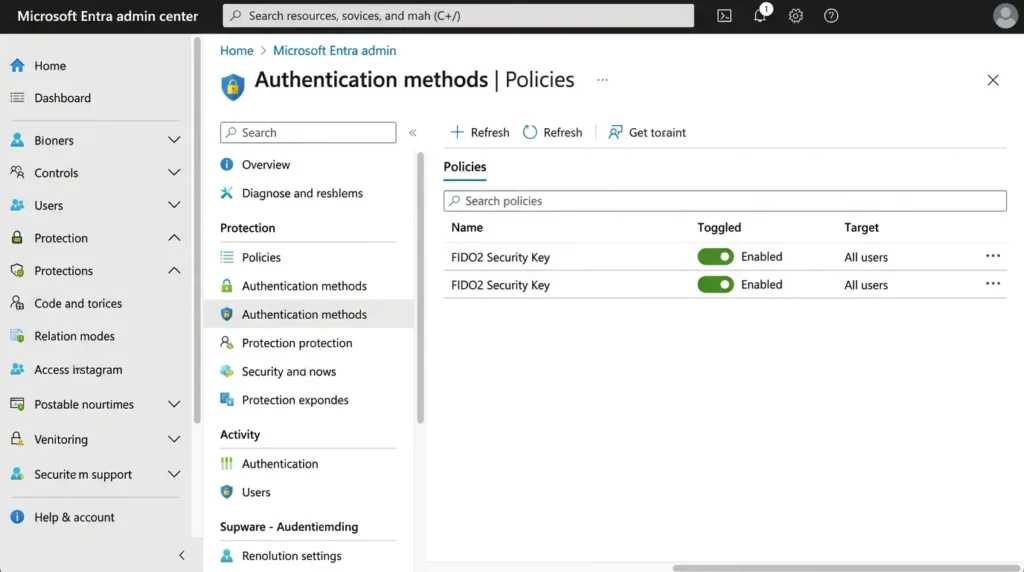
Head into the Entra admin centre, go to Authentication methods, turn on the Passkey (FIDO2) policy, target all users, and you're done, right?
No. You've done exactly what the setting says on the tin: passkeys are now available to your users. That's a different thing from preferred, and a very different thing from enforced. Those four words, enabled, preferred, default, enforced, describe four separate stages, and mixing them up is where most passkey rollouts quietly stall.
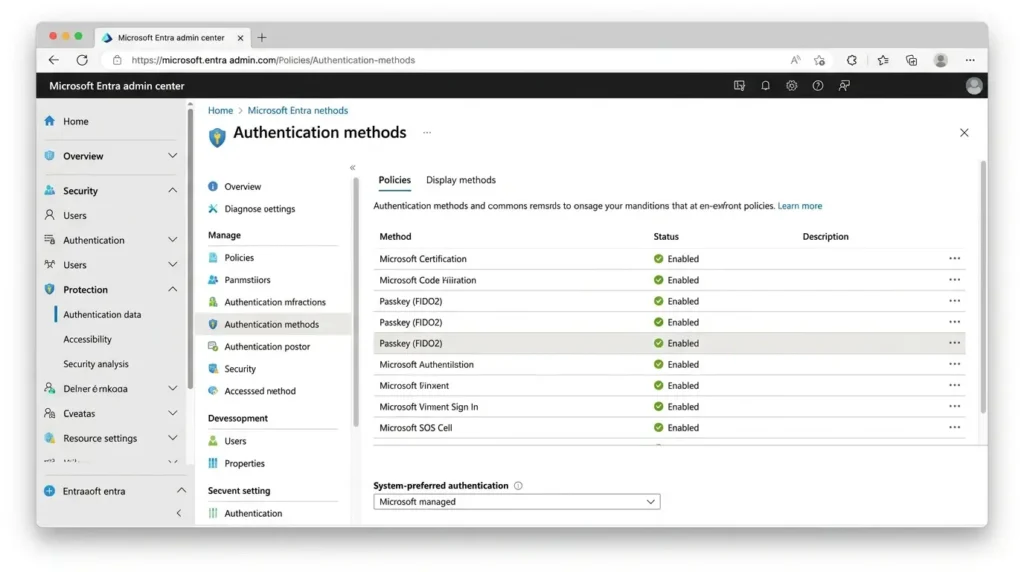
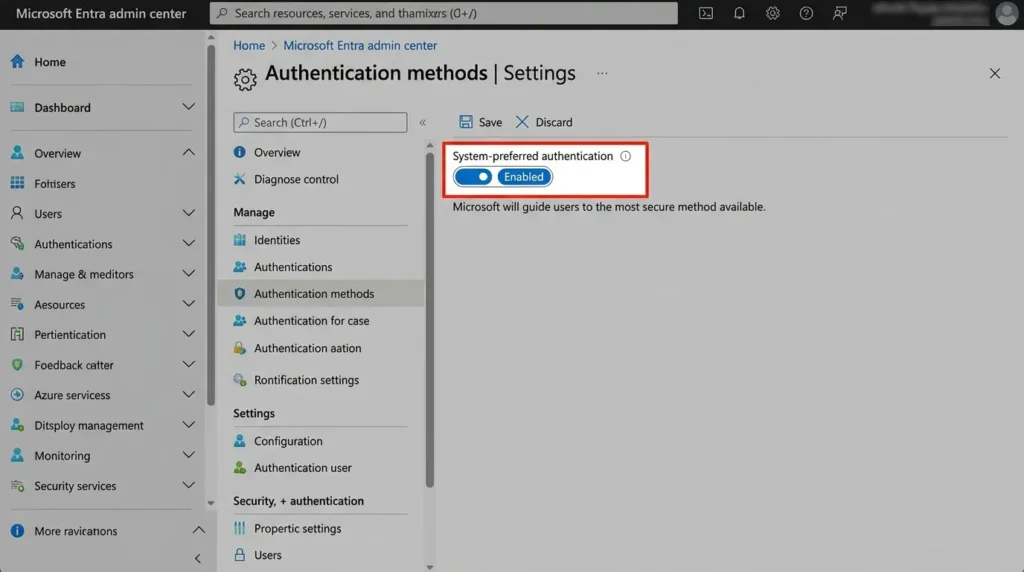
Enabled means the method exists as an option. Preferred is a step further: Entra can look at everything a user has registered and steer them toward the strongest one automatically. That's the system-preferred authentication setting, and by default it's Microsoft managed, which today generally means enabled. If someone has turned it off in your tenant, or if it's excluded for a group, users will keep defaulting to whatever method they used last, passkey or not.
Default and enforced only happen through Conditional Access. This is where licensing enters the picture: registering and signing in with a passkey doesn't require a paid licence, but enforcing it through Conditional Access does — you need Microsoft Entra ID P1 (P2 isn't required for this).
Inside that Conditional Access policy, the setting that actually matters is under Grant → Authentication strength. Choosing "Require multifactor authentication" accepts any MFA type, SMS included. Choosing "Require authentication strength" and then the phishing-resistant bundle is what actually locks the door to non-phishing-resistant methods.
Skip that distinction and here's what an attacker does with it: an adversary-in-the-middle phishing kit simply tells the browser it doesn't support passkeys, and Entra, because your policy only demanded "MFA," not a specific strength, happily falls back to whatever weaker method the user still has registered. That fallback is sometimes called an MFA downgrade attack, and it's exactly the gap that having passkeys "enabled" but not enforced leaves open.
The fix:
turn on system-preferred authentication (or leave it Microsoft managed), then build a Conditional Access policy using Require authentication strength → Phishing-resistant MFA, not the generic "Require multifactor authentication" control.
If you want tighter control than the built-in bundle, you can build a custom authentication strength scoped to specific methods, down to a specific passkey provider by AAGUID if you need it.
Pro tip: don't confuse this with Windows Hello for Business
WHfB produces its own WebAuthn credential, bound to the TPM on a specific Windows device, and it's functionally a passkey for that machine. But it's a separate authentication method inside the built-in phishing-resistant authentication strength, not the same entry as "Passkey (FIDO2)."
If a user signs in with WHfB, Entra can treat that as satisfying an authentication strength that lists Windows Hello for Business, and usefully, a device unlocked with WHfB can also satisfy a sign-in frequency requirement that was originally met with a FIDO2 passkey.
When you build a custom authentication strength, check explicitly whether Windows Hello for Business is included alongside Passkey (FIDO2); leaving it out is a common way to unintentionally block your entire managed Windows fleet from a policy that was only meant to raise the bar on unmanaged devices.
Passkeys don't protect anyone until Conditional Access, not just the authentication methods policy, says they have to be used.
Mistake 2: Creating a Bootstrap Problem You Didn't See Coming
Say you've done Mistake 1 correctly and built a Conditional Access policy requiring a passkey. Now a user without one tries to sign in. Entra prompts them to register a passkey, good.
But somewhere else in your tenant there's probably another Conditional Access policy that requires MFA before anyone can register a new authentication method, for the sensible reason that you don't want a compromised password alone to be enough to enrol a brand-new credential.
So the user needs MFA to register the passkey that would have satisfied MFA. That's the bootstrap problem, and it's a genuinely common way for enforcement rollouts to turn into a support queue overnight.
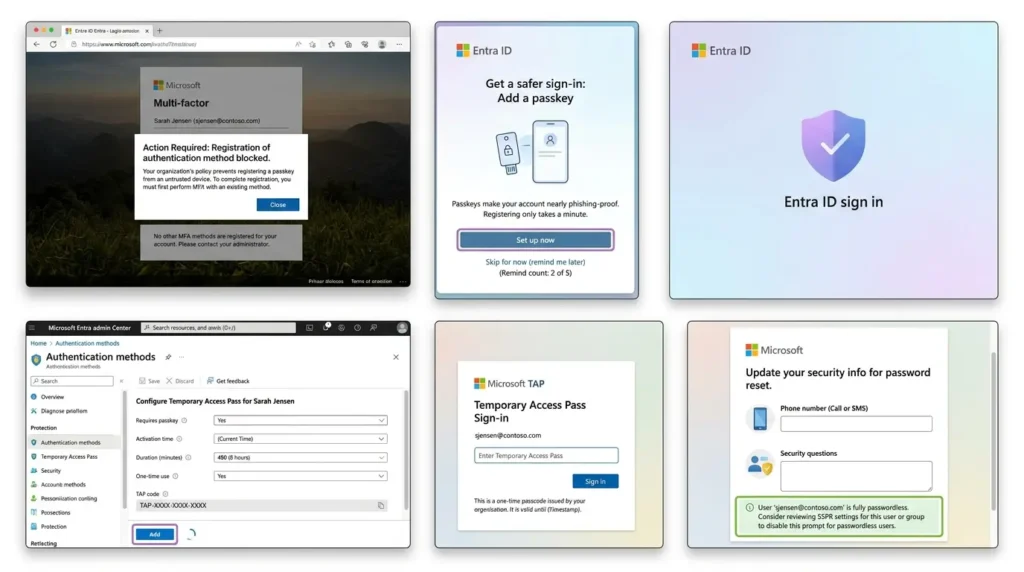
There are two tools built specifically for this gap, and using them together closes it:
- Registration campaigns: Originally built to nudge users toward the Authenticator app, registration campaigns now support passkeys directly. Turn this on before you turn on enforcement. It prompts users to register a passkey during a normal sign-in, lets them snooze the prompt a configurable number of times, and gives you weeks of soft adoption data before you ever flip the switch that locks anyone out.
- Temporary Access Pass (TAP). This is the piece most teams forget. A TAP is a time-limited passcode an admin issues that satisfies MFA on its own, which means it can be the very first credential a new starter ever uses, no password needed on day one, straight to registering a passkey. It's also the cleanest fix for a user who's lost their device and their only passkey was device-bound: rather than falling back to a weaker recovery method, the help desk issues a short-lived TAP, the user signs in, and they register a fresh passkey on the spot.
From the field:
admins discussing this in Entra-focused communities on r/sysadmin frequently flag a related annoyance rather than a hard blocker, Self-Service Password Reset registration staying active after a user is fully on passkeys. Entra keeps nagging that user to add a phone number or security questions for SSPR, even though a passwordless account has no password to reset.
It's not a security bug, but it's a rollout-quality one: once a group is genuinely passwordless, review whether they still need to be in scope for SSPR registration nagging at all.
If you run Entra ID Governance, you can automate TAP issuance as part of onboarding so new joiners are phishing-resistant before they've ever typed a password. That's a nicer story for an auditor than "we'll get them onto passkeys eventually."
Microsoft has also started automating part of this sequencing for you. The Conditional Access Optimization Agent can now generate and run a passkey adoption campaign specifically for privileged admins, analysing your tenant to identify eligible admin roles and building a targeted campaign of up to 200 users without you having to hand-build the group membership and registration logic yourself.
It still needs Entra ID P1 and a Security Administrator to manage it, the Conditional Access Administrator role isn't privileged enough on its own, but for the highest-risk accounts in your tenant, it's a reasonable way to get the bootstrap sequence right without reinventing it from scratch.
The fix:
run a registration campaign for at least a few weeks before enforcing anything, and set up Temporary Access Pass, with role-based restrictions on who can issue it, as your bootstrap and recovery path, rather than quietly leaving SMS enabled "just in case."
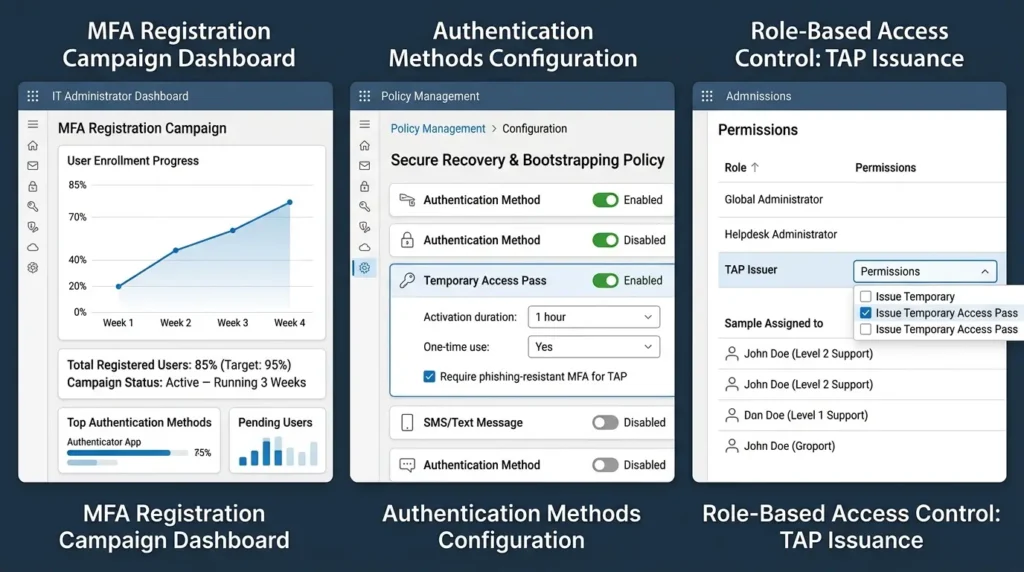
Don't require a credential nobody has a legitimate way to obtain yet.
Mistake 3: Assuming Passkeys Stop All Token Theft
This is the one that catches out even security-literate teams, because it sounds like it shouldn't be true. Passkeys are phishing-resistant. Surely that means the token theft problem is solved?
Not entirely, and the distinction matters enough that it's worth being precise about it. Passkeys defend against time-of-issuance theft, an attacker sitting between the user and Entra during sign-in, trying to capture credentials or a session token as it's handed out.
That's adversary-in-the-middle (AiTM) phishing, and it's currently the dominant technique for beating MFA that isn't phishing-resistant.
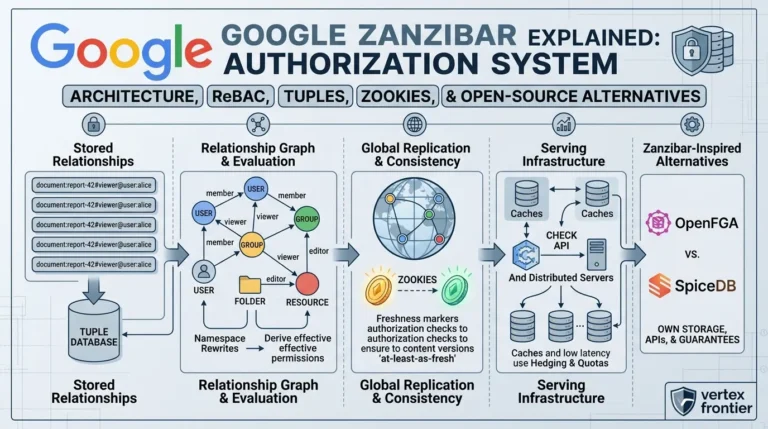
It helps to keep the authentication-versus-authorization boundary in view: passkeys harden the proof of identity, but they say nothing about what that identity is allowed to open once signed in, that is authorization's job, the problem Google's Zanzibar was designed to solve at scale.
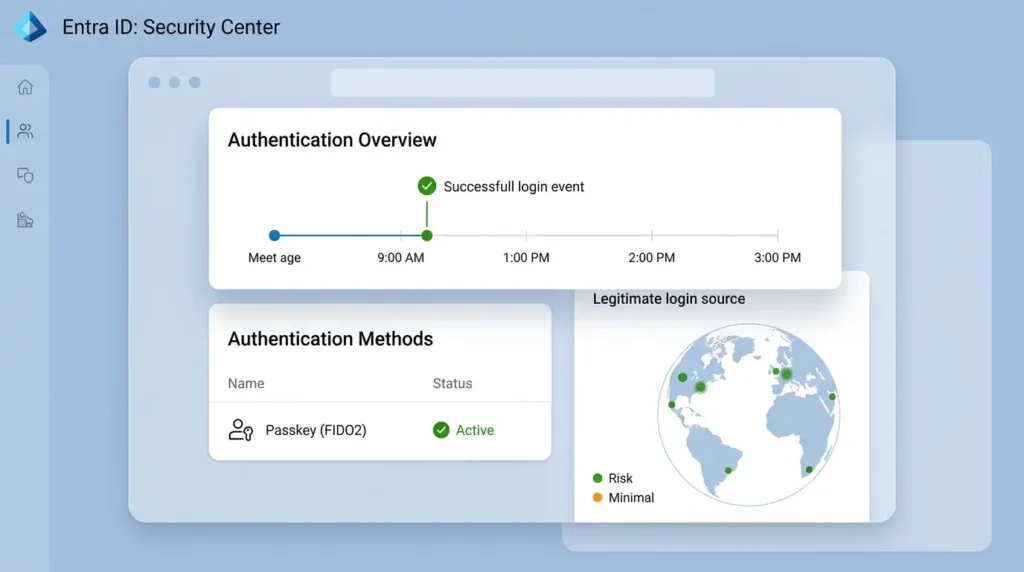
Microsoft's 2025 Digital Defense Report attributes roughly 80% of recent MFA-bypass breaches to session-token theft, typically via AiTM kits, and commodity AiTM toolkits like Evilginx are rented out for a few hundred dollars a month, putting the technique within reach of low-skill operators.
Case study: what an AiTM campaign at scale looks like
The challenge:
In a campaign Microsoft's threat intelligence team tracked across a single reporting quarter, attackers ran a reverse-proxy phishing operation that could complete a real, working Microsoft sign-in, MFA and all, before stealing the resulting session token.
The attack in action:
Victims did nothing obviously careless. They passed a CAPTCHA, signed into what looked exactly like a genuine Microsoft page, and completed MFA as trained. The proxy sat between them and Entra the entire time, relaying every step, then walking off with the token issued at the end.
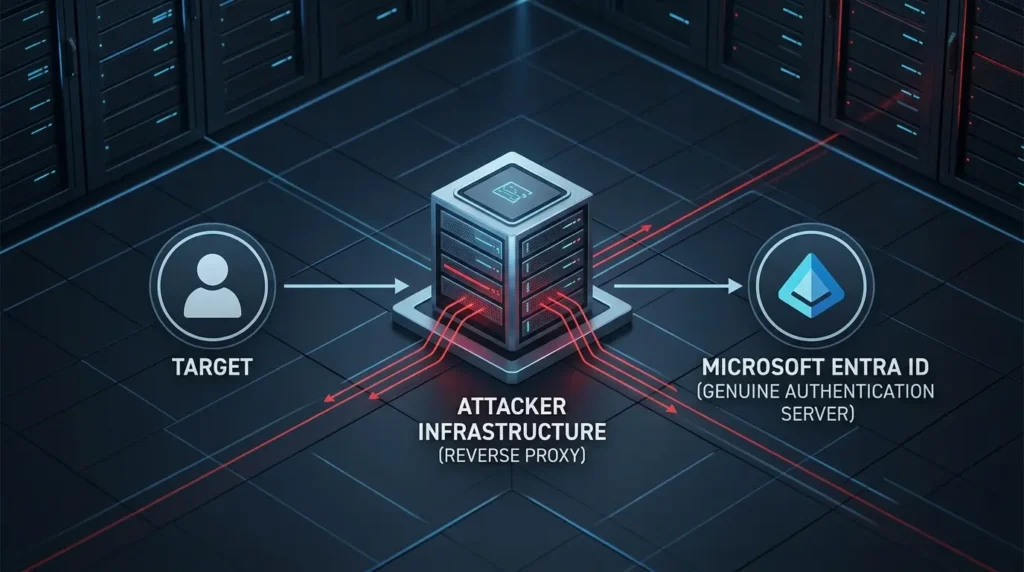
The outcome:
Microsoft confirmed the campaign compromised more than 35,000 users across 26 countries in three days, part of roughly 8.3 billion email-based phishing threats it detected that quarter, with link-based delivery dominating.
The lesson:
A phishing-resistant method breaks this chain at the point of sign-in, because there's no shared secret or one-time code for the proxy to relay in the first place. Training didn't fail these users, the authentication method did. That's the exact gap passkeys are built to close.
Case study: phishing-resistant keys stopping a real breach
The challenge:
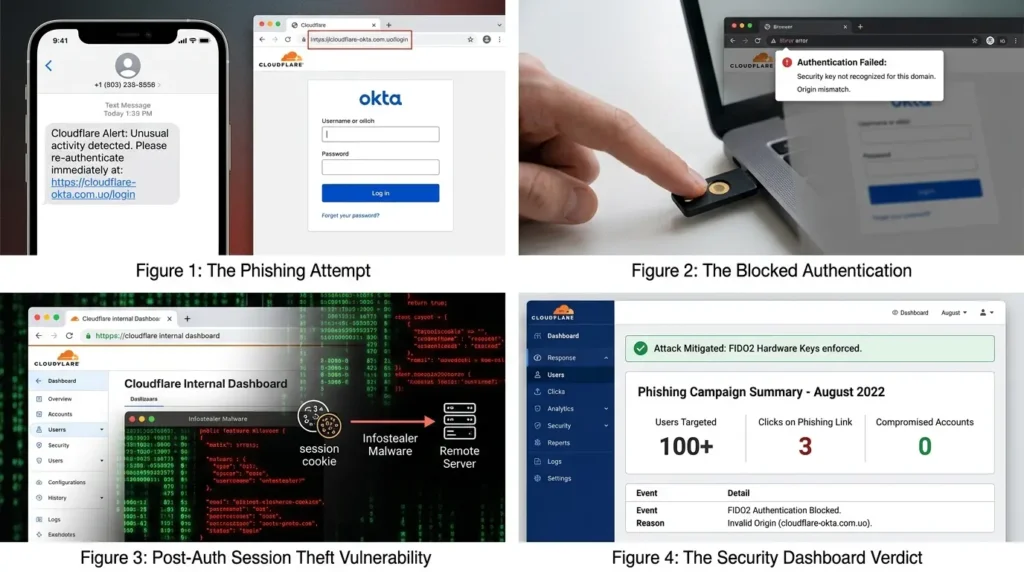
In August 2022, Cloudflare's employees were hit by the same SMS-based phishing campaign that had just compromised Twilio, a convincing fake Okta login page, sent moments after a freshly registered look-alike domain went live.
The response already in place:
Cloudflare didn't rely on TOTP codes or push notifications for MFA. Every employee had been issued a FIDO2 hardware security key years earlier, required to access every internal application.
The outcome:
Three employees fell for the phishing message and typed their username and password into the fake page. None of the three could get past the hard-key requirement, because the key's origin-binding meant it simply wouldn't respond to a domain that wasn't the real one. Cloudflare confirmed no systems were compromised.
The lesson:
Cloudflare has been explicit that this wasn't luck, it was the direct, designed-for consequence of choosing an origin-bound, phishing-resistant credential over a phishable one. It's also a useful reality check on user training: three experienced security-company employees still clicked the link and typed their password. The credential, not the click, was what held.
Post-issuance theft is the part that gets overlooked. Once a token has been issued to a genuinely authenticated session, passkey, hardware key, or otherwise, it can still be stolen straight off the endpoint by infostealer malware, with no phishing page involved at all.
Case study: the infostealer economy Microsoft had to disrupt
The challenge:
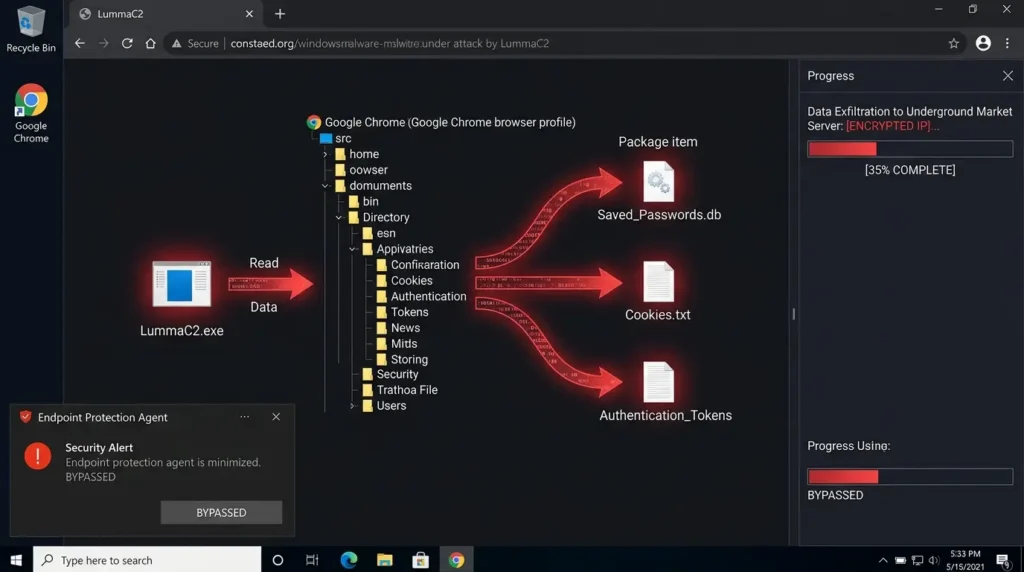
LummaC2, one of the most prolific infostealer families of the past two years, was harvesting saved credentials, browser cookies, and authentication tokens from infected Windows devices at industrial scale, packaging the results for sale on underground markets.
The response:
Microsoft's Digital Crimes Unit coordinated with Europol, the FBI, and the DOJ to seize the malware's infrastructure and disrupt its operations.
The outcome:
By the time the takedown happened, more than 394,000 Windows devices worldwide had been infected in just a two-month window between March and May 2025, and the operation resurfaced within weeks under new infrastructure, because the underlying malware-as-a-service business model is cheap to relaunch.
The same pattern has repeated across the family: when RedLine was disrupted, StealC and Vidar absorbed its market share; when Lumma came back, rivals had already filled part of the gap it left.
The lesson:
Law-enforcement takedowns buy time, not immunity. None of this cares which MFA method you used, if an infostealer is sitting on the endpoint and your endpoint protection hasn't caught it, it can lift the session token straight out of the browser after a completely legitimate, passkey-secured sign-in.
| AiTM (time-of-issuance) | Infostealer (post-issuance) | |
|---|---|---|
| When it strikes | During sign-in, via a proxy | After sign-in, on the endpoint |
| Does passkey enforcement stop it? | Yes — no secret to relay | No — token is already valid |
| What actually stops it | Phishing-resistant Conditional Access | EDR, app control, token protection |
The fix:
treat passkeys as one control in a stack, not a replacement for endpoint security. Keep EDR and application control genuinely effective on every device that can reach Entra-protected resources, and where your licensing supports it, layer in token protection so a stolen session token can't be replayed from a different device.
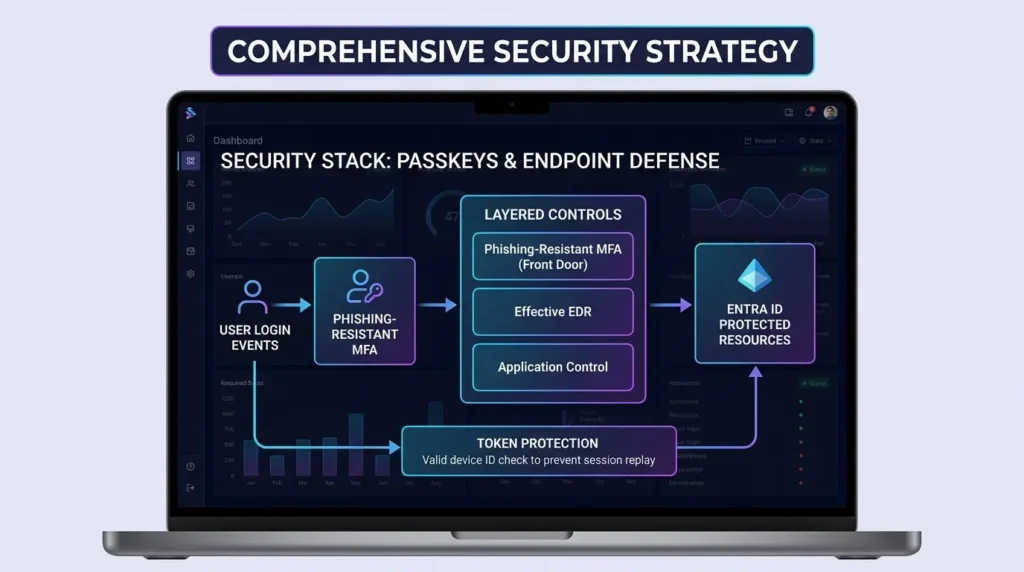
Phishing-resistant MFA closes the front door. It was never supposed to be your only lock.
Mistake 4: Not Checking Device Compatibility Before You Enforce
Passkey support isn't a single yes/no answer, it depends on the operating system version, the browser or app in play, and whether you're authenticating directly on the device or across devices via QR code and Bluetooth. Android is the clearest example of how badly this can go if you only test on one configuration.
If you test exclusively with passkeys stored in Microsoft Authenticator, you'll conclude your users need a fairly recent phone: Authenticator's own passkey support requires Android 14 or later, or iOS 17 or later. Communicate that requirement to your whole user base and you'll get a wave of "I'm not buying a new phone for this" pushback.
What often gets missed is that this restriction is specific to the Authenticator app, not to Android's passkey support in general. Google Password Manager supports passkeys on any device running Android 9 (API level 28) or later, which covers a substantially wider slice of your fleet if you allow synced passkeys rather than restricting registration to Authenticator alone.
Choosing a third-party passkey provider instead of Google's own manager, on the other hand, requires Android 14 or later, so the version requirement genuinely does shift depending on which provider is in play, not just the underlying OS.
None of this is an argument for accepting every ancient, unpatched Android device onto your tenant, that's a separate risk decision. It's an argument for actually knowing what your device estate looks like before you set a policy.
Entra and Intune can tell you what's out there, managed or not, and it's worth running that inventory before you announce a rollout date, not after the support tickets start.
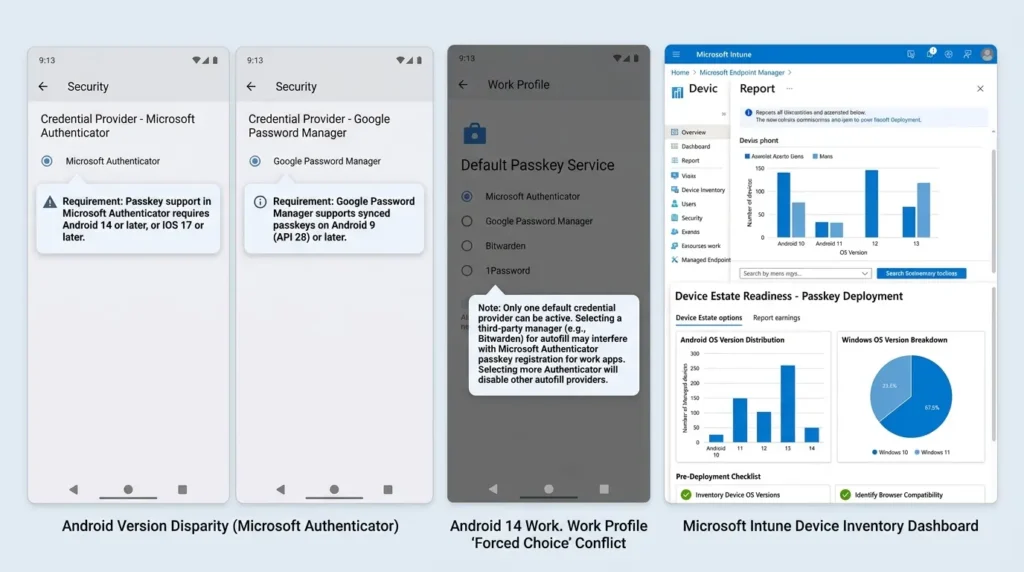
From the field: on Intune-managed Android Work Profile devices, admins report a genuinely awkward forced choice. Android 14 and later only lets a user register one default Credential Provider for passkeys.
If a user already relies on a third-party password manager, Bitwarden and 1Password come up most often, for autofill across their other apps, setting that provider as default can interfere with Authenticator's own passkey registration, and setting Authenticator as default breaks autofill everywhere else.
There's no clean fix here beyond a deliberate policy decision: either standardise the fleet on one credential provider for passkeys and accept the autofill trade-off, or lean on synced passkeys through Google Password Manager instead of forcing everything through Authenticator specifically.
From the field:
Windows 10 passkey support is documented as working, but practitioners consistently describe it as noticeably less reliable than on Windows 11, QR code prompts that fail to appear being the most common complaint, alongside a shakier Windows Hello integration generally.
If a chunk of your estate is still on Windows 10, it's worth treating that as its own cohort: hold off on Conditional Access enforcement for those users specifically, or route them to a physical FIDO2 security key rather than a platform passkey, rather than assuming Windows 10 and Windows 11 will behave identically during your pilot.
The fix:
inventory registered device OS versions and browsers through Entra sign-in logs and Intune before you set an enforcement date. Decide deliberately whether you're permitting synced passkeys, device-bound passkeys in Authenticator, or both, because that choice changes your realistic minimum OS version by several years, not by a rounding error.
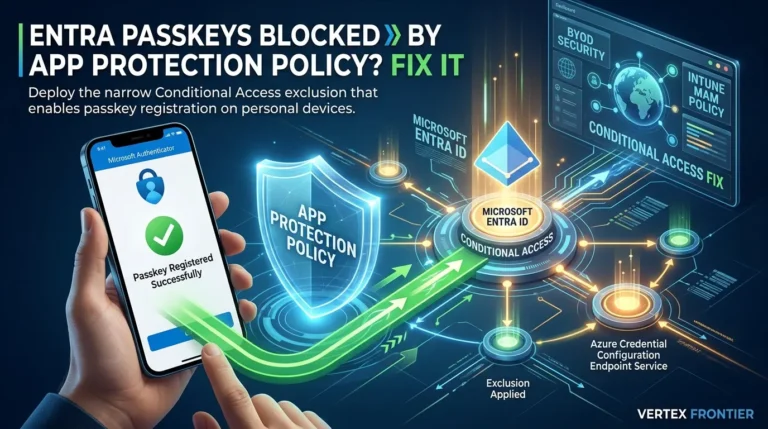
OS and provider compatibility is only half of the pre-enforcement check, though. The most common blocker on BYOD fleets isn't the device at all, it's the Conditional Access policy behind it: if your policy requires an app protection policy or an approved client app on All resources, passkey registration in Microsoft Authenticator fails with a policy error no matter how new the phone is. We walk through the exact fix, a narrow, resource-level exclusion, in our guide to fixing the Entra passkey app protection policy block.
Pro tip: check your Bluetooth policy before you check anything else
Cross-device sign-in, where someone signs into a desktop app or browser using a passkey stored on their phone, works by scanning a QR code and then confirming physical proximity between the two devices over Bluetooth. That's the part almost nobody thinks to check first.
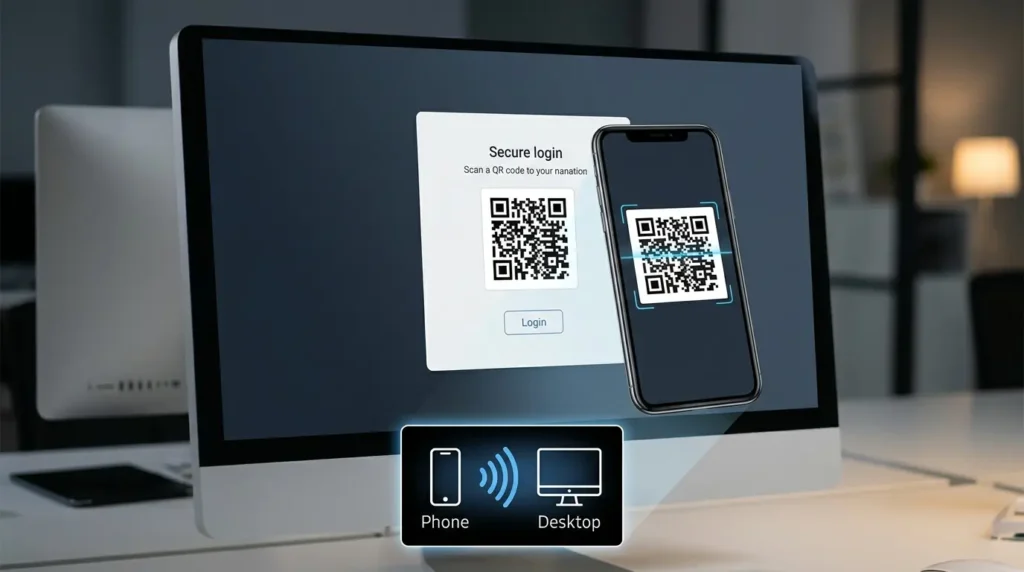
A lot of enterprises already have an Intune device restriction policy or a legacy GPO that blocks Bluetooth outright, a perfectly sensible data-loss-prevention decision made years before passkeys were on anyone's radar, and it will silently break cross-device authentication for exactly the users who need it most: anyone signing into a desktop without a local passkey provider of their own.
The failure is quiet, too: users report a generic "Passkey not found" or "something went wrong" message with no indication that Bluetooth is the actual cause, which turns a five-minute policy fix into a confusing help desk escalation. You don't have to choose between the two controls.
Microsoft supports scoping Bluetooth access to allow pairing exclusively with passkey-enabled FIDO2 authenticators via the Bluetooth Policy CSP, rather than opening Bluetooth back up entirely.
If your compatibility testing only covers devices with their Bluetooth policy left at default, you will not catch this until a real user with a locked-down laptop tries it and fails.
"Passkeys don't work on my phone" is usually a provider-choice problem, not an Android problem.
Mistake 5: Assuming Authenticator Syncs Passkeys Like It Syncs Everything Else
Here's a support ticket every Entra admin has seen: "I got a new phone, I'm locked out, can you help me set up MFA again?"
The instinctive assumption is that Microsoft Authenticator, which already backs up and syncs plenty of settings between devices, must sync passkeys too. It doesn't, at least not currently.
A passkey registered in Authenticator is device-bound: it's created and stored on that specific phone, tied to it, and it doesn't move with an app backup or a new-device restore the way other Authenticator data does. Lose the phone, and you've lost that passkey, full stop.
That's a deliberate trade-off, not an oversight. Device-bound credentials, including hardware FIDO2 security keys and Authenticator passkeys, offer stronger attestation guarantees, Entra can verify the specific device that created the key, which is exactly why Microsoft's own guidance points admins and highly privileged users toward device-bound options rather than synced ones.
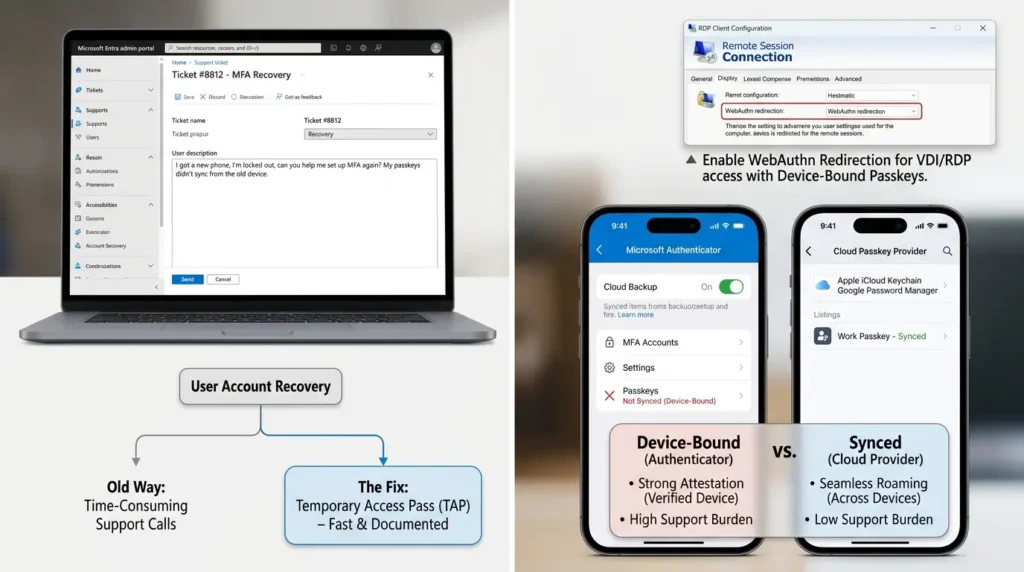
Synced passkeys, by contrast, are encrypted and stored in a cloud passkey provider such as iCloud Keychain or Google Password Manager, so they follow the user across devices automatically. The trade-off runs the other way: less rigorous attestation, but a dramatically lower support burden, since a new phone just needs the user to sign into their existing platform account.
From the field:
device-bound passkeys carry a specific pain point that catches out anyone supporting remote or contractor access, RDP sessions, Windows 365 Cloud PCs, and jump hosts. A passkey stored in Authenticator lives on the phone, not inside the remote session, and Authenticator isn't installed on the virtual machine itself.
Practitioners describe this as a hard wall unless WebAuthn redirection is explicitly enabled in the RDP client to pass the authentication request back to the local device, or the affected users are carved out into a scoped Conditional Access exception permitting a physical FIDO2 security key instead.
Worth checking before you enforce phishing-resistant MFA broadly: does your VDI or RDP tooling actually support WebAuthn redirection, or will your contractors be locked out the moment the policy goes live?
Here's the genuinely uncommon insight most admins get backwards: the security-conscious instinct to default everyone to device-bound passkeys is usually the wrong call. Based on data from hundreds of millions of Microsoft consumer accounts, synced passkeys hit a 99% successful registration rate, sign users in roughly 14 times faster than a password-and-MFA combination (three seconds versus 69), and succeed at nearly three times the rate of legacy authentication (95% versus 30%).
Reserve device-bound passkeys for admins and users with access to genuinely sensitive systems, where the extra attestation is worth the support overhead. For everyone else, synced passkeys will get you a materially higher adoption rate and a materially quieter help desk, for what is, for the average employee, an entirely acceptable level of assurance.
To be fair to the other side of this debate: security-hardened admins aren't wrong to be uneasy about it, either. Their objection is that a synced passkey ties the security of a corporate account to the security of the user's personal Apple or Google account, if that personal account is compromised, the synced passkey potentially goes with it.
That's a real dependency, not a hypothetical one, and it's the reason the practical consensus among practitioners tends to land on a split model rather than picking one side outright: device-bound passkeys, ideally with attestation enforced, for admins and anyone with standing access to sensitive systems; synced passkeys for the general workforce, where the adoption and support-cost numbers above matter more than the marginal attestation gap.
Worth knowing if you're relying on this default: in the current passkey profile configuration in Entra, synced passkeys are the default passkey type unless you've explicitly changed the profile. Check that setting rather than assuming.
The fix:
set expectations up front that Authenticator passkeys don't survive a device change, and build device-loss recovery around Temporary Access Pass rather than a support-desk workaround invented on the spot. Then make a conscious, documented decision about which user segments get synced passkeys and which get device-bound ones, don't let the default apply uniformly by accident.
Sync is a feature you have to choose, not one you get for free just because it's an app.
Get the Entra ID Passkey Readiness Playbook
Skip the guesswork. Download our practical cheat sheet with Conditional Access templates, Graph API commands, and pre-flight readiness checklists.
A Script Worth Running Before You Enforce Anything
Before you set an enforcement date for any of the fixes above, you need to know who's actually ready. Rather than clicking through each user's authentication methods in the admin centre one at a time, the Microsoft Graph PowerShell SDK exposes this directly.
The following pulls every user in the tenant and lists who has a registered passkey (FIDO2) method, alongside when it was created and which provider it came from, the exact list you need before scoping a Conditional Access policy to "ready" users first:
PowerShell (Microsoft Graph SDK):
Import-Module Microsoft.Graph.Authentication, Microsoft.Graph.Users, Microsoft.Graph.Identity.SignIns
Connect-MgGraph -Scopes "UserAuthenticationMethod.Read.All" -NoWelcome
Get-MgUser -All -Property Id, UserPrincipalName | ForEach-Object { $user = $_ Get-MgUserAuthenticationFido2Method -UserId $user.Id | ForEach-Object { [PSCustomObject]@{ User = $user.UserPrincipalName PasskeyName = $.DisplayName Model = $.Model AttestationLevel = $.AttestationLevel Created = $.CreatedDateTime } } } | Format-Table -AutoSize
Disconnect-MgGraph
Run this against a pilot group before you touch anything tenant-wide, cross-reference the output against your Conditional Access target group, and you have a factual answer to "who would this policy actually block right now" instead of a guess.
If you'd rather query Graph directly without the PowerShell SDK, the same data is available at GET https://graph.microsoft.com/v1.0/users/{id}/authentication/fido2Methods, which is worth knowing if you're pulling this into a Logic App or a scheduled report rather than running it interactively.
Where This Fits in the Wider Push Away From Passwords
Entra ID's passkey changes aren't happening in isolation, they're Microsoft's implementation of a standard, WebAuthn/FIDO2, that the whole industry is converging on. A passkey registered against your tenant is built on the same cryptographic model as a passkey on a consumer Google or Apple account: a key pair generated on the device, a private key that never leaves it, and a public key held by the relying party.
That's why the underlying compatibility questions in Mistake 4, OS version, browser, provider, aren't Entra-specific quirks. They're the same questions any organisation adopting WebAuthn has to answer, regardless of which identity platform sits behind it.
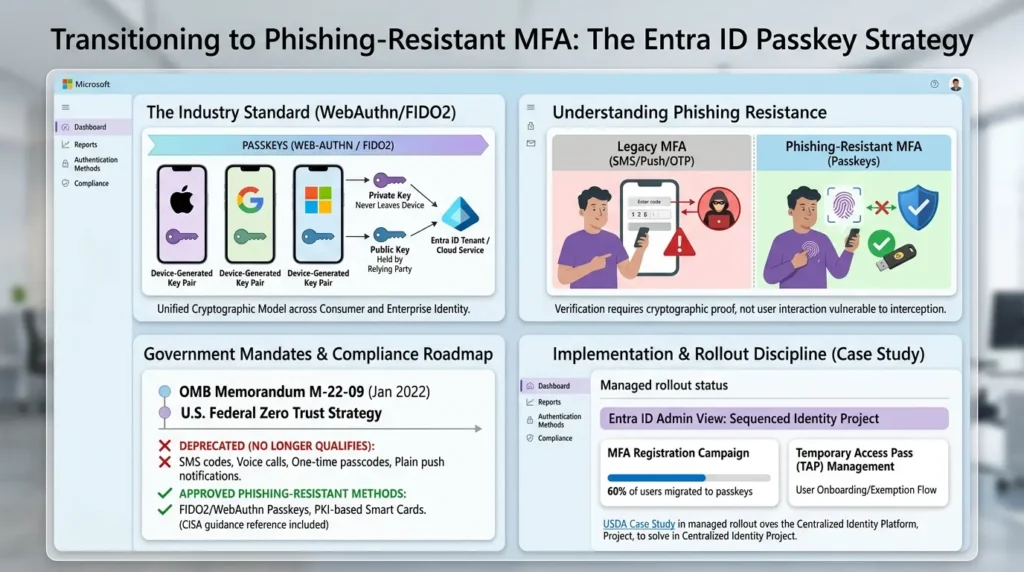
Governments got here first, for what it's worth. OMB Memorandum M-22-09, issued in January 2022 under the U.S. federal Zero Trust strategy, required federal agencies to move to phishing-resistant MFA and explicitly SMS codes, voice calls, one-time passcodes, and plain push notifications as methods that no longer qualify.
CISA's own implementation guidance points to FIDO2/WebAuthn and PKI-based smart cards as the two approaches that meet the bar.
It's worth noting that CISA's own documented case study, the U.S. Department of Agriculture's rollout to roughly 40,000 users using FIDO2 and Windows Hello for Business, succeeded for the same structural reasons covered above: it built on an existing centralised identity platform rather than a bolt-on, and it defined clear, trained exemption paths rather than pretending every user would fit the same rollout timeline.
Entra's registration campaigns and Temporary Access Pass are, in effect, Microsoft's packaged version of that same discipline.
The direction of travel is the same whether you're a three-person IT team or a federal agency: SMS and voice are being retired as an MFA baseline, phishing-resistant methods are becoming the expected default rather than the advanced option, and the organisations getting it right are the ones treating this as a sequenced identity project rather than a single toggle.
Passkeys are the most accessible entry point into that standard for most businesses, which is exactly why it's worth deploying them properly the first time.
Common Mistakes and How to Avoid Them: Quick Reference
Pulling all five apart into their own sections is useful for understanding why each one bites, but in the middle of a real rollout you mostly just need the checklist. Here's the condensed version, tick each one off against your own tenant as you go.
Tick off each item as you confirm it in your own tenant. Your progress is tracked below — nothing is sent anywhere, it's just for you.
Five mistakes, nine checks, run through them once before you set an enforcement date, not after.
Before and After: What Changes When You Do This Properly
Before a considered rollout: passkeys are enabled tenant-wide with a single Conditional Access policy requiring generic MFA. Some users have registered a passkey; most haven't, because nothing is nudging them to.
The policy doesn't stop an AiTM downgrade attack, because "require MFA" still accepts SMS as a fallback. The first enforcement attempt locks out a chunk of the Android fleet because testing only covered Authenticator on flagship phones. Support tickets spike the week a user with a device-bound passkey upgrades their phone.
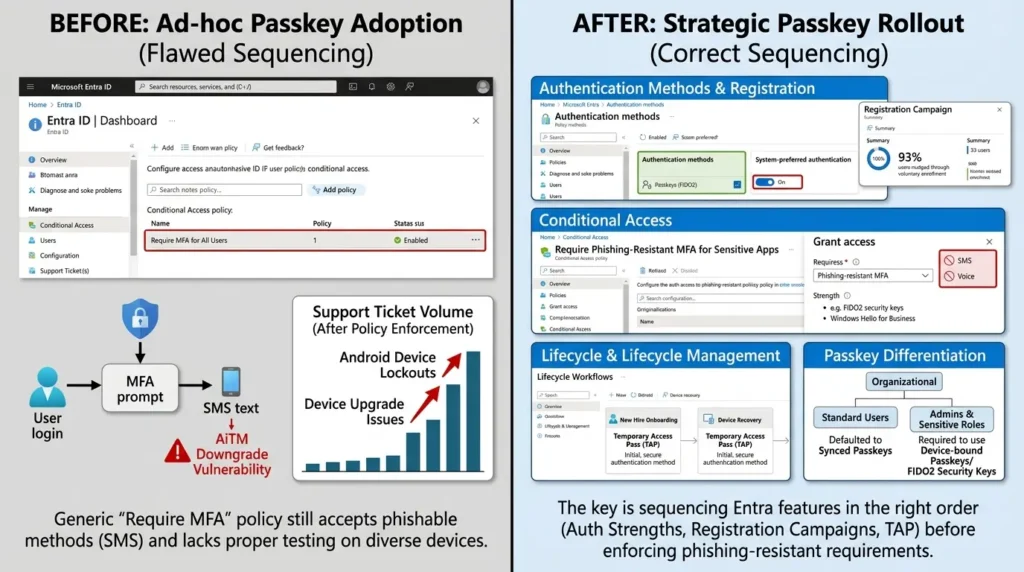
After: system-preferred authentication is on, registration campaigns have already nudged the bulk of users through voluntary enrolment, and Conditional Access requires a specific phishing-resistant authentication strength rather than generic MFA.
Temporary Access Pass handles both new-starter onboarding and device-loss recovery. Synced passkeys are the default for standard users; device-bound passkeys are reserved for admins and sensitive-access roles. Endpoint protection is still doing its job, because everyone understands passkeys solve phishing, not malware.
The gap between those two states isn't more effort, it's sequencing the same handful of Entra features in the right order instead of enabling one setting and hoping.
If your Conditional Access setup is the piece holding your passkey rollout together, or the piece you're not confident about yet, that's the layer worth getting right before you touch enforcement. It's also the part of this stack most teams underinvest in relative to how much it's doing.
Ready to Secure Your Entra ID Passkey Rollout?
Take this guide with you. Download the complete offline PDF playbook containing all 5 deployment fixes, the PowerShell readiness script, and our 9-point Conditional Access checklist — 100% free with no email required.
FAQ
📋 Article Timeline & History
Successfully updated on September 24, 2026 with the latest details.
This article was originally published on August 11, 2026.

Was this article helpful?



[…] 5 Microsoft Entra Passkey Mistakes That Quietly Undermine Your Security […]
[…] deployment problem. If you’re planning a rollout rather than firefighting one, our broader 5 Entra ID Passkey Mistakes Undermining Your Security covers the full list, the App Protection Policy conflict this article solves is the root cause […]
[…] your rollout plan involves passkeys touching production tenants, it’s worth reading up on the five Entra passkey deployment mistakes that quietly undermine a rollout before you flip that opt-out switch, a lot of the pain in this […]