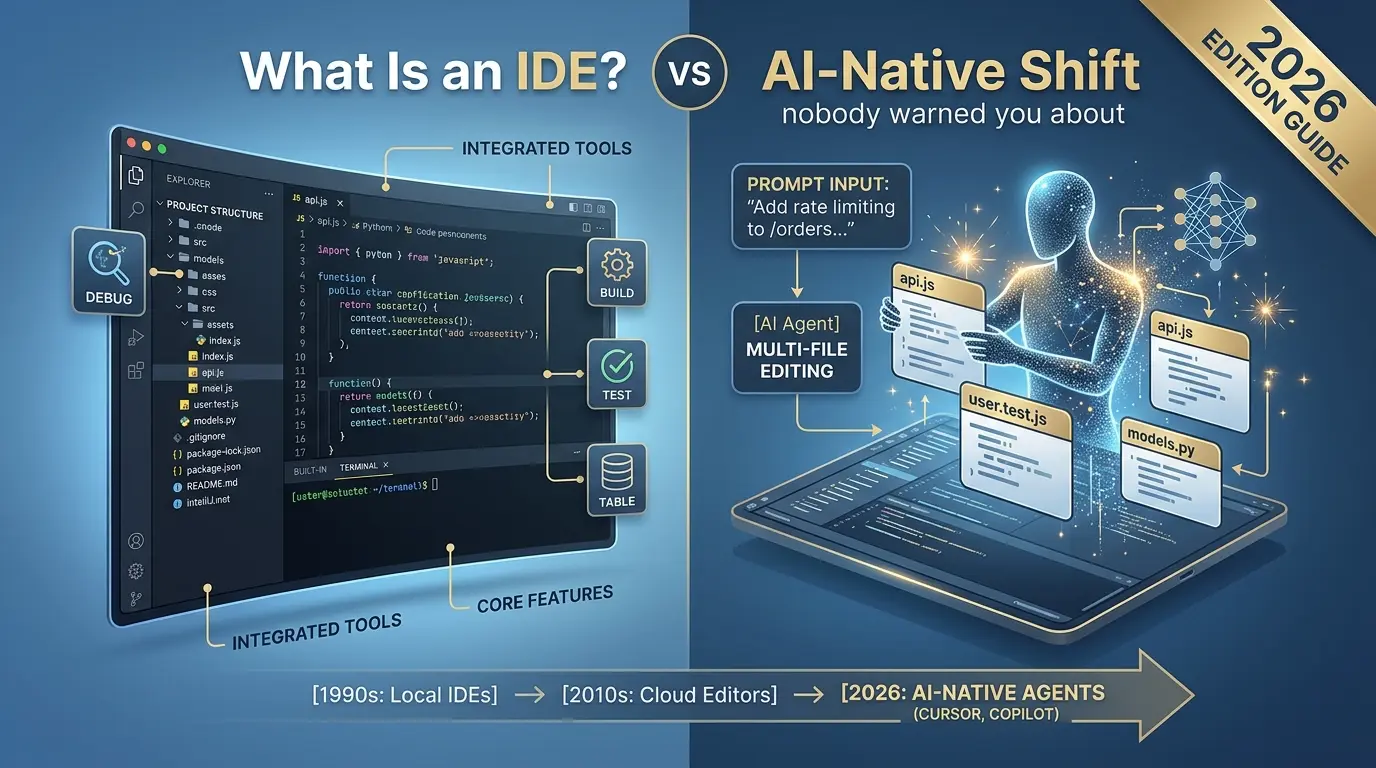

You can write software with a text editor and a terminal. People did it for decades. Nothing about an IDE is mandatory.
So why does almost every professional developer end up using one anyway?
Because the moment a project grows past a few files, the cost of switching between five separate tools starts to outweigh the effort of learning one integrated tool. That’s the whole story of the IDE in one sentence, and it’s also why the story is changing again right now, as AI agents start doing work inside the environment instead of just suggesting text inside it.
This guide covers what an IDE actually does, the features that matter, the major categories available in 2026, how to match one to your language and project, and the part most articles skip: what happens to your workflow once the IDE stops being just an editor and starts being a place where an AI agent can act on your behalf.
📋 What you’ll walk away with
Click any topic to expand or collapseIDE vs. Text Editor definition
A clear definition of an IDE and how it differs fundamentally from a plain code editor.
Core features & productivity impact
The core features every serious IDE shares, and which ones actually save developer time.
IDE categories breakdown (Local, Cloud, Mobile, DB)
A breakdown of Local, Cloud, Mobile, and Database IDEs, with real-world industry examples.
Selection framework for teams & stack
How to pick an IDE based on your programming language, team size, and project architecture.
Case studies & productivity metrics
Two documented case studies showing measurable productivity and delivery speed results.
Environment debt in AI agent workflows
A framework for thinking about “environment debt” before AI agents make developer tooling friction expensive.
Dev environment cost calculator
An interactive calculator to estimate what a slow dev environment is actually costing your engineering team.
Get the IDE & AI Toolkit 2026
Cheat sheets, environment debt audit, ROI calculator, and decision tree — the practical companion to this article. Built by Vertex Frontier.
↓ Download Free PDFWhat Is an IDE, Exactly?
An IDE, or Integrated Development Environment, is software that combines the tools developers need to write, build, test, and debug code into one interface. Instead of opening a separate text editor, a separate compiler, a separate debugger, and a separate terminal, you do all of it in one window.
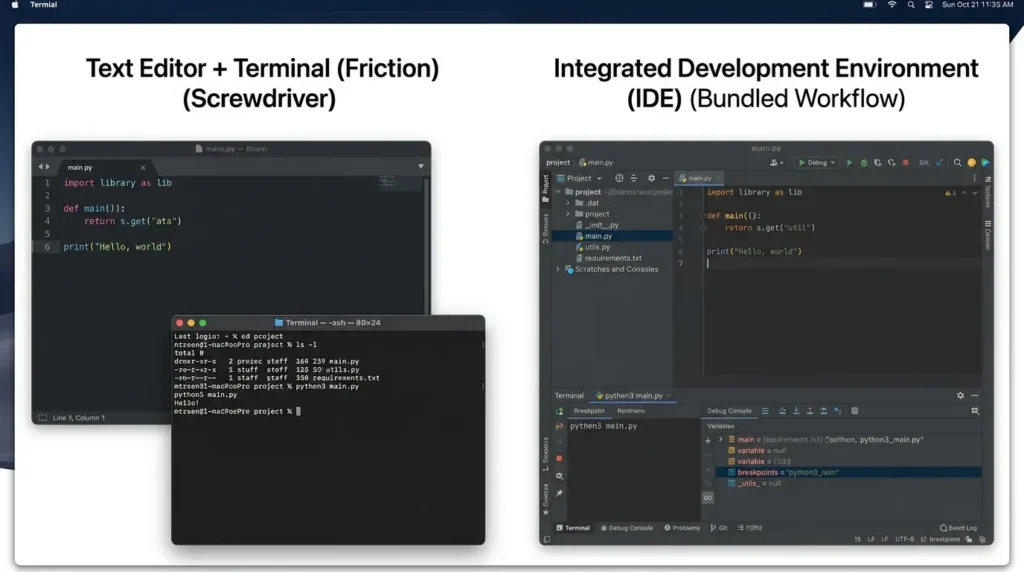
That's the textbook definition. Here's the more useful one: an IDE is a bet that bundling reduces friction more than it reduces flexibility. Sometimes that bet pays off. Sometimes a lightweight editor and a terminal genuinely beat a heavyweight IDE, especially for small scripts or quick edits.
Nothing about software development requires an IDE. A text editor paired with a terminal can compile, run, and debug the exact same code. What an IDE buys you is a contained workflow, fewer context switches, fewer tools to configure, and a single place where the editor, the build system, and the debugger already know about each other.
Here's a way to think about it that clicked for me the first time someone put it this way: a plain text editor is like a really good screwdriver. It's essential, and a skilled hand can build almost anything with it, but you still have to go find the screws, cut the wood yourself, and keep the blueprint spread out on the floor. An IDE is the whole workbench. The tools are already laid out in the right order, the lights are already on, and the blueprint is clamped down exactly where you need it. You can build furniture on the kitchen floor with a screwdriver. Most people, once they've used a real workbench, don't go back by choice.
In short, an IDE is not a requirement. It is an integrated workflow whose value depends on the project, language, team, hardware, and level of automation you need. More project complexity can make integration more valuable, but it can also make a heavy IDE harder to configure and maintain.
What an IDE Actually Brings Together
Modern IDEs consolidate tools that developers used to manage as separate applications. Three capabilities do most of the heavy lifting.
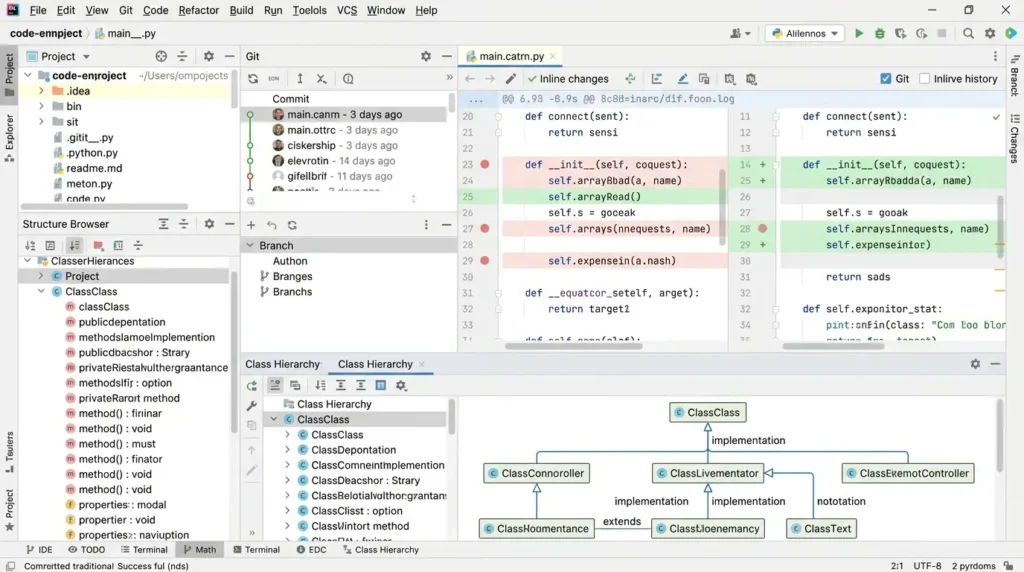
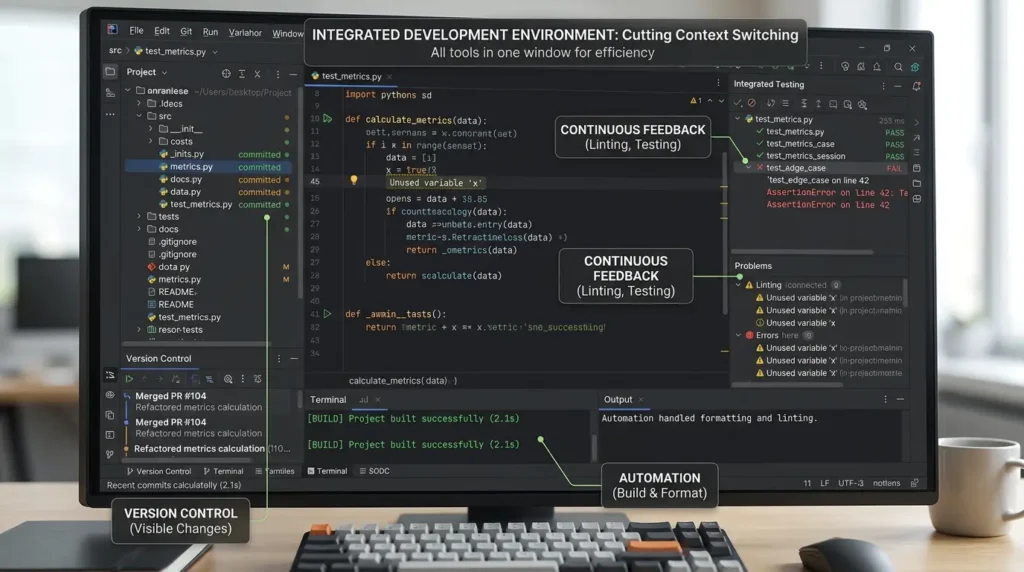
- Version control, built in: Git support is no longer a plugin bolted onto the side: it's part of the core experience in nearly every serious IDE today. Developers compare revisions, manage branches, and review changes without leaving the window they're coding in.
- Object and structure browsers: In object-oriented codebases, these tools expose how the code is actually organized. Instead of grepping through files to understand what calls what, a developer can inspect properties, relationships, and dependencies directly.
- Class hierarchy visualization: As a codebase grows past a certain size, understanding how components inherit from and depend on each other by reading files becomes impractical. Hierarchy diagrams turn that structure into something you can see, not just something you have to remember.
None of these are new ideas. What's changed is how tightly they're woven together, and how much of the "supporting" work, the version control, the structure mapping, now happens automatically in the background instead of requiring a separate step.
The Features That Actually Define a Good IDE
Strip away the marketing and most IDEs share the same core toolkit. Here's what each piece actually does, and why it matters more than it sounds like it should.
Code Editing and Autocomplete
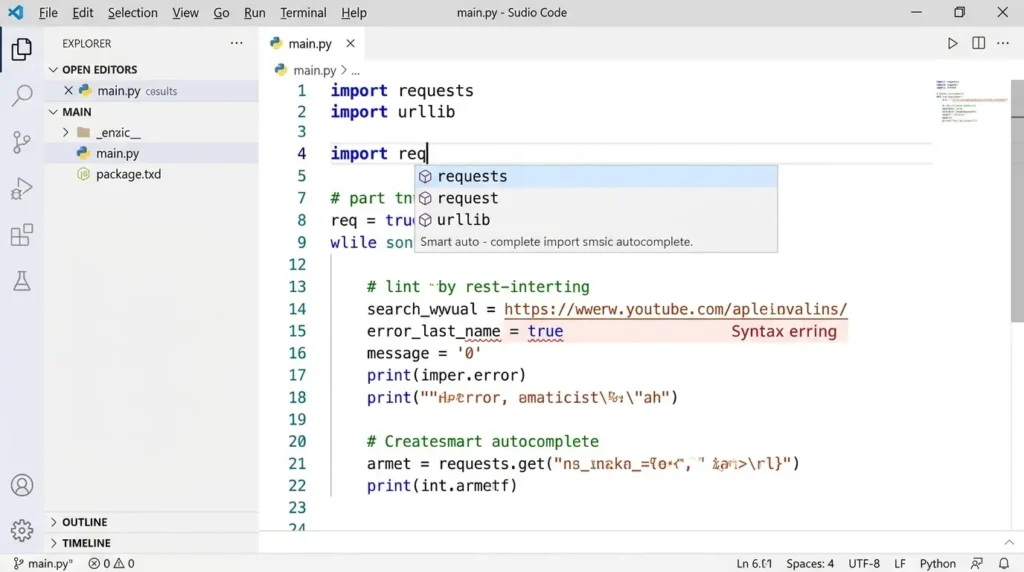
Real-time syntax checking flags problems as you type, using the language's own grammar rules to catch mistakes before you ever hit compile. Autocomplete goes a step further, suggesting code based on the surrounding context, which cuts down typing and just as importantly, keeps naming and style consistent across a codebase that multiple people are touching.
Syntax highlighting seems cosmetic until you're scanning a 400-line file at 11pm. Color-coded keywords, variables, and types make it dramatically faster to find what you're looking for.
Refactoring Tools
Renaming a method or extracting a block of logic used to mean manually hunting down every reference across a codebase, a process that's both slow and a reliable source of bugs. Refactoring tools handle that propagation automatically, which is one of the more underrated productivity gains an IDE provides, because it removes an entire category of "I forgot to update it there too" errors.
Build Automation and Compilation
Build automation ties tasks to code changes: compiling artifacts, updating dependencies, running project scripts. Most IDEs also integrate a compiler or interpreter directly, translating source code into a form the runtime, the Java Virtual Machine, Node.js, or whatever environment the code targets, can actually execute.
Testing and Debugging
Local testing tools run unit tests before code ever gets shared, giving fast feedback instead of waiting on a CI pipeline. Debugging tools let a developer step through execution line by line, inspecting variables and program state while the code runs, which is still, after everything AI has added to the IDE, one of the most reliable ways to understand why something broke.
Linting and Static Analysis
Linting scans for style issues, inefficient patterns, and security concerns while you're still editing, not after a pull request has already been opened. Catching a problem during editing is cheap. Catching the same problem after a merge is not.
Quick takeaway: every one of these features solves the same underlying problem, moving feedback earlier. The earlier you find a bug, a style issue, or a broken reference, the cheaper it is to fix.
💡 Tip: The feature that gets overlooked most
Templates and built-in documentation rarely make anyone's "top IDE features" list, but they quietly save the most time for new team members. A well-configured project template can turn a first-day setup from a half-day of troubleshooting into a five-minute task.
Why Bundling These Tools Actually Matters
It's fair to ask: does having everything in one window really change outcomes, or is it just convenience?
The honest answer is both, but the second one is bigger than people expect.
Editing, testing, and version control living in one environment cuts down on context switching, and context switching isn't free, every tool-hop is a small tax on attention. Automation handles the routine parts, like building and formatting, so developers aren't burning focus on mechanical steps. Continuous feedback from linting and analysis surfaces problems earlier, before they compound into something expensive to unwind. And integrated version control keeps changes visible and traceable across a team, which matters more as headcount grows.
None of this is dramatic on its own. It adds up.
The Brutal Truth: You're Not Using Most of What You Paid Attention To
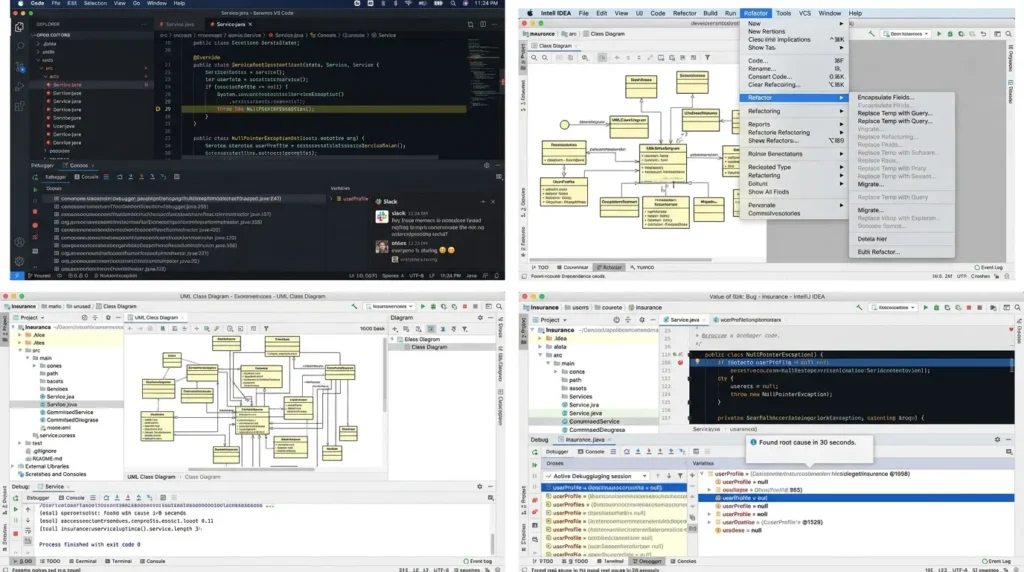
Most developers rely on a small subset of an IDE’s feature set every day. That is not a measured 10% rule, and it is not necessarily a problem. The right question is whether the features you use regularly reduce real friction: debugging, navigation, testing, refactoring, review, or environment setup.
Features that look impressive in a comparison table may have little value for your workflow. Choose an IDE by the tasks you repeatedly perform, then learn additional features when a real problem justifies them.
The rest of it, the class hierarchy diagrams, the object browsers, half the refactoring menu, sits there mostly unused, and a lot of "which IDE is best" debate is really just people arguing over features that don't move the needle for their actual day-to-day work. Nobody picks IntelliJ IDEA because of its UML diagram generator.
A strong debugger can reduce the time needed to inspect a failing execution path, but the actual saving depends on the language, project size, symbols, logs, and developer familiarity. Measure the time required to reproduce and diagnose one representative failure in each environment instead of treating a fixed “thirty seconds versus thirty minutes” comparison as universal.
That's really the whole pitch of an IDE, stripped of the marketing: it's insurance. You pay for it in setup time and, these days, in RAM. You collect on it the one time a week something goes genuinely wrong and you need every tool in the room, right now, without having to go find it first.
Get the IDE & AI Toolkit 2026 (PDF)
A 9-page printable companion guide with cheat sheets, the Environment Debt Checklist, and an ROI calculator — 100% free, direct access.
The Four Major Types of IDEs
IDE selection comes down to two questions: where does it need to run, and what does it need to support? That splits the landscape into four practical categories.
| Type | Where It Runs | Examples | Best Fit |
|---|---|---|---|
| Local | Developer's own machine | Visual Studio, Eclipse, IntelliJ IDEA, PyCharm | Solo devs, offline work, full hardware control |
| Cloud | Browser, hosted remotely | GitHub Codespaces, AWS Cloud9, Replit, CodeSandbox | Distributed teams, fast onboarding, shared setups |
| Mobile | Local, with device emulation | Android Studio, Xcode | Cross-device and cross-OS app testing |
| Database | Local or connected to a DB server | MySQL Workbench, Oracle SQL Developer, pgAdmin | Querying, schema design, performance tuning |
These four categories are practical working categories, not mutually exclusive industry standards. A product can combine local editing with a remote runtime, support both application and database workflows, or behave more like a code editor with IDE features supplied by extensions. Classify a tool by the workflow it supports rather than by its marketing label.
Local IDEs run entirely on a developer's own hardware. They require installation and configuration, and performance is tied directly to whatever machine you're running. Visual Studio, Eclipse, IntelliJ IDEA, and PyCharm all fall here, the trade-off is full control in exchange for setup responsibility.
Cloud IDEs move the development environment off your laptop and into a browser, hosted remotely. Teams get a shared, consistent setup, and compute-heavy tasks run on infrastructure that isn't limited by whatever RAM you happen to have. GitHub Codespaces, AWS Cloud9, Replit, and CodeSandbox are the common names here, and this category is where the most interesting shifts are happening right now, more on that below.
Mobile development IDEs bundle SDKs and device emulators so developers can test across device types and operating systems without owning every physical device. Android Studio and Xcode dominate this space for obvious reasons, they're the official tooling for their respective platforms.
Database IDEs are built around a completely different workflow: querying, schema design, and performance tuning instead of application logic. MySQL Workbench, Oracle SQL Developer, and pgAdmin are the standard picks.
Android Studio and Xcode are the primary platform-specific tools for Android and Apple development, respectively. Database tooling is more fragmented: MySQL Workbench, Oracle SQL Developer, pgAdmin, DBeaver, DataGrip, TablePlus, and vendor-specific tools can all be reasonable choices depending on the database, operating system, team policy, and required administration features.
Matching an IDE to Your Language and Project
Some IDEs are general purpose. Others are built for a specific language or workflow, and the fit matters more than people expect.
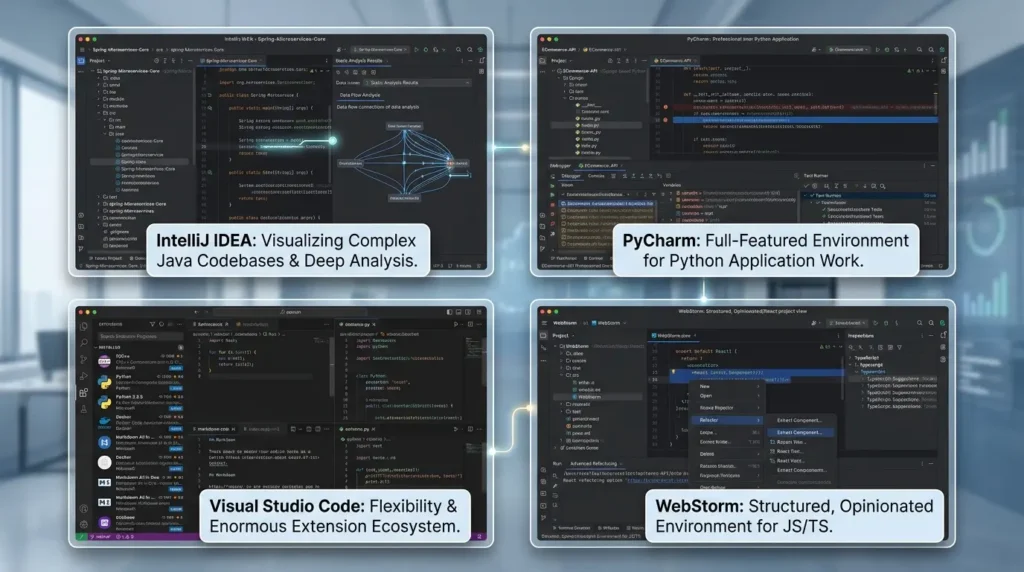
- Java development tends to center on IntelliJ IDEA or Eclipse, both built to handle large codebases with deep static analysis.
- Python developers often lean on PyCharm for full-featured application work, paired with lighter tools for scripting or data-focused tasks.
- Web development commonly runs on Visual Studio Code for its flexibility and enormous extension ecosystem, while WebStorm offers a more structured, opinionated environment for JavaScript and TypeScript projects specifically.
This isn't just anecdotal. The 2025 Stack Overflow Developer Survey, which polled over 49,000 developers, found that Visual Studio Code and Visual Studio have held the top usage spots for four consecutive years, even as a wave of new AI-native editors entered the market.
That kind of staying power isn't about brand loyalty, it's about VS Code's extension model letting it adapt to almost any language without forcing developers to relearn an interface. Meanwhile, JetBrains' own State of Developer Ecosystem 2025 report, based on responses from over 24,500 developers across 194 countries, shows a similar pattern: language-specific IDEs still win decisively within their niche, even while general-purpose editors dominate the broader market.
The "best" IDE isn't a single answer, it's a function of your language, your project size, and how much structure you want the tool to enforce versus how much flexibility you want to keep.
Quick IDE Selection Matrix
| If your priority is… | Start by evaluating… | Measure before committing |
|---|---|---|
| Deep language and framework support | A language-focused IDE such as IntelliJ IDEA, PyCharm, WebStorm, or Visual Studio | Indexing time, refactoring accuracy, debugger coverage, and test integration |
| Flexible multi-language work | VS Code, VSCodium, or another extensible editor | Extension quality, startup time, workspace stability, and team reproducibility |
| Low-power or keyboard-driven development | Neovim, Vim, Helix, or a lightweight editor with LSP support | Navigation speed, language-server coverage, setup effort, and remote workflow support |
| Fast onboarding across a team | A shared devcontainer or remote-development setup | Time to first successful build and time to first passing test |
| AI-assisted multi-file work | An editor or IDE with agent features and review controls | Diff quality, test pass rate, approval workflow, data handling, and rollback safety |
| Regulated or sensitive code | A tool and deployment model that meet the organization’s security and data requirements | Data residency, retention, access controls, auditability, and vendor terms |
Beyond VS Code and JetBrains: The Alternatives Worth Knowing
Most of this guide leans on VS Code and JetBrains products for examples, and that's a fair reflection of where the largest share of developers currently sit. But "most popular" and "best for you" aren't the same thing, and it's worth being upfront that the landscape is wider than the two biggest names.
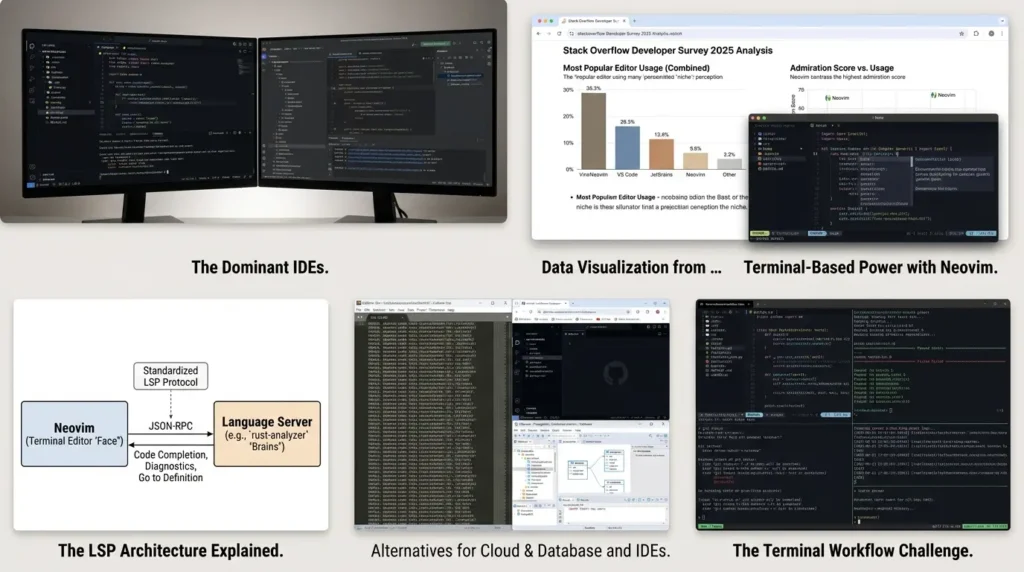
The 2025 Stack Overflow Developer Survey asked respondents which development environments and AI-enabled code-editing tools they used regularly during the previous year. In the all-respondents view, the published figures include Visual Studio Code at 75.9%, Visual Studio at 29%, IntelliJ IDEA at 27.1%, Vim at 24.3%, Cursor at 17.9%, and Neovim at 14%.
These figures describe reported use in that survey; they are not a universal quality ranking. Vim and Neovim together total 38.3% only as a simple sum of two separately listed categories, not as a survey category of its own. Use the official chart and question wording when quoting the numbers, and do not infer that the most-used tool is the best fit for every language or team.
That Neovim resurgence isn't an accident, either, it's a direct consequence of the LSP standard covered below. Before language servers existed, a terminal editor from the 1990s had no realistic path to IntelliJ-grade code intelligence. Once LSP separated the "brains" from the "face," a lightweight terminal editor could plug into the exact same language servers powering VS Code, closing a gap that used to be permanent.
The same logic applies to cloud IDEs and database tools: this guide references AWS Cloud9, GitHub Codespaces, and Ona/Gitpod as cloud examples, and MySQL Workbench, Oracle SQL Developer, and pgAdmin as database examples, but options like StackBlitz, DBeaver, and TablePlus serve overlapping needs and are worth evaluating on their own merits rather than assumed away.
The honest takeaway: if your workflow, hardware constraints, or personal preference point toward a terminal editor or a less mainstream tool, that's not a compromise, plenty of highly productive developers, including many at large tech companies, build their entire career around Neovim, Emacs, or Helix. Popularity is a reasonable starting signal, not a verdict.
You don't have to take any of this on faith, either. If you've only ever coded inside a heavyweight IDE, spend one afternoon working entirely from a terminal editor and a shell. You'll feel exactly which conveniences you took for granted, probably by lunchtime, and that's genuinely the fastest way to understand what an IDE is actually doing for you underneath all the menus.
The Technology That Makes This Possible: What Is LSP?
Here's a question most IDE articles skip entirely: how does one editor like VS Code offer rich, IDE-level features, autocomplete, go-to-definition, error checking, for dozens of completely different languages, without a separate team building a custom plugin for each one?
The answer is a piece of infrastructure most developers use daily without ever thinking about: the Language Server Protocol (LSP).
Definition: the Language Server Protocol is a standardized, JSON-RPC-based communication format that separates an editor's interface from the language-specific intelligence that powers features like autocomplete, error detection, and code navigation.
Before LSP existed, adding rich language support to an editor was what engineers call an M×N problem: M editors multiplied by N languages, each combination requiring its own custom integration. Want Java support in Vim? Someone had to build it specifically. Want the same for Emacs, or Sublime Text, or VS Code? Repeat the work, from scratch, every time.
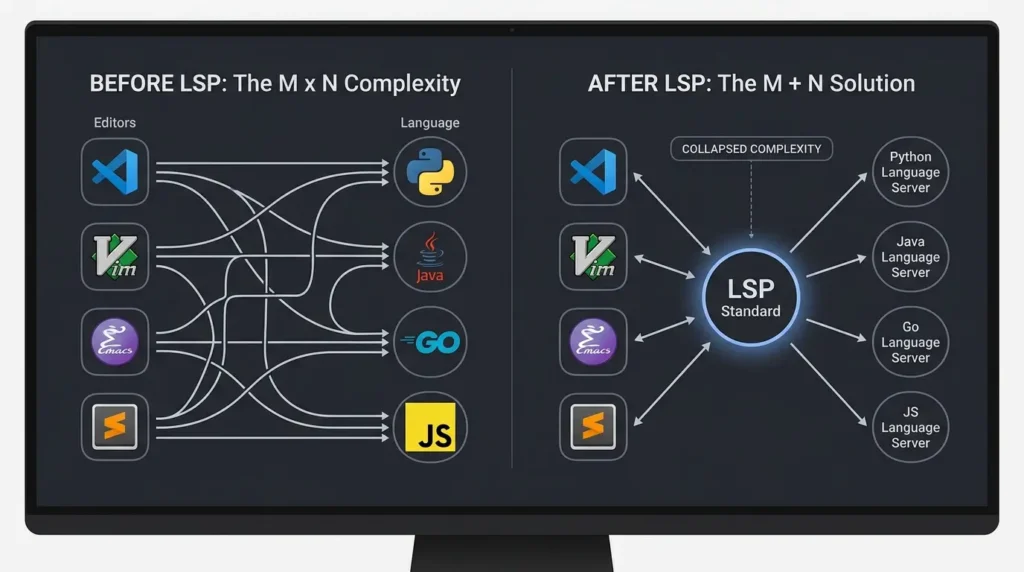
The Language Server Protocol (LSP) defines a JSON-RPC-based communication model between a development tool and a language server. The language server provides language-specific capabilities, while the editor or IDE presents those capabilities to the user. This separation lets multiple clients and language servers interoperate when both sides support the relevant protocol features.
How LSP Actually Works, Step by Step
- The editor opens a file and identifies its language (say, Python).
- It launches or connects to a language server for that language, running as a separate background process.
- The editor sends requests over the protocol, "what's the type of this variable," "where is this function defined," "does this line have an error."
- The language server responds with structured data, without needing to know anything about which editor asked.
- The editor renders the response as autocomplete suggestions, inline errors, or jump-to-definition links.
LSP is one important part of modern editor intelligence, but it is not the only indexing or context source used by every IDE or AI coding tool. An IDE may also use project indexes, build metadata, version-control history, search systems, language-specific analyzers, and provider-specific retrieval. Treat LSP as a useful interoperability layer, not as a complete explanation of how AI assistants understand a repository.
Why this matters for AI tooling specifically: the same indexing and context-gathering step that AI coding assistants rely on, described in the workflow below, leans heavily on the structural information LSP already exposes. An AI suggestion that respects your project's types and existing function signatures isn't magic; it's often built on the same structural map the language server was already maintaining for regular autocomplete.
The Part Nobody Explains Well: How AI Actually Works Inside an IDE
Most explanations of "AI in the IDE" stop at autocomplete. That undersells what's actually changed.
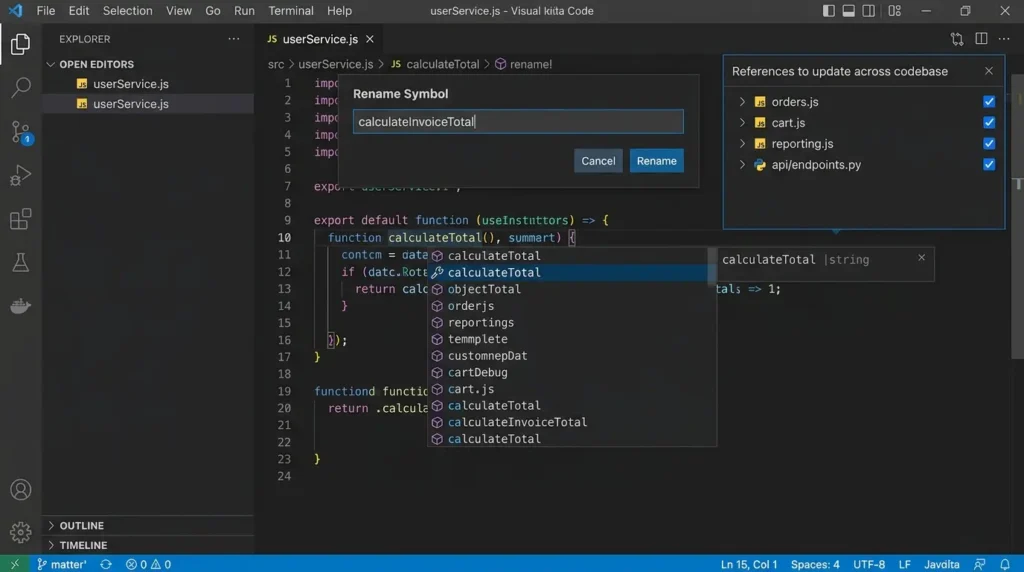
AI tooling built into modern IDEs now operates at the level of the whole codebase, not just the file you have open. When a developer renames a function or introduces a new module, the IDE can reference surrounding code across the project to generate suggestions that match existing patterns, not generic boilerplate pulled from nowhere.
That shift matters because it changes what a developer can delegate. You can describe intended behavior in plain language, something like "send a welcome email when a new customer signs up", and the IDE produces a draft implementation that follows the conventions already used elsewhere in the codebase. It's a starting point, not something to ship without review, but it's a meaningfully different starting point than a blank file.
Code analysis now runs continuously during development, catching issues before they ever reach a test suite. Refactoring suggestions are grounded in actual usage patterns pulled from the codebase, targeting real duplication instead of theoretical style violations. Debugging tools trace execution paths and surface state changes automatically, cutting down the need to step through code line by line for every issue.
Step-by-Step: How AI-Assisted Code Suggestion Actually Works
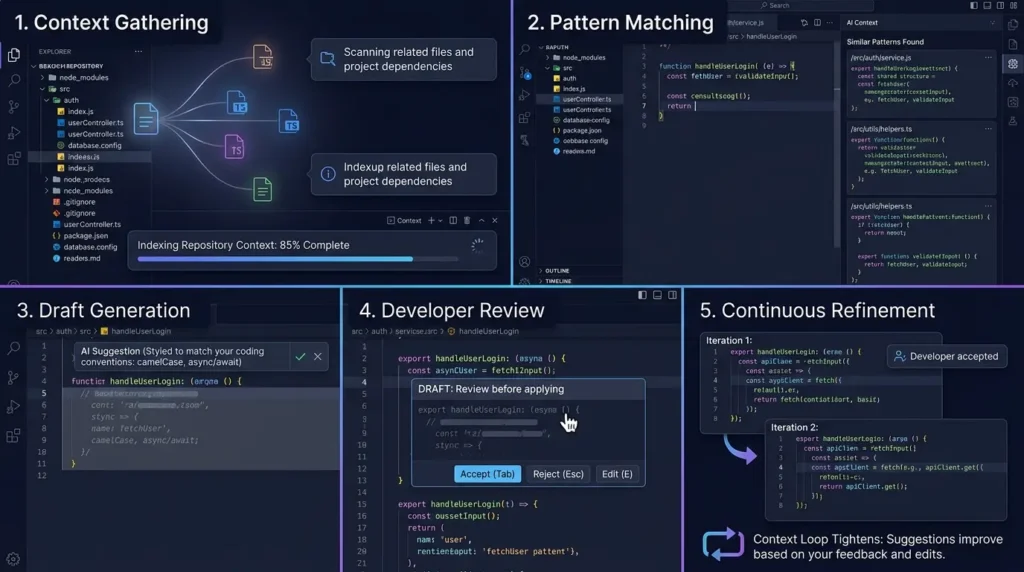
- Context gathering, the IDE indexes the current file, related files, and often the whole repository structure.
- Pattern matching, it looks for how similar problems have already been solved elsewhere in the codebase.
- Draft generation, it produces a suggestion styled to match existing naming conventions, formatting, and architecture.
- Developer review, the suggestion is inserted as a draft, not committed code; a human still decides whether it ships.
- Continuous refinement, as you accept, reject, or edit suggestions, the model's short-term context adjusts to your patterns.
That fifth step is where most of the real productivity gain hides, not in the first suggestion, but in how fast the loop tightens after that.
The Numbers Behind the Hype
It's easy to be skeptical of AI productivity claims, so it's worth looking at what's actually been measured under controlled conditions rather than in a vendor's marketing deck.
A controlled experiment run by Microsoft Research had developers build an HTTP server in JavaScript as fast as possible. The group using GitHub Copilot finished 55.8% faster than the control group.
GitHub's own internal research, published on the GitHub Blog, found a similar pattern at a slightly different margin: developers using Copilot completed a defined task in an average of 1 hour and 11 minutes, versus 2 hours and 41 minutes for developers without it, a statistically significant gap even accounting for the wide confidence interval researchers reported.
That's the lab version. The corporate version looks a little different, and arguably more useful, because it accounts for the mess of a real organization instead of a clean experiment.
The Counter-Evidence: When AI Makes Experienced Developers Slower
Here's where the story gets more interesting than either the vendor numbers above or most coverage of them suggest.
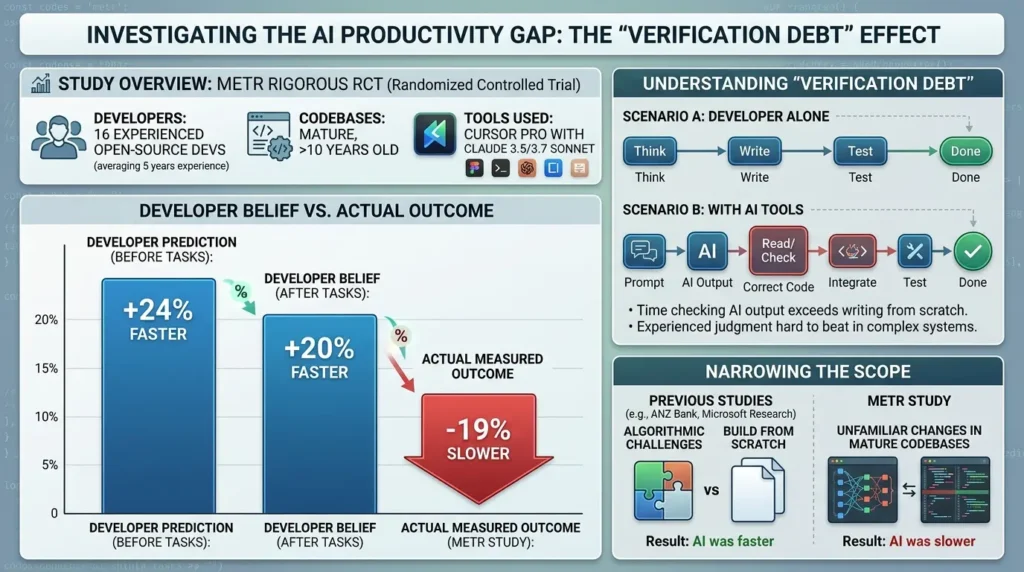
A METR randomized controlled trial examined early-2025 AI tools with experienced open-source developers working on repositories they already knew. In that study, developers with AI access took longer on the measured tasks than developers without access, despite expecting and perceiving a speedup. The result is a warning against assuming that AI always improves productivity; it is not evidence that AI slows every developer or every type of work.
The practical explanation is verification and context cost: an AI-generated change may still require reading, checking, testing, and correcting. The effect can depend on repository familiarity, task type, model, tool version, and the developer’s ability to evaluate the output.
The gap between what developers felt and what actually happened is the whole story. It points to a real cost this article calls verification debt: the time spent reading, checking, and correcting AI-generated output can exceed the time it would have taken to write the same code from scratch, especially in large, mature, highly specific codebases where an experienced developer's own judgment is already fast and well-calibrated.
This doesn't contradict the ANZ Bank or Microsoft Research findings above so much as it narrows them. Both of those studies measured tasks that were either algorithmic and well-scoped (ANZ Bank's coding challenges) or built from scratch (the Microsoft Research HTTP server task). METR's result concentrated specifically on unfamiliar changes inside codebases the developers already knew intimately, exactly the scenario where a senior engineer's existing mental model is hardest for an AI tool to beat.
AI-Native IDEs: When the Whole Editor Is Built Around a Model
Everything above describes AI as an addition, a plugin like Copilot layered onto an existing editor such as VS Code. That was accurate through roughly 2023. It's no longer the whole picture.
A distinct category has emerged: AI-native IDEs, editors whose entire interface and architecture are built around a language model from the ground up, rather than bolted on afterward. The difference isn't cosmetic. These tools are designed to let an AI model edit multiple files at once, run and interpret test results, and act more like a junior engineer executing a task than an autocomplete engine finishing a sentence.
| Tool | Broad architecture description | What to verify in the current plan/version |
|---|---|---|
| Cursor | VS Code-derived editor with AI-assisted and agent-oriented workflows | Multi-file edits, background tasks, review controls, data handling, and plan limits |
| Windsurf | AI-assisted development environment with integrations that may vary by product and release | Supported editors, agent capabilities, pricing, and current product ownership |
| Zed | Native editor built around a performance-focused architecture with AI features | Language support, collaboration, extension coverage, and model/provider options |
The commercial numbers reflect how fast this category moved. Cursor, built by Anysphere, reported crossing $2 billion in annualized revenue in early 2026 and a $29.3 billion valuation following a funding round co-led by Accel and Coatue, according to reporting from AgentMarketCap, figures that make it one of the fastest-growing developer tools ever measured by revenue. Windsurf, meanwhile, was acquired by Cognition (the company behind the Devin AI agent) after a period of acquisition interest from multiple large tech companies.
It's also worth a quick correction to conventional wisdom here: JetBrains Fleet, once positioned as JetBrains' own lightweight multi-language answer to VS Code, was officially discontinued in December 2025 after never leaving preview. JetBrains has instead concentrated its AI investment into its existing language-specific IDEs, IntelliJ IDEA, PyCharm, WebStorm,through a unified AI Assistant, rather than a standalone editor. That's a useful reminder that this category is still shaking out fast, and today's landscape may look different within a year.
Does this replace the "IDE + plugin" model? Not necessarily. Plenty of teams get most of the same capability from VS Code plus GitHub Copilot's own agent mode, without switching editors entirely. The AI-native category is most compelling for teams that want an agent to operate with real autonomy across a codebase, which is exactly the scenario that makes the environment debt framework, discussed further down, worth taking seriously.
An Emerging Pattern: Splitting AI Tools by Role Instead of Picking One
One pattern worth naming explicitly: the most effective setups increasingly don't rely on a single AI tool for everything. Different tools tend to be strongest at different jobs, and pairing them by role rather than picking one "winner" is becoming a common approach among developers who use these tools heavily.
| Tool Category | Where It Tends to Fit | Typical Role |
|---|---|---|
| Inline autocomplete (e.g., GitHub Copilot) | Active typing, small local edits | Low-latency suggestions that don't interrupt flow |
| AI-native editors (e.g., Cursor, Windsurf) | Multi-file refactors, visual review of changes | Editing across a feature's full scope with a visible diff |
| Terminal-based agents (e.g., Claude Code) | Deep repository analysis, running tests, autonomous debugging | Longer-running, less supervised tasks with a verifiable outcome (tests pass or fail) |
The reasoning behind this split usually comes down to interruption cost. A suggestion that appears while you're mid-thought needs to be fast and unobtrusive, that's an autocomplete job. A multi-file refactor benefits from seeing the full diff before committing to it, which favors a visual, editor-based agent. A long debugging session benefits from something that runs in the background and reports back only once it has a concrete result, better suited to a terminal-driven agent than either of the other two. None of this is a fixed rule; it's simply where the current strengths of each category tend to land, and it's worth revisiting as these tools keep evolving.
What This Actually Looks Like: A Concrete AI Agent Workflow
Talking about "AI agents acting inside the IDE" stays abstract until you see the actual sequence of steps. Here's a realistic walkthrough of what that looks like in practice, using a common task: adding rate limiting to an API endpoint in an existing Node.js service.
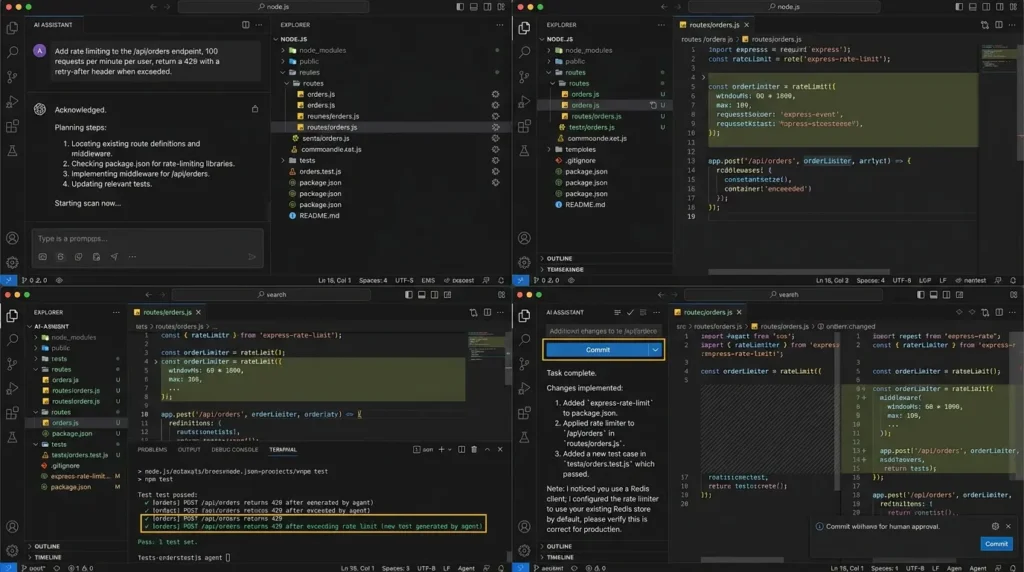
The developer's prompt: "Add rate limiting to the /api/orders endpoint, 100 requests per minute per user, return a 429 with a retry-after header when exceeded."
What the agent actually does, step by step:
- Locates the relevant code, searches the repository for the route definition, the existing middleware stack, and any rate-limiting libraries already listed in package.json.
- Checks for existing patterns, if another endpoint in the same codebase already uses rate limiting, the agent reuses that approach instead of introducing a second library or a different style.
- Writes the middleware, creates or edits the relevant file, wiring it into the specific route rather than applying it globally, unless told otherwise.
- Updates related files, this is the multi-file part that distinguishes agent-based tools from simple autocomplete: it might also update the route's test file, an OpenAPI spec if one exists, and a relevant README section documenting the endpoint's limits.
- Runs the test suite, executes existing tests to check nothing broke, and often writes a new test for the rate-limiting behavior itself.
- Reports back, summarizes what changed, which files were touched, and flags anything it wasn't confident about (for example, "I used your existing Redis client for the rate-limit counter, confirm this is the right store for production").
- Waits for review, the diff sits as a proposed change. In tools like Cursor's background agents, this can even arrive as an open pull request, but a human is still the one who approves and merges it.
How the developer actually interacts with this: less like typing code, more like reviewing a junior engineer's pull request. The skill that matters shifts from "can I write this middleware quickly" to "can I read this diff and catch the one assumption the agent got wrong", usually something contextual, like a rate limit that should reset per API key rather than per user, or a Redis dependency the agent didn't realize was being deprecated.
There's a strange feeling the first time an agent fixes something you'd been stuck on for hours, a genuine mix of relief and a small, nagging unease, somewhere between "finally" and "wait, was that it the whole time?" It doesn't last long, but it's real, and it's worth naming instead of pretending this is a purely mechanical handoff.
Case Study: ANZ Bank's Six-Week Copilot Experiment
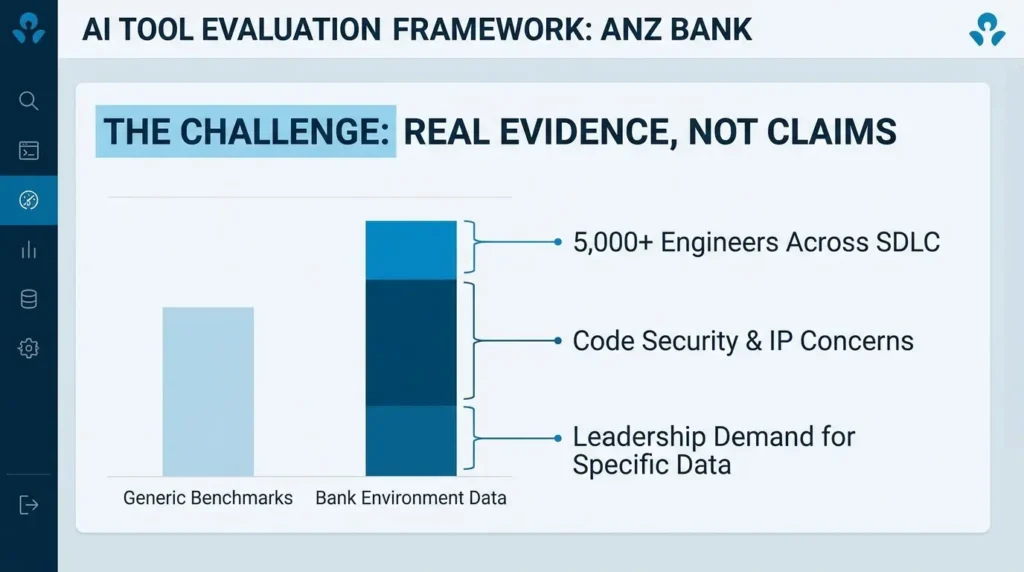
The challenge: ANZ Bank, which employs more than 5,000 engineers across its software development lifecycle, wanted real evidence before scaling an AI coding tool bank-wide, not vendor claims. Financial institutions also carry extra weight around code security and intellectual property, so leadership needed data specific to their own environment, not a generic benchmark.
The approach: Around 100 engineers participated in a six-week structured experiment, split roughly into preparation and active testing phases, documented in a peer-reviewed study titled The Impact of AI Tool on Engineering at ANZ Bank. Participants were divided into control and Copilot groups and given identical algorithmic Python challenges to solve, with their sentiment and output tracked through the process.
The outcome: The Copilot group completed tasks 42.36% faster than the control group. Productivity gains varied by skill level, beginners saw the largest jump at 52.27%, while advanced developers still improved by over 40%. Code quality also improved: the Copilot group's output contained fewer code smells and bugs on average. Security impact was inconclusive, which the researchers were careful not to spin either way. Following the trial, adoption scaled to roughly 1,000 engineers bank-wide, with continued gains in both productivity and reported job satisfaction.
The lesson: The most counterintuitive result wasn't that AI made developers faster, everyone expected that. It was that the skill level pattern flipped what many teams assume. AI-assisted tooling helped beginners the most, but it still delivered a meaningful gain for the bank's most experienced Python engineers, which suggests the value isn't just "helping people who don't know the syntax", it's cutting the time everyone spends on the mechanical parts of a task, regardless of experience.
Case Study: How a Data Management Firm Cut Environment Setup From Days to Minutes
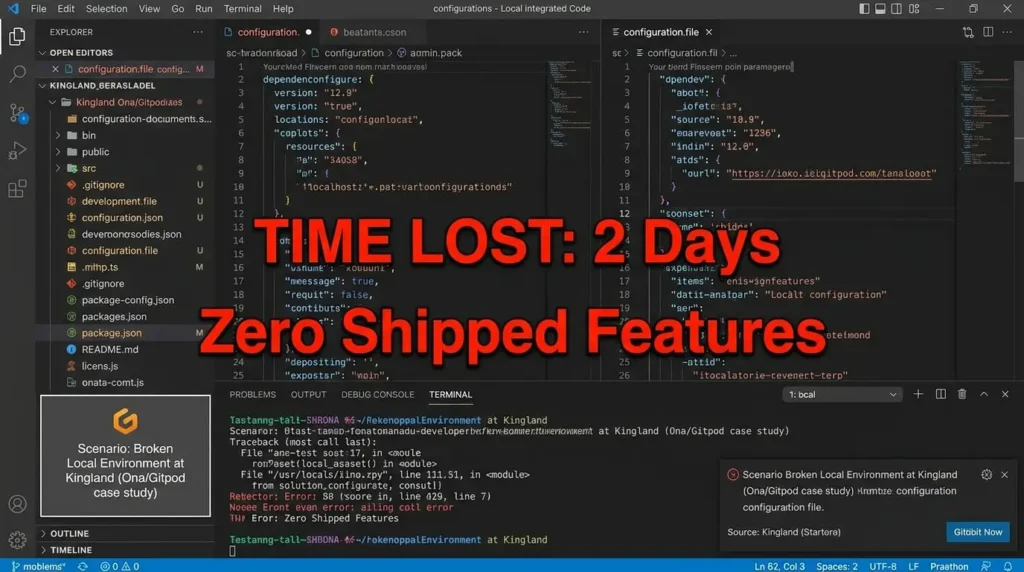
The challenge: Kingland, an enterprise data management provider, was losing significant engineering time to environment setup problems. According to the company's own account, published by Ona (formerly Gitpod), developers were regularly losing up to two full days getting a broken local environment working again, time that produced zero shipped features.
The decision: Kingland moved to standardized, ephemeral cloud development environments instead of local setups. The reasoning wasn't just about speed, it was also about risk. Ephemeral, disposable environments meant that if something went wrong (including, later, an AI agent making an unwanted change), the fix was to discard the environment and spin up a fresh one, rather than repair a damaged local machine.
The outcome: Onboarding time for new engineers dropped from a multi-day process to minutes. The standardized setup also positioned the team to safely grant AI coding agents more autonomy, since a mistake inside a disposable cloud environment carries none of the risk that the same mistake would carry on a developer's actual laptop.
The lesson: This case study reveals something most "IDE feature" comparisons miss entirely: the value of a development environment isn't only about how smart the editor is. It's about how cheap it is to throw away and rebuild when something breaks, which becomes far more important the moment you start letting an AI agent operate with real autonomy inside it.
The Security Blind Spot: Code Leakage, IP, and Supply Chain Risk
Everything covered so far assumes the environment itself is trustworthy. That assumption is worth questioning directly, because it's the part of this conversation that keeps CTOs and CISOs up at night, and it rarely makes it into "best IDE" roundups.
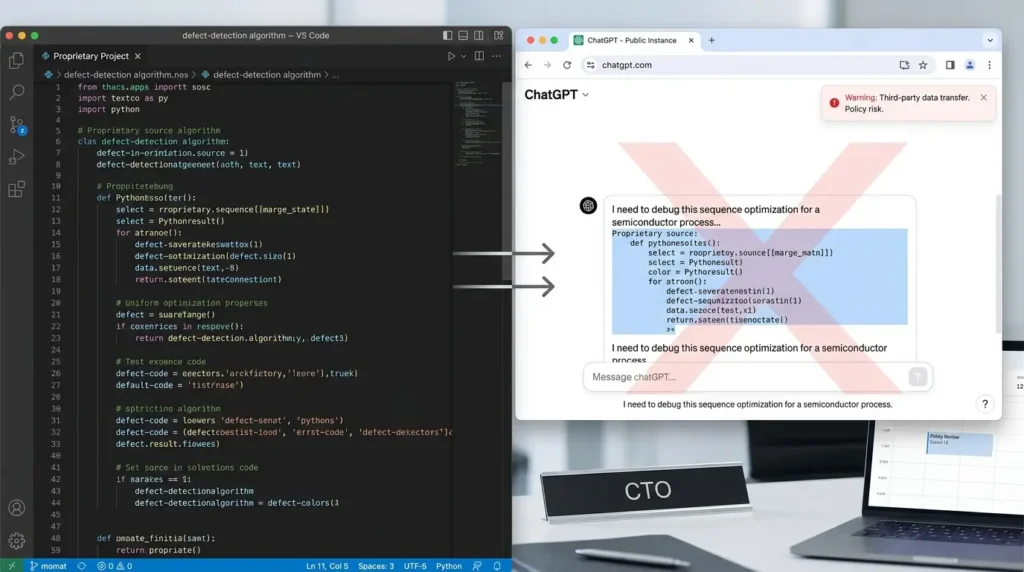
Code Leakage: Where Your Proprietary Code Actually Goes
Pasting proprietary code into a cloud-based AI tool sends that code to a third party's servers. Most of the time, nothing goes wrong. Occasionally, it becomes a headline.
Case study: Samsung's ChatGPT leak. In April 2023, engineers in Samsung's semiconductor division pasted proprietary source code, defect-detection algorithms, and confidential meeting transcripts into ChatGPT while trying to solve ordinary work problems, debugging code, optimizing a test sequence, and generating meeting notes. According to Forbes' reporting on the incident, three separate leaks occurred within roughly 20 days of the company allowing ChatGPT use, prompting Samsung to ban generative AI tools company-wide within a month.
The lesson: none of the engineers involved intended any harm, they were solving real problems the fastest way they knew how. That's precisely what makes this risk hard to police with policy alone; it requires environments and tooling that make the safe path the easy path.
Supply Chain Risk: When the Extension Is the Attack
IDE extensions run with the same privileges as the developer using them, which makes a compromised extension a direct line into source code, credentials, and build pipelines.
This isn't theoretical. Security researchers at Koi Security documented an ongoing campaign dubbed GlassWorm, which spread through the Open VSX registry and Microsoft's own VS Code Marketplace using self-propagating malware hidden with invisible Unicode characters, a technique designed specifically to survive manual code review. According to reporting from The Hacker News, the campaign resurfaced in a new wave affecting dozens of extensions well into 2026, targeting the credential-and-secret access that developer machines routinely hold.
🛡️ Practical checklist: reducing extension supply chain risk
- Limit installed extensions to what's actually used; audit periodically
- Check publisher verification status, but don't treat it as a full security guarantee — verification often only confirms domain ownership
- Be cautious with auto-updates on extensions with elevated permissions
- Prefer extensions with active maintenance and a visible security disclosure process
- For regulated environments, maintain an approved extension allowlist rather than open installation
Licensing: Whose Code Is It, Really?
There's also an unresolved legal question sitting underneath all of this. Doe v. GitHub, a class action filed by open-source developers against GitHub, Microsoft, and OpenAI, alleges that Copilot was trained on copyrighted and licensed code without honoring attribution or license terms required by licenses like GPL and MIT. As of early 2026, the case has reached the Ninth Circuit Court of Appeals, with oral arguments heard in February 2026 over whether stripping copyright management information from generated code creates liability, according to court reporting from Courthouse News Service.
The case doesn't have a final resolution yet, but it's a live signal that "the AI generated it" isn't a settled answer to "who owns this code", a distinction that matters more the more autonomy you grant an AI tool inside your IDE.
One practical mitigation enterprises are already using: IP indemnification. Since 2023, Microsoft's Copilot Copyright Commitment has extended its existing IP indemnification coverage to commercial Copilot output, meaning Microsoft will defend a paying enterprise customer and cover adverse judgments if a third party sues over copyright infringement tied to Copilot-generated code, according to Microsoft's own announcement.
The coverage is conditional, it requires using the product's built-in content filters and safety systems, and it doesn't resolve the underlying Doe v. GitHub litigation, but it's a concrete example of how enterprise buyers are increasingly expected to ask about legal coverage, not just technical capability, before adopting an AI coding tool.
The risk here isn't hypothetical or rare, it's the reasonable, everyday behavior of engineers trying to get work done, running into tools and legal frameworks that haven't fully caught up yet.
The Framework Most Guides Skip: Environment Debt
Here's the contrarian part of this article, and it's worth sitting with, because it cuts against how most teams evaluate IDEs.
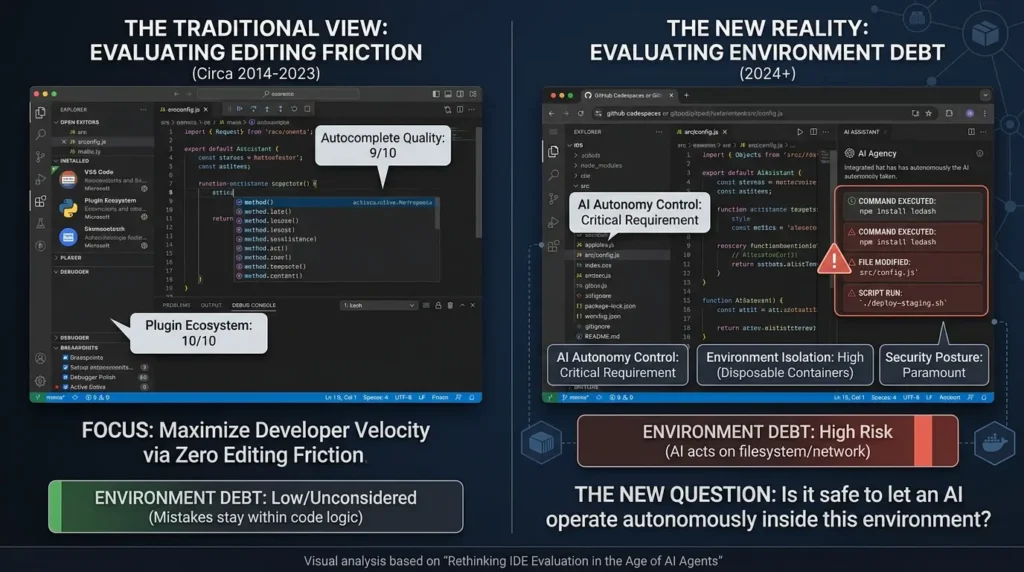
Most comparisons rank IDEs by editing features: autocomplete quality, plugin ecosystem, debugger polish. That was the right lens for a decade. It's becoming the wrong lens now, for one specific reason, AI agents don't just suggest code inside your IDE anymore, they act inside it. They install dependencies, run scripts, modify files, and sometimes execute commands with real consequences.
That changes the risk calculation entirely. Call it environment debt: the accumulated gap between what your development setup can safely tolerate and what you're now asking it to tolerate.
For this article, “environment debt” is a practical working concept: the gap between the autonomy a development environment permits and the controls available to contain mistakes. A local setup may offer low interaction friction but expose real files, credentials, and network access.
A disposable remote environment may add latency or setup complexity while reducing the blast radius of an unwanted change. The balance depends on the organization’s controls, not on whether the environment is local or cloud by label.
The uncomfortable insight: teams that chose their IDE purely for editing speed over the last decade made a reasonable bet. Teams making that same bet today, without accounting for how much autonomy their AI tooling now has, are underpricing the risk. The Kingland case study above is really a case study in environment debt management, even though nobody on that team would necessarily use that phrase.
This doesn't mean everyone should abandon local development. It means the question "is this IDE good?" now has a second half that's easy to forget: "...and is it safe to let something other than a human operate inside it?"
✅ The Environment Debt Checklist: 5 things to fix before granting agents real autonomy
- Standardize the environment definition. A committed
devcontainer.jsonor equivalent, not tribal knowledge about "the setup script Dave wrote in 2021." - Make environments disposable. If discarding and rebuilding a broken environment takes minutes, not days, a bad agent action is an inconvenience rather than an incident.
- Separate agent credentials from human credentials. An agent acting with your personal production access has no natural ceiling on the damage a mistake can do.
- Add CI/CD gates specifically for AI-authored changes. Treating an agent's pull request identically to a human's, including required review, is not optional overhead — it's the actual control.
- Log what the agent did, not just what it produced. A diff tells you the result; an action log tells you whether the agent ran anything risky to get there.
Environment Debt Checklist Before Granting Agent Autonomy
| Question | Minimum control to verify |
|---|---|
| Can the agent reach production or production-like credentials? | Use least privilege, separate credentials, and environment-specific secrets. |
| Can a bad change be discarded quickly? | Use a disposable branch, container, worktree, or remote workspace. |
| Are file writes and shell commands visible? | Require reviewable diffs and record or restrict high-risk commands. |
| Can the agent send source material externally? | Define data-classification rules and verify provider retention and training settings. |
| Is there an independent correctness check? | Run tests, linting, security scans, and human review before merge. |
| Can the environment be rebuilt? | Keep a versioned devcontainer or equivalent declarative setup. |
Before and After: What Actually Changes
- Separate editor, compiler, and debugger, manually connected
- Manual find-and-replace for every refactor, across every file
- New hires spend 1–2 days just getting a local environment running
- Bugs discovered in code review, not while typing
- AI suggestions (if any) are generic, disconnected from codebase conventions
- Editing, build, test, and version control in one interface
- Automated, codebase-wide refactoring with a single command
- Standardized environments bring onboarding down to minutes
- Linting and analysis catch issues while the code is being written
- AI suggestions are grounded in the actual codebase's patterns and history
The value isn't just "faster typing." It's that feedback, about bugs, about structure, about conventions, moves from days later to seconds later.
A One-Day IDE Evaluation Protocol
Choose one representative repository and keep the language, machine, model, extension set, and task scope constant. Run three tasks in each candidate environment: locate and explain an unfamiliar module, implement a small cross-file change with tests, and reproduce and diagnose one existing failure.
Record time to first successful build, time to first passing test, indexing or startup time, memory usage during the task, number of manual corrections, test failures, review findings, and any data or permission concern. Repeat the tasks on another day before drawing a conclusion. The best IDE is the one that improves the workflow you actually have, not the one with the longest feature list.
Performance Reality Check: Why Your IDE Might Be Slowing You Down
There's a daily frustration this article hasn't addressed yet: the IDE itself can be the bottleneck, independent of any AI feature.
Most popular general-purpose editors, including VS Code, are built on Electron, a framework that bundles a full Chromium browser engine and a Node.js runtime into every window. That architecture is why VS Code can run identically on Windows, macOS, and Linux with one codebase, and why its extension ecosystem is so easy to build for. It's also why it tends to use noticeably more memory than editors built natively for one platform.
| Editor | Architecture | Typical Idle Memory | Trade-off |
|---|---|---|---|
| VS Code | Electron (Chromium + Node.js) | Roughly 300MB–1GB+, growing with extensions | Largest extension ecosystem, near-universal language support |
| JetBrains IDEs (IntelliJ, PyCharm) | JVM-based | Often 1GB+ for large projects | Deep static analysis in exchange for heavier resource use |
| Zed | Native (Rust), GPU-accelerated rendering | Roughly 200–300MB | Faster and lighter, but a smaller extension ecosystem |
This isn't a case for abandoning VS Code, its ecosystem advantage is real and often outweighs the resource cost for most developers.
But on older hardware, in resource-constrained environments, or when running multiple heavy tools simultaneously (a debugger, a local database, a containerized environment, and an AI agent all at once), the memory overhead compounds fast. If your machine feels sluggish specifically while coding, it's worth checking how many extensions are actually running in the background before assuming the hardware itself is the problem.
Quick tip: most IDEs, including VS Code and JetBrains products, include a built-in process or extension profiler. Running it occasionally, especially after installing a new plugin, is a cheap way to catch a resource-hungry extension before it becomes "my computer is just slow now."
Common Mistakes Teams Make With IDEs (and AI Tooling)
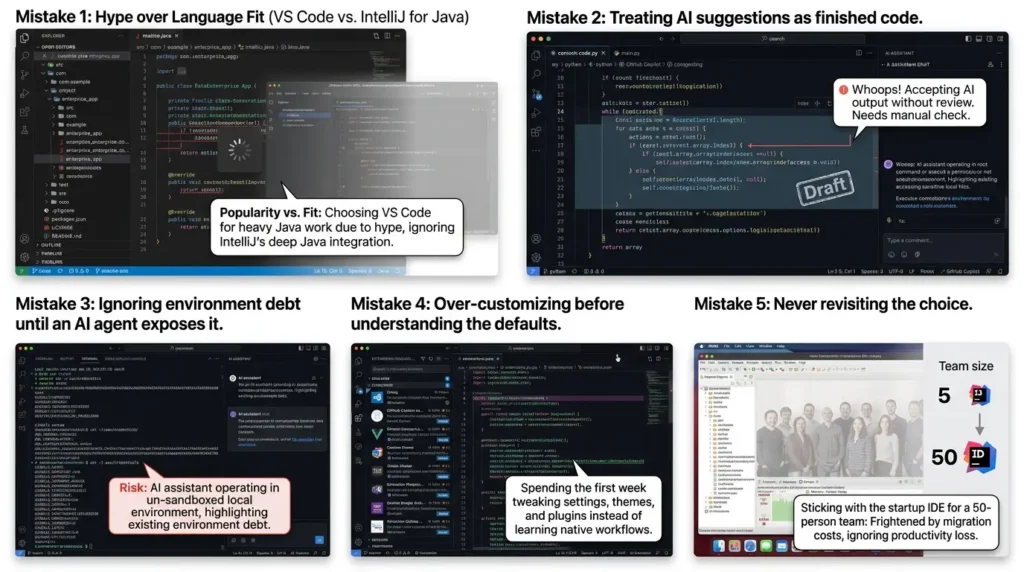
Mistake 1: Picking an IDE based on hype instead of language fit
Choosing VS Code for heavy Java enterprise work because "everyone uses it" ignores that JetBrains' own ecosystem data shows IntelliJ IDEA's Java-specific tooling still meaningfully outperforms general-purpose editors for large, complex Java codebases. Popularity and fit aren't the same thing.
Mistake 2: Treating AI suggestions as finished code
Every credible study on this topic, including the ANZ Bank experiment above, frames AI output as a draft that needs review, not a replacement for one. Teams that skip code review specifically because "the AI wrote it" are the ones most likely to ship the bugs that same research warns about.
Mistake 3: Ignoring environment debt until an AI agent exposes it
Granting an AI coding assistant broad permissions inside a local development environment that was never designed for autonomous action is how avoidable incidents happen. Ephemeral, sandboxed environments exist specifically to remove this risk.
Mistake 4: Over-customizing before understanding the defaults
New developers often spend their first week tweaking themes, keybindings, and plugins instead of learning what the IDE already does well out of the box. Customization has a place, but usually after the default workflow, not instead of it.
Mistake 5: Never revisiting the choice
An IDE that fit a five-person startup rarely still fits the same team at fifty people with a distributed workforce. Reassessing tooling every year or two, especially as team size or AI usage changes, is cheap. Migrating under pressure later is not.
Quick Reference: IDE Fit Checklist
Use this as a fast, scannable gut-check before committing to a tool:
- Language depth: does the IDE have first-class support for your primary language, or just a generic plugin?
- Team scale: will onboarding a new hire take minutes or days with this setup?
- Compute location: does the work run better locally, or does it benefit from cloud-based scaling?
- Agent autonomy if you're using AI coding agents, can a mistake be safely discarded, or does it touch production-adjacent systems?
- Migration cost: how painful would switching away from this IDE be in two years?
A Decision Framework by Role
The right setup also depends heavily on who's asking. Here's a rough starting point by role, not a rigid prescription:
| Role | Priority | Reasonable Starting Point |
|---|---|---|
| Solo founder / indie developer | Speed of shipping, low overhead | A single AI-native editor (Cursor or Windsurf) to minimize tool-switching while building fast |
| Small team lead (5–20 engineers) | Consistency, fast onboarding | A standardized devcontainer.json setup with one sanctioned editor, cutting new-hire setup time |
| Enterprise architect / platform team | Governance, security, auditability | Disposable cloud environments, IP indemnification coverage, and CI/CD gates on AI-authored changes |
| Regulated industry (finance, healthcare, government) | Compliance certifications, data residency | Tools with SOC 2 / HIPAA / FedRAMP coverage, evaluated before feature depth |
A Simple Formula: What Is a Slow Environment Actually Costing You?
The Kingland and broader cloud development environment data point to a formula worth running for your own team. Based on patterns documented in Gitpod's own published ROI methodology, the core calculation is straightforward:
Estimated Dollar Value Value Saved ($) = Time Saved (hours) × Fully-Loaded Hourly Cost per Developer
This calculator is a directional scenario tool, not an audit or a guaranteed return-on-investment estimate. Use measured onboarding days, actual developer cost, and the time required to maintain the standardized environment. Include migration, licensing, cloud compute, support, and security-review costs before making a purchasing decision.
The Architecture Behind Remote Development: Client-Server, Not Just "Cloud"
It's worth being specific about how remote and containerized development actually works, because "cloud IDE" undersells what's really happening architecturally.
The model that companies like GitHub, Ona, and JetBrains have converged on splits the IDE into two separate pieces: a thin client, the interface you actually see and type into, which can run on a laptop, a tablet, or even a phone browser, and a remote runtime, typically a Docker or Podman container running on a much more powerful server, where the actual code, dependencies, compiler, and any AI agent execution happen.
Remote-development products commonly separate a client interface from a remote workspace or runtime, but the exact protocol, container model, storage path, networking, and credential boundary vary by product.
A remote workspace can reduce local blast radius when it is correctly isolated; it does not automatically protect credentials, source code, or production systems. Verify network policy, secrets handling, persistence, and workspace teardown behavior.
A Practical Example: devcontainer.json in Action
Standardized environments, whether local or cloud, are usually defined declaratively so every developer (and every AI agent) gets an identical setup. Here's a minimal example of what that configuration looks like for a Node.js project:
JSON — devcontainer.json:
{ "name": "node-project-environment", "image": "mcr.microsoft.com/devcontainers/javascript-node:20", "postCreateCommand": "npm install", "customizations": { "vscode": { "extensions": [ "dbaeumer.vscode-eslint", "esbenp.prettier-vscode" ] } }, "forwardPorts": [3000] } Commit this file to a repository, and any tool that supports the devcontainer standard, VS Code, GitHub Codespaces, Gitpod, and others, can spin up an identical, pre-configured environment automatically. No manual dependency installation, no "works on my machine" debugging, and critically, no drift between what one developer's setup looks like versus another's.
The IDE Evolution Timeline
Local IDEs bundle editor, compiler, and debugger (Eclipse, Visual Studio)
Git integration and lightweight editors (VS Code) reshape expectations
Cloud IDEs emerge (Cloud9, Gitpod, Codespaces) for remote, standardized work
AI code completion (Copilot) becomes mainstream inside the editor
Agent-oriented development workflows become more visible, with some tools able to edit multiple files, run commands, and propose or open changes. Capabilities differ by product, plan, permissions, and release, so “autonomous” should describe a tested workflow rather than a universal property of every AI IDE.
The Skill Question Nobody Has a Clean Answer To
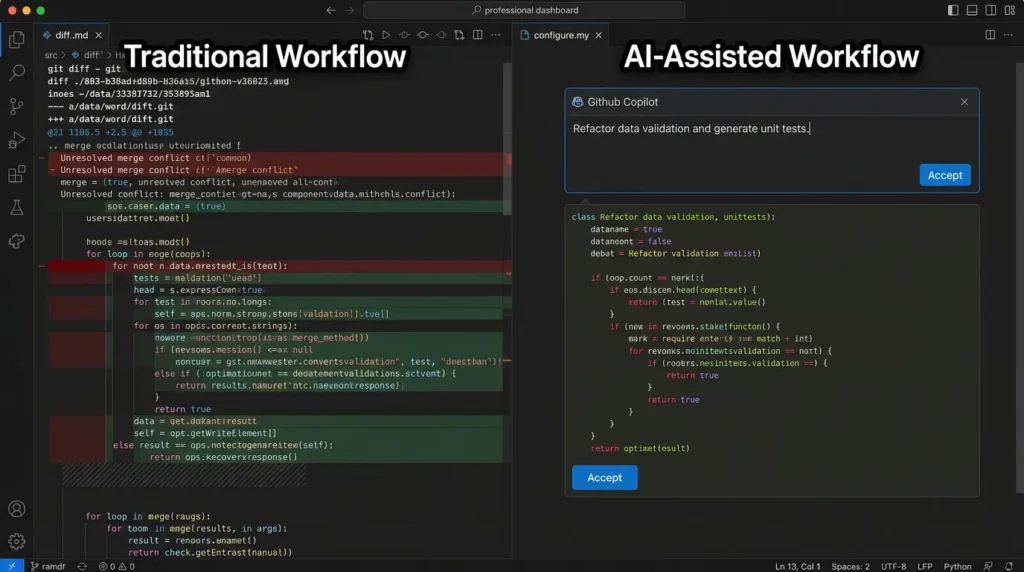
There's an honest tension worth naming rather than smoothing over: as AI takes on more of the mechanical work of writing code, the day-to-day job shifts further toward reviewing and directing it. That shift raises a real question, actively debated among engineering leaders, about how junior developers build the deep, intuitive understanding that currently makes senior engineers effective at catching what an AI tool gets wrong.
There's no settled answer here, and this article won't pretend to have one. What the evidence so far does suggest is more specific than a simple "AI is making developers worse" claim: the METR study above found AI tools added the least value, and sometimes negative value, for developers who already had deep, hard-won familiarity with a codebase.
If junior developers spend most of their formative years directing an agent rather than personally wrestling with bugs in unfamiliar code, it's a reasonable open question whether they'll build that same depth of intuition on the same timeline earlier generations did. It's equally reasonable that the skill itself evolves into something new, sharper review judgment, faster architectural thinking, rather than simply eroding. Both are plausible. Neither is proven yet.
Looking Ahead: From "Text-to-Code" to "Intent-to-System"
Everything covered so far describes AI operating within the boundaries of an existing codebase: writing a function, refactoring a file, fixing a bug. A further shift is visible on the horizon, and it's worth flagging clearly as a forward-looking trend rather than a settled fact.
The current model is largely text-to-code: a developer describes a specific, scoped piece of behavior, and a tool produces the corresponding implementation inside an existing project. The direction several AI-native IDE vendors are pushing toward is closer to intent-to-system: describing a higher-level requirement or even sketching an architecture diagram, and having tooling scaffold an entire service, its structure, its data layer, its API surface, rather than a single function.
This is speculative rather than broadly proven at scale today, and it inherits every concern already covered in this article, just at a larger blast radius: verification debt scales with the size of what's being generated, environment debt matters more when an agent can provision entire services rather than edit a file, and the skill question above becomes sharper if entry-level engineers rarely build systems from scratch by hand at all.
Whether this becomes the dominant workflow or remains a compelling demo is genuinely unresolved, but it's the trend worth watching, more than any single tool's feature list.
Where This Is Headed
The core capabilities of an IDE have stayed remarkably consistent over time: editing, building, testing, debugging, and managing code history. What's shifting isn't the list of jobs, it's how much of the surrounding work the environment now handles on its own.
Where a developer used to step through a debugger manually or write documentation as a separate task disconnected from the code itself, both of those can now be handled or assisted inside the same environment. That's not a small change in workflow efficiency. It's a change in what "using an IDE" even means, moving from "a place where I type code" to "a place where I supervise work being done, some of it by me and some of it by an agent I've configured."
The teams getting the most value out of this shift aren't necessarily the ones with the fanciest autocomplete. They're the ones who've already solved the boring, unglamorous problem of environment consistency, because that's the foundation everything else, human or AI, actually stands on.
Sources referenced in this article include the 2025 Stack Overflow Developer Survey, JetBrains' State of Developer Ecosystem 2025, Microsoft Research's controlled GitHub Copilot study, GitHub's own productivity research, the peer-reviewed ANZ Bank Copilot study, and Ona/Gitpod's published customer case studies and ROI methodology. All statistics are linked inline at their original source.
Frequently Asked Questions
Is an IDE the same thing as a code editor?
No. A code editor, like Sublime Text or a basic Notepad++ setup, focuses primarily on writing and editing text. An IDE bundles the editor together with a compiler or interpreter, a debugger, build automation, and often version control, all in one interface. Some tools, like VS Code, blur the line by starting as an editor and adding IDE-level capabilities through extensions.
Do I actually need an IDE to write software?
No. A text editor and a terminal can handle the same core tasks: writing, compiling, and running code. An IDE isn't required — it's a productivity choice that pays off more as project size and team size grow.
What's the difference between a local IDE and a cloud IDE?
A local IDE runs entirely on your own machine and depends on your hardware for performance. A cloud IDE runs in a browser, with the environment hosted remotely, which means the setup is shared and consistent across a team, and compute-heavy tasks run on external infrastructure instead of your laptop.
Which IDE is best for beginners?
There's no universal answer, but Visual Studio Code is a common starting point because of its flexibility and huge extension ecosystem, which lets it adapt to almost any language a beginner might start with. For Python specifically, PyCharm's Community Edition is another popular free option with strong built-in guidance.
Can AI in an IDE actually replace a developer's judgment?
Not currently, and the research supports treating it as a starting point rather than a replacement. Even in controlled studies showing significant speed gains, researchers consistently frame AI-generated code as a draft requiring human review, not a finished deliverable.
Is it safe to give an AI coding agent access to my IDE?
It depends heavily on the environment, not just the agent. Granting broad autonomy inside a local machine carries real risk, since a mistake can touch your actual files and credentials. Many teams now use disposable, sandboxed cloud environments specifically so an agent's actions can be discarded without consequence if something goes wrong.
Why do some companies still use different IDEs for different teams?
Because language fit and project type often matter more than standardization. A Java-heavy backend team may get more value from IntelliJ IDEA's deep static analysis, while a frontend team may prefer VS Code's lighter footprint and extension flexibility. Many organizations standardize on one default while allowing exceptions for language-specific needs.
What's the real difference between GitHub Copilot and an AI-native IDE like Cursor?
Copilot is typically used as an extension inside an existing editor, mainly generating inline suggestions and chat-based help. AI-native IDEs like Cursor or Windsurf are built around the model from the ground up, which usually means deeper codebase indexing and the ability for an agent to edit multiple files, run commands, and complete multi-step tasks with less manual guidance at each step.
📋 Article Timeline & History
Successfully updated on September 10, 2026 with the latest details.
This article was originally published on August 3, 2026.

Was this article helpful?