

You can install Proxmox in twenty minutes and spend the next two years living with the storage choice you made in the first five. Nothing warns you. Then a thin pool hits 100%, or a node dies, or a migration starts copying 400 GB while you watch a progress bar.
Every Proxmox storage decision trades off four things: simplicity, cost, availability and performance. Two kinds of readers run into this. Homelabbers want cheap redundancy without a second mortgage. VMware refugees expect storage to behave like a SAN and are surprised when it doesn’t.
This guide covers seven storage types in the order most people meet them. It also adds something most comparisons skip: a Failure-First Test. Instead of asking “which storage has the best features?”, you ask “what dies when something breaks?” That question gives better answers.
Quick answers (actionable takeaways)
Click any topic to expand or collapseOne node
Use ZFS, ideally a two-disk mirror on SSD or NVMe.
Two nodes
ZFS mirrors + replication + a QDevice (a cheap third vote).
Three or more nodes
ZFS + replication if you can live with a short rollback window. Ceph only if you have 10 GbE, SSDs and CPU to spare.
NFS, SMB and iSCSI
Great for backups, ISOs and bulk files. Poor choice for VM disks on a small network.
Any choice
Storage is never a backup. Add Proxmox Backup Server.
How Proxmox thinks about storage
Proxmox sorts storage into two classes, and the official storage documentation draws the line clearly.
Definition: file-level storage: The storage is a normal filesystem. Virtual disks sit in it as files (such as qcow2), and it can also hold ISOs, container templates and backups. Directory, NFS and CIFS/SMB work this way.
Definition: block-level storage: The storage hands Proxmox raw logical volumes or block images, with no filesystem in between. It usually can’t hold ISOs or backup files. LVM, LVM-thin, ZFS zvols, iSCSI and Ceph RBD work this way.
The guest never sees the difference. A VM always sees a plain virtual disk it can partition and format. The difference only matters to you, because it decides which features you get: snapshots, sharing across nodes, thin provisioning.
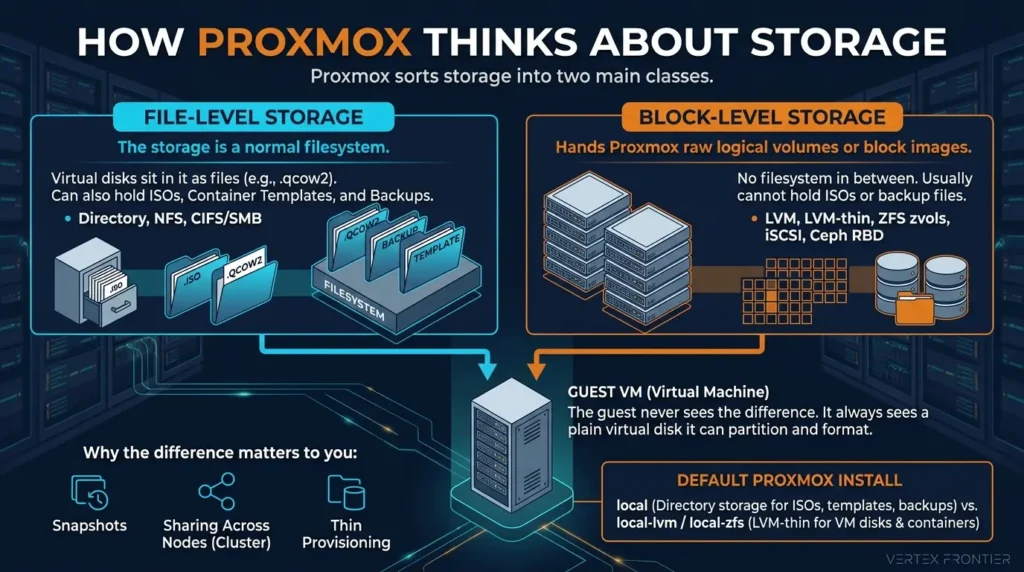
Definition: what is local-lvm? It is the storage that a default Proxmox install creates for VM disks and containers. It sits on LVM-thin, lives on the install disk, is not shared and has no redundancy. Next to it sits local, a directory storage for ISOs, templates and backups. According to the Proxmox docs, a ZFS install creates local-zfs instead. Many newcomers think the local / local-lvm split wastes space. It doesn’t. It simply separates files from VM disks.
File or block describes how data is stored. “Shared” and “snapshots” decide whether it fits a cluster.
The seven storage types at a glance
Here is the scannable version. The last column of the table is the Failure-First Test in one line.
- Directory: a folder on the host. Default home for ISOs and backups.
- LVM: block volumes, fully allocated at creation.
- LVM-thin: block volumes allocated only as the guest writes.
- ZFS: checksums, compression, snapshots and built-in redundancy on local disks.
- NFS / SMB (CIFS): shared file storage from a NAS.
- iSCSI: shared block storage, usually with LVM on top.
- Ceph RBD: shared block storage replicated across your own nodes.
Proxmox also lists BTRFS, but the docs classify it as a technology preview with best-effort support. For production, ZFS is the safer local choice.
| Storage | Level | Shared? | Snapshots | Best role | What dies with it |
|---|---|---|---|---|---|
| Directory | File | No | Only with qcow2 | ISOs, templates, backups | The disk or the node |
| LVM | Block | No (shared when it sits on an iSCSI, FC or SAS LUN) | PVE 9 volume chains for VMs | Simple, fixed-size disks | The disk or the node |
| LVM-thin | Block | No | Yes | Default VM disks on one node | The disk, the node, or a full pool |
| ZFS | Both | No | Yes, plus clones | Single node, or cluster with replication | The node (a failed disk is survivable with a mirror or RAIDZ) |
| NFS / CIFS | File | Yes | Only with qcow2 | Backups, ISOs, bulk files | The NAS and the network path: every node loses its disks |
| iSCSI | Block | Yes | Yes (PVE 9 volume chains, VMs) | Existing SAN or capable NAS | The storage box and its network path |
| Ceph RBD | Block | Yes | Yes | Hyper-converged 3+ node clusters | Survives one node loss at size 3 / min_size 2. Fewer healthy replicas than min_size stops I/O. |
Matrix based on the official Proxmox storage documentation and the Proxmox Ceph chapter. The last column is this guide’s own analysis.
The Failure-First Test: a better way to choose
Feature checklists push you toward the most impressive option. The Failure-First Test pushes you toward the one that fits your risk.
Ask three questions about any storage you are considering:
- A disk dies. What happens? Mirror, RAIDZ and Ceph shrug. A single LVM-thin disk takes your VMs with it.
- A node dies. How long until the VMs run again, and with how much old data? With Ceph and HA, guests restart on another node with current data. With replication, they restart from the last sync. With local-only storage, nothing restarts until the node returns or you restore from backup.
- The shared thing dies. What does it take down? If the answer is “every node”, you have built a single point of failure and given it a nice name.
Then add a fourth question, which almost nobody asks: what will it cost me to learn and operate this at 2 a.m.? Ceph is excellent, and it is also the most to learn.
Pick storage by blast radius and recovery time. Speed and features come second.
The Failure-Mode matrix
Here is the Failure-First Test as a table you can scan. Cells marked (docs) come from official Proxmox or Ceph documentation. Cells marked (inference) are this guide’s reasoning from those docs.
| Event | Local ZFS mirror or RAIDZ | ZFS + replication | NFS or iSCSI on one NAS | Ceph (size 3, min_size 2) |
|---|---|---|---|---|
| One disk fails | Pool stays online while redundancy holds: one healthy disk per mirror, or up to N failed disks in RAIDZ-N (docs). | Same as local ZFS on each node (docs). | Depends on the NAS’s own RAID. Proxmox adds no redundancy here (inference). | Ceph recovers the missing copies onto other OSDs. Recovery takes longer on slow networks and HDDs (docs). |
| One node fails | Guests on that node stay down until it returns or you restore from backup (inference). | A replica exists on the target node. With HA it can restart there, with data as of the last sync (docs). Without HA, you move guests by hand (docs). | Surviving nodes still see the disks, so HA can restart guests elsewhere if the NAS is up (inference). | The pool keeps serving I/O with 2 of 3 replicas (docs). HA can restart guests elsewhere with current data (inference). |
| The NAS or its network path fails | Not applicable. | Not applicable. | Every guest on that storage loses its disks (inference). | Not applicable to the pool itself. If Ceph traffic shares a network with corosync, heavy recovery traffic can threaten quorum (docs). |
| Quorum is lost | The cluster becomes read-only, and nodes with HA resources fence themselves after roughly one minute without stable quorum (docs). | |||
| Storage runs full | A full thin-provisioned storage gives I/O errors to every guest on it and can corrupt file systems (docs). Ceph can block I/O when OSDs run full (docs). Monitor free space on every storage type. | |||
Directory storage: boring, and that’s the point
Directory storage is a folder on the host’s filesystem. Proxmox already uses it for local, which holds ISOs, container templates and backups by default.
You can also enable the “Disk image” content type and keep VM disks there as qcow2 files. The official docs note one catch: on file-based storage, snapshots only work with qcow2. A raw file gives you no snapshot.

When it makes sense:
- A spare SSD you want to use quickly for a test VM.
- A backup target or ISO library.
- A place to learn before you commit to something heavier.
When it doesn’t: anything you care about losing. It has no redundancy and it isn’t shared.
LVM vs LVM-thin: the default that bites
Classic LVM reserves the full size of a disk the moment you create it. Make a 40 GB virtual disk and LVM sets aside 40 GB, even if the guest has written 5 GB. LVM-thin allocates only what the guest has actually written. That is why Proxmox defaults to it and why you should prefer it over plain LVM.
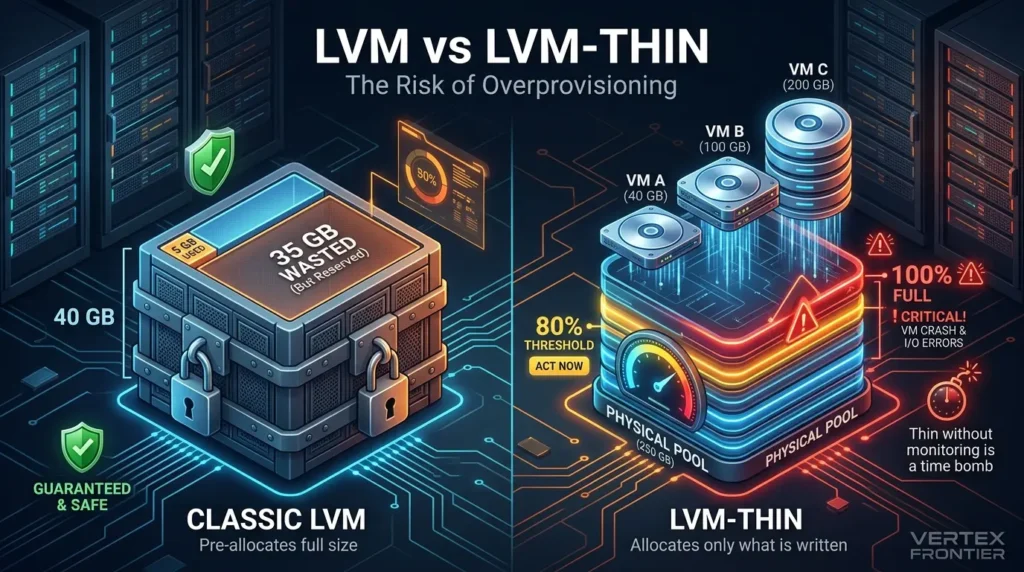
Thin provisioning has a catch. You can promise more space than the disk physically has. Create VMs with 40, 100 and 200 GB disks on a 250 GB pool and it works fine until the guests really fill up.
The Proxmox docs warn that when a thin storage runs full, every guest on it gets I/O errors, which can corrupt filesystems.
The second half of the lesson is about getting space back. Thin storage only reclaims space when the guest reports what it no longer uses. The Proxmox Ceph chapter advises running fstrim (discard) regularly in VMs and containers, and making sure each VM disk has the discard option enabled. Applying the same habit to other thin storage is this guide’s inference, not a documented LVM-thin procedure.
A sensible recovery order (editorial guidance, not an official Proxmox procedure):
- Stop non-essential VMs so nothing writes more.
- Delete old snapshots and unused disks.
- Run TRIM in guests that have discard enabled.
- Add capacity or move a disk to other storage.
- Then fix the cause: size the pool honestly, and set an alert.
Quick win: write down your provisioned total (the sum of all disk sizes) next to the physical size. If the first number is bigger, you are overprovisioned. That may be fine, but now it’s a decision.
How to create an LVM-thin pool in Proxmox
- Open your node and go to Disks → LVM-Thin, then click Create: Thin Pool.
- Select the physical disk and give the pool a name.
- Tick Add Storage to register it in the datacenter automatically.
- In a cluster, repeat on every node, then check Datacenter → Storage and restrict the entry to the nodes that actually have the disk.
LVM-thin is fast to set up, supports snapshots and works well on one node. What it lacks is redundancy. On a single SSD or NVMe, that disk is a single point of failure. Enterprise servers solve this with a hardware RAID card. Most homelab boards don’t have one, and ZFS does the same job in software.
Thin is better than thick, but thin without monitoring is a time bomb.
ZFS on a single node: the default winner
ZFS manages disks and redundancy itself. Proxmox stores VM disks on it as block devices called zvols, and you get checksums, compression, snapshots, rollbacks and clones without extra software. Hand it plain disks and let it handle redundancy. The Proxmox ZFS documentation says not to run ZFS on top of a hardware RAID controller that manages its own cache, because ZFS needs to talk to the disks directly. An HBA, or a controller flashed to IT mode, is the documented alternative.
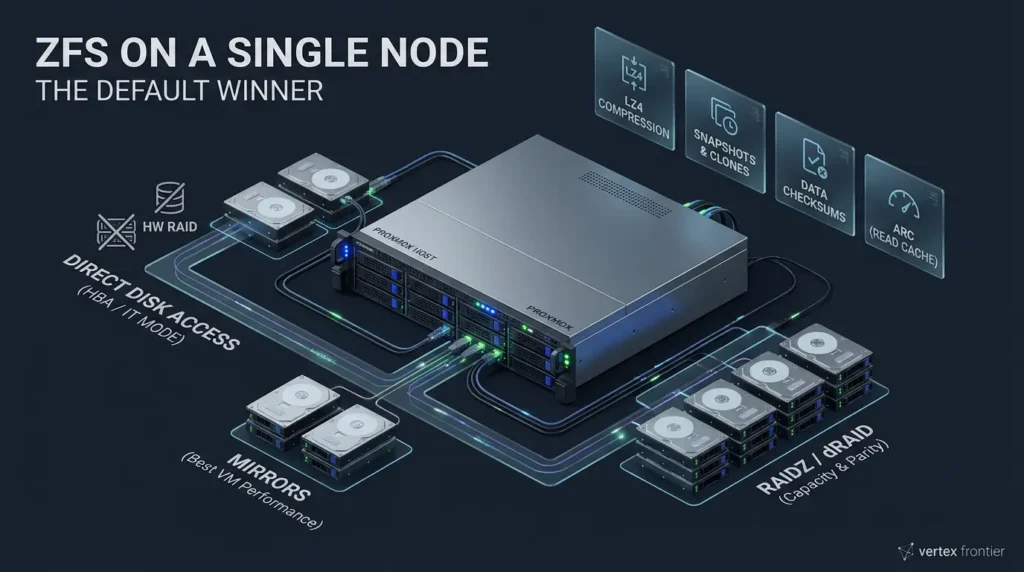
The Proxmox documentation calls ZFS probably the most advanced storage system on the platform. For one server, ZFS is a sound default unless you have a specific reason to choose something else.
Choosing a layout
- Single disk: no redundancy, but you keep compression, snapshots and checksums.
- Mirror: two disks, identical data, half the capacity. The Proxmox ZFS page says mirrors give the best performance.
- RAIDZ1: three or more disks, one disk of parity. With three 1 TB disks you get about 2 TB.
- RAIDZ2: two parity disks, so two can fail at once. That matters because disks from the same batch and controller sometimes fail together.
- RAIDZ3: three parity disks, for larger arrays.
- dRAID: a declustered layout where spare capacity takes part in rebuilds. The Proxmox docs say it is meant for more than 10 to 15 disks and that RAIDZ should be better for smaller counts.
The same page works through an example: a four-disk RAIDZ2 gives the same usable space as two mirror vdevs, and the docs say two mirrors are usually the better choice there because of performance. For running VMs, the docs also note that IOPS usually matters more than bandwidth, and they describe mirror vdevs as favorable for VM workloads unless your environment has specific needs where RAIDZ is acceptable. RAIDZ still fits capacity-heavy data that is not IOPS-sensitive. The community is split on how far to take this, but the documentation leans toward mirrors for VM disks.
Estimate only. Actual ZFS usable capacity is lower because of ZFS overhead and reserved space. This calculator provides a simplified capacity estimate.
Compression: turn it on
The Proxmox docs recommend lz4 compression because it adds very little CPU overhead, and they note that compression can even raise I/O performance depending on the algorithm and how compressible the data is. It only applies to blocks written after you enable it, so switch it on before you migrate data, not after.
The ARC myth: it depends on your version
"ZFS eats all your RAM" is half folklore and half history. Per the Proxmox ZFS documentation, installs on PVE 8.1 and later cap the ARC (ZFS's read cache) at 10% of host memory, with a ceiling of 16 GiB. Older installs didn't set a limit, so upstream defaults applied: 50% of RAM, or 62.5% since ZFS 2.3.0. The same page still says to start with at least 8 GB and recommends ECC memory.
If you installed before PVE 8.1, you may still be on the upstream default, so set the limit yourself. Lower it with care: the docs suggest allocating at least 2 GiB plus 1 GiB per TiB of storage to the ARC, so a pool with 8 TiB of usable space should keep about 10 GiB.
Shell / config (8 GiB ARC limit):
# /etc/modprobe.d/zfs.conf
options zfs zfs_arc_max=8589934592

# if your root file system is on ZFS, rebuild the initramfs, then reboot
update-initramfs -u -k all
One more detail from the docs: if your target is lower than or equal to zfs_arc_min (which defaults to 1/32 of system memory), zfs_arc_max is ignored unless you also lower zfs_arc_min. The wiki shows the exact steps.
RAIDZ expansion: the regret that expired
The classic objection to RAIDZ was that you couldn't add a disk later. OpenZFS 2.3.0 added RAIDZ expansion in January 2025. The Register's report on the release notes that expansion can be repeated but cannot change the RAIDZ level. The Proxmox wiki documents the attach step and says the feature works from Proxmox VE 9 (ZFS 2.3.3), so check your version first.
Case study: how RAIDZ expansion got built:
- Challenge: growing a RAIDZ vdev meant rebuilding the pool, so people overbuilt or avoided RAIDZ.
- Action: the FreeBSD Foundation reports funding development with nearly $100,000, and credits iXsystems with finalizing and integrating the feature.
- Outcome: OpenZFS 2.3.0 shipped it, and PVE 9 can extend a RAIDZ vdev without downtime.
- Lesson: an objection that was true for years can expire quietly. Check the release notes before repeating old advice.
SLOG, L2ARC and special vdevs: skip them at first
These are the add-ons everyone asks about.
- SLOG (the separate log device) mainly helps synchronous writes, such as databases or programs that call fsync often. The Proxmox docs recommend a fast SSD with power-loss protection and say that using more than half your installed memory for it gives no real advantage.
- L2ARC helps with mostly-static, random-read data, or when you have to shrink the ARC.
- Special vdev stores metadata, deduplication tables and optionally small file blocks. The Proxmox docs say its redundancy should match the pool's, because it is a point of failure for the whole pool, and that adding one cannot be undone.
For one node, ZFS wins. Start plain, measure, and add helpers only when you can name the problem they solve.
Storage replication: the two-node path, and what it isn't
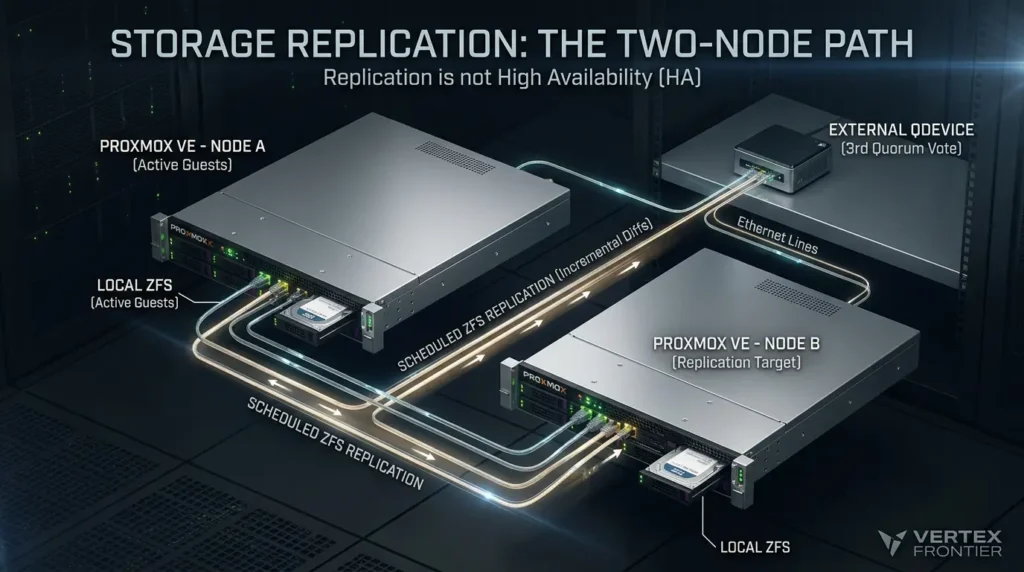
Once you add a second Proxmox node, local ZFS has a problem. Migration has to copy the disk, and if a node dies, its data is stuck inside it.
Proxmox storage replication fixes part of this. It copies guests between nodes on a schedule, ZFS only. The first copy is full. After that, only changes move.
How to set up a replication job
- Make sure both nodes use ZFS storage with the same storage name.
- Select the node, open Replication, and click Add.
- Choose the guest and the target node.
- Set the schedule. The default is every 15 minutes. The docs allow as often as every minute, and as rarely as once a week.
- Optionally set a rate limit so replication doesn't flood your network.
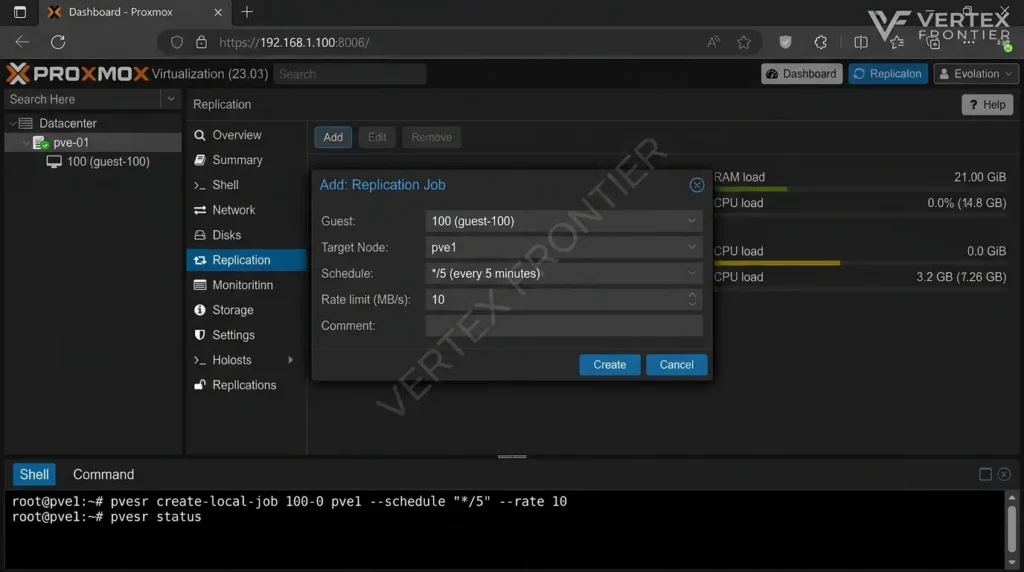
Two details from the Proxmox replication docs are worth knowing. A guest can replicate to several target nodes, but not twice to the same one. And when you migrate a guest to a node that already holds a replica, only the changes since the last sync are sent, which makes that migration much faster. By default, replication traffic uses the same network as migration traffic, which in turn defaults to the management network. You can move it to a dedicated network under Datacenter → Options → Replication Settings.
Shell (example: replicate guest 100 to node pve1 every 5 minutes, limited to 10 MB/s):
# job ID 100-0 for guest 100, target node pve1
pvesr create-local-job 100-0 pve1 --schedule "*/5" --rate 10

# check job state and last sync
pvesr statusIllustrative estimate. The bar is scaled against a 60-minute window. Your real change rate varies by workload. If a job fails, Proxmox suspends the normal schedule and retries every 30 minutes, so the real window can be longer.
Replication is not high availability
Replication gives you a recent copy, not continuous availability. The Proxmox docs allow HA in combination with storage replication, with a clear warning: there may be data loss between the last synced time and the moment the node failed. Failed jobs add to the risk. A job that hits an error suspends its normal schedule and is retried every 30 minutes, so the window can grow without anyone noticing. Watch the job status, not just the schedule.
Some workloads handle that badly. Systems that keep their own replicated state, such as Active Directory domain controllers, can misbehave when they come back with older data. That is this guide's inference, so check your vendor's guidance before replicating them, and prefer application-level redundancy such as two domain controllers. Databases, including the ones inside a self-hosted mail stack or a production Mailcow deployment, need their own application-level replication or a tolerance for lost writes.
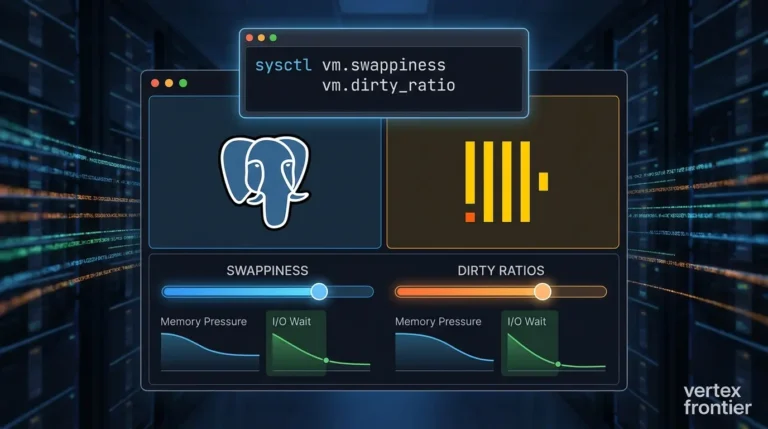
And if guests are write-heavy, how the guest flushes data to disk matters too. Tuning Linux VM swappiness and dirty writeback ratios is a useful companion read.
What failover looks like without HA
If node A is gone for good and its guests were replicated to node B, the Proxmox docs describe a manual recovery. Read it as a map of what you would be doing under stress, so you can rehearse it first.
- On node B, check that the cluster has quorum with pvecm status.
- If there is no quorum and you cannot bring the other node back, the docs say you may force it with pvecm expected 1. They also warn to avoid cluster-changing actions while it is set, such as adding or removing nodes, storages or guests.
- Move the guest configuration files from node A's directory to node B's directory under /etc/pve/nodes.
- Start the guests on node B.
Shell (from the Proxmox docs; example IDs, replace with yours):
# on node B
pvecm status

# only if quorum cannot be restored any other way
pvecm expected 1

# move VM 100 and container 200 from node A to node B
mv /etc/pve/nodes/A/qemu-server/100.conf /etc/pve/nodes/B/qemu-server/100.conf
mv /etc/pve/nodes/A/lxc/200.conf /etc/pve/nodes/B/lxc/200.conf

qm start 100
pct start 200The piece almost every guide forgets: QDevice
Proxmox clusters vote. The cluster manager docs say high availability needs at least three nodes for reliable quorum. With two nodes, one failure leaves a tie. A QDevice is a small external host, even a Raspberry Pi, that supplies the third vote. The docs recommend it for two-node clusters and discourage it for odd node counts.
Without quorum, the damage is documented. The cluster manager docs say the cluster switches to read-only mode when it loses quorum, and that nodes with HA resources fence themselves after roughly one minute without a stable quorum. A two-node cluster with no tiebreaker invites exactly that.
Shell (example QDevice setup, check the docs for your version):
# on the external QDevice host (an independent server)
apt install corosync-qnetd

# on every cluster node
apt install corosync-qdevice

# on one cluster node (replace with your QDevice IP)
pvecm qdevice setup 192.0.2.10

# verify: look for the Qdevice flag and a third vote
pvecm statusGrowing from one node to two: what the docs warn about
Most people start with one server and add a second later. The cluster manager docs contain several traps for that path.
- Set the final hostname and IP address on every node before you create the cluster. The docs say you cannot change them afterward.
- Create the cluster on the node that already runs guests, and join the new, empty node to it. Joining overwrites the configuration in /etc/pve, and a joining node cannot hold guests because guest IDs could clash.
- If the joining node already has guests, the docs' workaround is to back each one up with vzdump and restore it under a new ID after joining.
- The joining node inherits the cluster's storage configuration. Re-add the storages that differ, and use each storage's node restriction so it only appears where it exists.
- Give the ZFS storage the same storage ID on both nodes if you plan to replicate, because replication matches jobs by storage ID.
- Keep corosync off busy networks. The docs recommend a dedicated physical NIC, and say a dedicated 1 Gbit NIC is enough in most situations.
- Add the QDevice, then create replication jobs, then test a failover.
Replication plus a QDevice is the budget answer for two nodes. It buys a copy and a tiebreaker, not instant failover.
Shared storage: NFS, SMB and iSCSI
Shared storage solves the migration problem differently. All nodes see the same disk, so a live migration only moves memory state. The disk is already there. That's why NFS from a NAS looks attractive: it's simple, you probably already own one, and setup takes a minute under Datacenter → Storage → Add → NFS.
The costs show up later.
- Two single points of failure. If the NAS goes down, every node loses its VM disks. If the network between them hiccups, same result. (Dependence on one storage box has its own ownership risk; see what happens when your private cloud storage provider gets acquired.)
- Every write crosses the network. A running VM writes constantly. Spinning disks on the NAS are painful here, and you want SSD or NVMe on the NAS side and at least 10 GbE.
- Snapshots are expensive on file storage. According to the Proxmox storage docs, creating or deleting internal qcow2 snapshots blocks a running VM, performs particularly badly on network storage like NFS, and can take minutes or even hours on large disks. If you are affected, the docs suggest creating and removing snapshots while the VM is shut down.
Community opinion on NFS for VM disks is divided. Some people run NFS-backed VMs happily at small scale, and others recommend block storage such as iSCSI. This guide could not find a primary benchmark that settles it, so treat the debate as open. The part you can verify is the documented qcow2 snapshot behavior above, plus the fact that every guest write crosses your network.
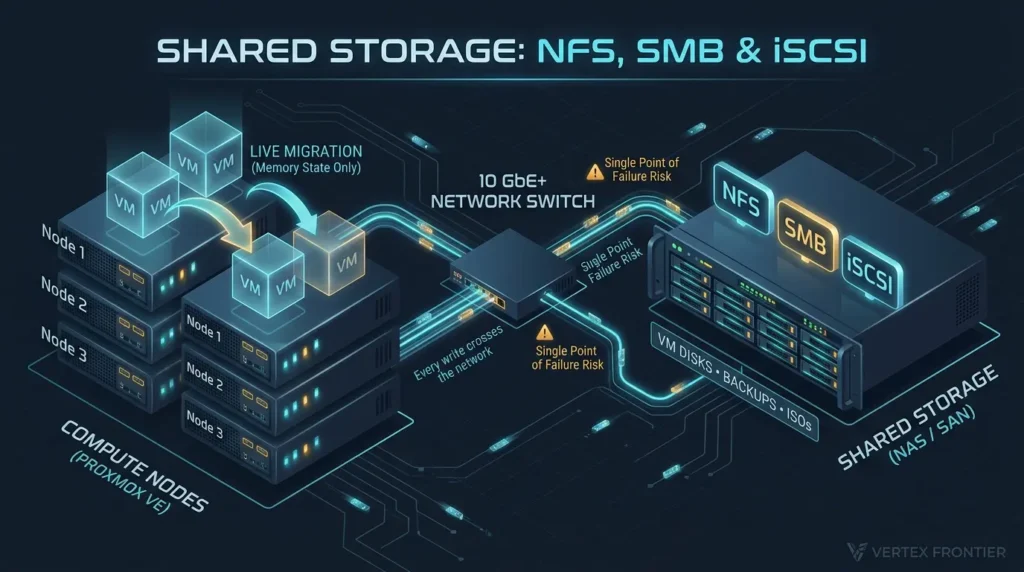
iSCSI gives you block semantics from a NAS or SAN, usually with LVM layered on the LUN. The Proxmox docs say multipathing is usually a requirement in these setups. NAS support varies, so check yours before you plan around it. The trade-off is more moving parts and LUN management.
Three storage-configuration rules from the Proxmox storage docs apply to any shared storage. The shared flag only marks storage that is already shared. It does not make a local storage reachable from other nodes. Do not use the same storage pool in two different Proxmox clusters, because the locking some operations need only works inside one cluster. And avoid aliased storage entries: two entries pointing at the same underlying storage can give one disk two volume IDs.
Where shared file storage shines
Backups. ISOs. Container templates. Media. If you have a NAS, point your Proxmox backups at it over NFS or SMB. That is the best use of these protocols in a homelab.
If your NAS runs as a VM on Proxmox
Community threads describe two recurring traps. Neither is documented by Proxmox, so treat them as field advice:
- Boot order. Hosts that mount NFS from a NAS VM can hang on reboot, waiting for storage that hasn't started. The usual fix is to boot the NAS VM first, add a 30–60 second delay, and use nofail mount options.
- Passthrough granularity. The usual advice is to pass the whole HBA controller to the NAS VM, not individual disks, so the NAS operating system sees the disks directly.
Shared file storage is great for files and backups. Be skeptical when it holds the disks your VMs are running on.
Ceph: the real shared storage, with a real bill
Ceph RBD spreads block storage across your own nodes and replicates it. Each node contributes disks, called OSDs, and every node can use the pool at the same time. For serious Proxmox clustering, it's the option that feels most like a SAN without buying one.
The people who run it like it. One homelab builder who has run a three-node Ceph cluster for several months reports no major problems, migrates VMs in a few seconds, shuts nodes down for updates without stopping most workloads, and lets HA start VMs elsewhere automatically. They also run it with a single shared 10 GbE link for HA, Ceph and application traffic, which is cheating a little but worked fine for them.

What it demands
The table pulls the documented numbers into one place. The Proxmox docs call them rough guidance, so test your own setup and keep monitoring it.
| Area | Documented minimum or default | Recommended | Source |
|---|---|---|---|
| Nodes | At least 3, preferably identical servers | At least 3 nodes and at least 12 OSDs, evenly spread across the nodes | Proxmox Ceph chapter |
| Network | At least 10 Gbps, used exclusively for Ceph | 25 Gbps or more for fast NVMe. If unsure: 25+ Gbps Ceph cluster network, 10+ Gbps Ceph public network, 1 Gbps corosync | Proxmox Ceph chapter, Ceph docs |
| Corosync | A dedicated 1 Gbit NIC is enough in most situations | Keep it off storage traffic; add a second link on a different physical network | Cluster manager docs |
| Memory | OSD default is 4 GiB; below 2 GiB is not recommended | At least 8 GiB per OSD for good performance, plus headroom for recovery | Proxmox, Ceph docs |
| CPU | At least one core or thread per Ceph service | Four to six threads per NVMe-backed OSD is likely for very fast disks | Proxmox Ceph chapter |
| Disks | One OSD per physical disk | SSDs in small clusters to shorten recovery; enterprise drives with power-loss protection; evenly sized disks in every node | Proxmox, Ceph docs |
| Controller | Avoid RAID controllers | Use a host bus adapter (HBA) so Ceph sees whole disks | Proxmox Ceph chapter |
| Pool defaults | 128 PGs, size 3, min_size 2 | Never set min_size to 1 | Proxmox Ceph chapter |
| Monitors | At least 3 for quorum | Install a manager on the monitor nodes | Proxmox Ceph chapter |
Two points deserve more weight than they usually get. First, capacity: three replicas means roughly one third of raw disk is usable, so you pay for resilience in terabytes. The Proxmox docs also describe erasure-coded pools, which can offer more usable space than replicated pools at a cost in performance. Second, the network: Ceph recovery traffic can interfere with the latency-sensitive corosync stack and even cost you quorum, so a physically separate Ceph network protects the cluster as well as the storage.
Rebuild time is what makes the network requirement concrete. The Ceph hardware recommendations work through the arithmetic: replicating 1 TiB takes about three hours over 1 Gb/s and about twenty minutes over 10 Gb/s, and 10 TiB takes about thirty hours versus about three hours. Use the calculator to see how that scales.
A rough floor, not a benchmark. The default 75% is chosen so the model reproduces the four examples in the Ceph hardware docs (1 TiB and 10 TiB at 1 Gb/s and 10 Gb/s) within rounding. The docs use TiB and this calculator uses TB. Real rebalances also depend on throttling and client load.
Case studies: what Ceph looks like in the real world
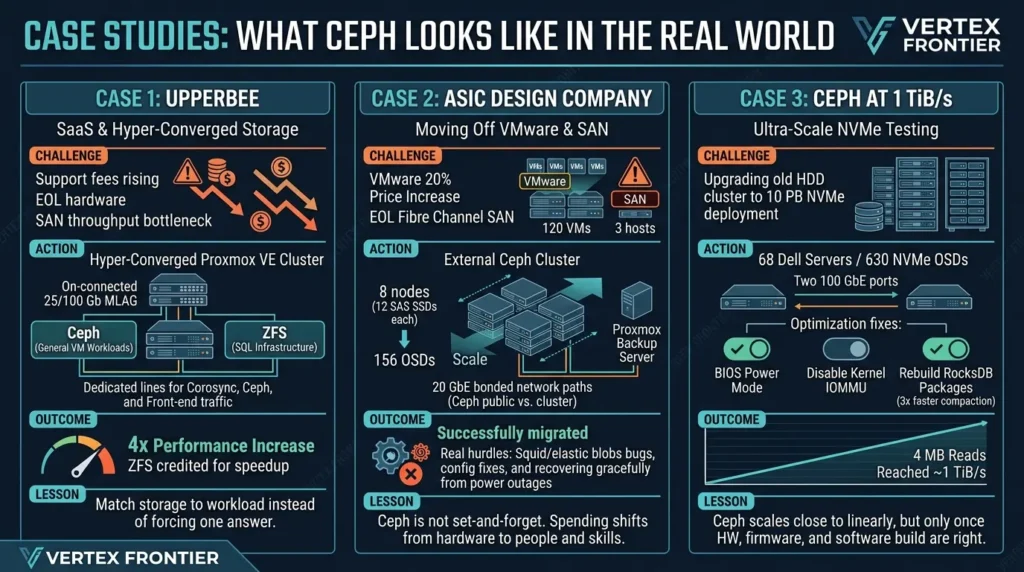
Case 1: UpperBee, a property-management SaaS company:
- Challenge: support contract fees were taking a growing share of the IT budget, hardware was nearing the end of its support life, and the SAN could no longer deliver the throughput its developers needed, according to Proxmox's customer story published September 8, 2026.
- Action: with a Montréal partner, UpperBee built a hyper-converged Proxmox VE cluster. Ceph serves general VM workloads and ZFS serves the SQL infrastructure. The design used dedicated network interfaces for corosync, Ceph and front-end traffic, on stacked 25/100 Gb switches with MLAG.
- Outcome: the story's headline is a 4x performance increase, and the CTO's quote credits switching to ZFS for it. No baseline, workload or method is published, so treat it as a vendor-published customer statement, not a benchmark.
- Lesson: storage was matched to the workload instead of forcing one answer. Notice which layer got the credit: ZFS, not Ceph.
Case 2: an ASIC design company's move off VMware and a SAN:
- Challenge: about 120 VMs ran on three ESXi hosts with a Fibre Channel SAN of 36 HDDs and 60 TB net. The VMware renewal came with a price increase of roughly 20% for three years, and the SAN was near end of life, according to a Ceph Days London 2026 presentation by the team that ran the migration.
- Action: a 2023 proof of concept used two nodes with replicated ZFS pools, a quorum device and Proxmox Backup Server. After a three-day Ceph course, they built an external Ceph cluster in 2025 to avoid compute contention on hyper-converged hosts. It grew to 8 nodes with 12 SAS SSDs each (96 OSDs, 368 TiB raw) and later to 156 OSDs. They moved from 10 GbE to 20 GbE with separate bonds for Ceph public and cluster traffic.
- Outcome: it worked, with real mishaps. Backups hurt VM performance because Ceph public traffic was routed over a 1 Gbit NIC, and since changing a monitor's address was not straightforward, they rebuilt the cluster. A known critical bug in Ceph Squid (bluestore_elastic_shared_blobs) meant redeploying OSDs. After a power outage forced an uncontrolled shutdown, their status output showed all 156 OSDs up and 8,224 of 8,225 placement groups active+clean.
- Lesson: in the presenters' own summary, Ceph is not set-and-forget, the learning curve is real, and spending shifts from hardware to people and skills. Look up known critical bugs for your Ceph release before you deploy. This is one team's account and has not been independently verified.
Case 3: Ceph at 1 TiB/s:
- Challenge: a company wanted to move from an HDD-backed Ceph cluster to a 10 PB NVMe deployment, and Clyso used the burn-in phase to see how far Ceph could scale, as told in Ceph: A Journey to 1 TiB/s.
- Action: 68 single-socket Dell servers, each with 10 enterprise NVMe drives, 192 GiB of RAM and two 100 GbE ports (63 nodes and 630 OSDs were up for the final runs). The first results were far below expectations. The fixes were a BIOS power-mode change (a 10 to 20% gain), disabling the kernel IOMMU after a customer engineer found lock contention in a profile, and rebuilding the upstream Ubuntu packages with the correct RocksDB compile flags, which cut compaction time by about 3x and doubled 4K random write performance.
- Outcome: 4 MB reads reached about 1 TiB/s with 3x replication, with the benchmark clients running on the storage nodes themselves. In an earlier scaling run, 3 nodes delivered 63 GiB/s and 10 nodes 213.5 GiB/s on 4 MB random reads, about 98.4% of linear. The team also hit laggy placement groups under heavy write load and had not solved that yet.
- Lesson: Ceph scales close to linearly, but only once the hardware, firmware and software build were right. A three-node homelab inherits the design, not these numbers.
Benchmarks answer narrow questions
The same Ceph article is a good reminder that one number rarely settles a design question. With 6+2 erasure coding, 4 MB reads reached about 547 GiB/s against roughly 1,025 GiB/s with 3x replication, yet 4 MB writes were faster with erasure coding (about 387 GiB/s against 270 GiB/s). Turning on messenger-level encryption cut large reads from about 1 TiB/s to about 750 GiB/s. And Ceph's defaults turned out to be ideal for the 4 MB read test, while changes that helped writes hurt reads.
Drive quality matters just as much. The Ceph hardware recommendations warn that bargain client-class SSDs can fall off a cliff once their cache fills, and recommend enterprise drives with power-loss protection for production. This guide does not publish benchmark numbers of its own. Use the verification protocol later in this guide on your own hardware.
When Ceph is the wrong call
- You only have 1 GbE and don't plan to upgrade. The docs recommend at least 10 Gbps.
- Your hosts are already short on CPU or memory. The Proxmox docs warn that Ceph uses more memory during recovery and rebalancing, and the ASIC team above chose an external Ceph cluster specifically to avoid compute contention.
- A short rollback window is acceptable for your workloads. ZFS replication with a witness is simpler to run (this is editorial judgment).
- Nobody will own it. If no one has time to learn Ceph, expect surprises.
Keep corosync off the storage network. The Proxmox docs say a dedicated 1 Gbit NIC is enough in most situations, and that Ceph recovery traffic can interfere with corosync and even cost you quorum.
Ceph day-two rules from the docs
- Shutting down the whole cluster: stop all clients first, check health, then set the noout flag so Ceph doesn't start recovery. Power down nodes without monitors first. When powering on, start monitor nodes first, then unset noout.
- Maintenance: never restart OSDs on several hosts at the same time. With the default three replicas, two copies can be down at once and I/O halts until min_size is met again.
- Before removing an OSD: make sure OSD usage is well below the nearfull ratio (85% by default). Rebalancing can otherwise fill OSDs and block I/O.
- Pool safety: never set min_size to 1.
- Space reclaim: run fstrim in guests and enable the disk's discard option.
Shell (read-only status check, plus the documented noout flag):
ceph -s

# before a planned full shutdown
ceph osd set noout

# after everything is back up and healthy
ceph osd unset noout
Ceph is a deliberate investment. If you have the network, SSDs and patience, it's excellent. If not, it will teach you humility.
What's changing: context worth knowing
Three changes matter for storage choices today. RAIDZ expansion removed the old reason to avoid RAIDZ if you start small, on Proxmox VE 9. Snapshots as volume chains give VMs on LVM and iSCSI-style storage a snapshot option they did not have before. And new installs cap the ZFS ARC by default, so older advice about ZFS eating all your RAM no longer describes a fresh install.
Proxmox also announced a native StorPool integration on April 27, 2026, as an additional high-performance block storage option for demanding production workloads. StorPool's latency and uptime figures in that release are the vendor's own claims, so this guide does not repeat them. The Proxmox reference documentation is at version 9.2.13 as of this review, so always check the docs for the version you actually run.
| Feature or default | Applies to | Source |
|---|---|---|
| RAIDZ expansion (zpool attach on an existing RAIDZ vdev) | Proxmox VE 9 (ZFS 2.3.3) | Proxmox ZFS wiki |
| Snapshots as volume chains for VMs on LVM, iSCSI, FC and SAS storage | Proxmox VE 9 | Proxmox storage wiki |
| ARC limit of 10% of RAM, clamped to 16 GiB | New installs from Proxmox VE 8.1 | Proxmox ZFS wiki |
| Upstream ARC default of 62.5% of RAM (50% on older ZFS) | Installs that predate Proxmox VE 8.1, ZFS 2.3.0 and later | Proxmox ZFS wiki |
| BTRFS storage | Technology preview, best-effort support | Proxmox storage wiki |
| Replication interval: default 15 minutes, minimum 1 minute, maximum once a week | Storage replication, ZFS only | Proxmox replication wiki |
| QDevice: supported for even node counts, recommended for 2 nodes, discouraged for odd counts | Cluster manager | Cluster manager wiki |
| Ceph pool defaults: 128 PGs, size 3, min_size 2; OSD memory default 4 GiB | Proxmox Ceph chapter, docs version 9.2.13 | Proxmox Ceph chapter |
Related terms you will meet: hyper-converged (compute and storage on the same nodes, which is what Ceph on Proxmox is), SAN (a dedicated block storage network and appliance), and NAS (file storage over the network).
Decision guide: pick by node count and risk
The question people ask most is "I have N nodes. What gives me HA without buying a SAN?" Here is the answer in one picture.
- ZFS mirror (2 SSDs or NVMe) for VM disks
- NAS over NFS/SMB for bulk files and backups
- PBS + snapshots instead of HA illusions
- ZFS mirrors on both nodes
- Replication (15 min default, down to 1 min)
- QDevice on a Pi or spare box
- iSCSI only if you truly need shared storage
- Path A: ZFS + replication + QDevice if a rollback window is fine
- Path B: Ceph if you have 10 GbE, SSD OSDs and CPU headroom
- Databases and domain controllers: use app-level clustering either way
A hybrid is a common pattern, and neither purist camp describes it. UpperBee, above, used Ceph for general VMs and ZFS for SQL. A small version: two SSDs in a ZFS mirror hold the OS, a fast NVMe pool holds VM disks, a separate NAS handles media and bulk data over NFS or SMB, and Proxmox Backup Server handles backups.
What you run decides what you need. Running AI models locally means big model files and bursts of disk activity, which suggests fast local NVMe and a NAS for datasets, not a shared network disk.
For VMware refugees: Ceph is the closest to the "it just works across hosts" experience of a SAN, but ask whether your workloads need it. Some small teams find that ZFS replication with a witness is enough, so test yours before committing.
| Workload | Best fit | Acceptable | Avoid | Why |
|---|---|---|---|---|
| Single-node VM disks | ZFS mirror on SSD or NVMe | LVM-thin on one disk if you accept no redundancy | Ceph (needs 3 nodes) | The docs favor mirrors for VM IOPS, and thin LVM has no redundancy. |
| Two-node cluster | ZFS mirrors + replication + QDevice | iSCSI from a redundant SAN | NFS for VM disks on one non-redundant NAS | Replication copies on a schedule. A single NAS is a single point of failure. |
| Three or more nodes, HA | Ceph, if you have 10 GbE or better, SSD OSDs and CPU headroom | ZFS + replication if a rollback window is acceptable | Ceph on 1 GbE; NFS on a single NAS | Ceph keeps current copies but has documented hardware needs. |
| SQL and other write-sensitive databases | ZFS, with database-level replication for failover | Ceph, after testing on your hardware | Treating a replica as your only copy | UpperBee reports using ZFS for its SQL layer and Ceph for general VMs (vendor story). |
| Backups | Proxmox Backup Server | NFS or SMB share as a backup target | Counting replicas, RAID or Ceph as backups | Redundancy does not protect against deletion or ransomware. |
| ISOs and templates | Directory storage | NFS, SMB or CephFS | Spending fast VM storage on them | Block storage usually cannot hold ISOs or backups. |
| Existing SAN or capable NAS | iSCSI or FC with LVM and multipath | NFS for non-critical VMs | Skipping multipath | The docs say multipath is usually a requirement here. |
| Event | Before (defaults, NFS VM disks, no witness) | After (ZFS mirror, replication, QDevice, PBS) |
|---|---|---|
| A disk fails | VMs on that disk are gone until restored | Mirror keeps running. Replace the disk. |
| A node dies | Cluster loses quorum and the remaining node is stuck | QDevice keeps quorum. With HA configured, guests restart from the last replica. Without HA, you move them by hand. |
| The NAS dies | Every VM disk disappears at once | VMs keep running. Only backups and ISOs are offline. |
| Someone deletes a VM | No backup, no recovery | Restore from PBS |
Test it before you trust it: a verification protocol
Nobody can tell you how storage will behave on your hardware. A short protocol turns opinions into evidence. It is a checklist, not a benchmark: it records what you observed under your conditions and nothing more.
- Write down your versions: Proxmox VE, ZFS or Ceph release, kernel, disk models, network speeds, replication interval, pool size and min_size.
- Describe the workload: which guests, and how much data changes per minute. That number feeds the replication calculator above.
- Measure before tuning: run your benchmark tool inside a test VM on the real storage and keep the raw output. Be careful with example commands from hardware docs that point a benchmark at a raw device such as /dev/sdX. They write to the device and destroy its data. Use an empty test disk or a test file instead.
- Run a failure drill on a test guest: shut down one node, then record how long until the guest serves requests again and how much recent data is missing.
- Check the status commands: confirm they show what you expect before and after the drill.
- Log the result with the date and what it does not prove, then repeat after upgrades.
Shell (read-only status checks):
pvesm status    # storage state and usage
pvesr status    # replication jobs and last sync
pvecm status    # quorum, votes, QDevice flags
ceph -s # Ceph health (Ceph clusters only)| Test | Date | Environment and versions | Input or workload | Result | What it does not prove |
|---|---|---|---|---|---|
Ten common mistakes (and the fix)
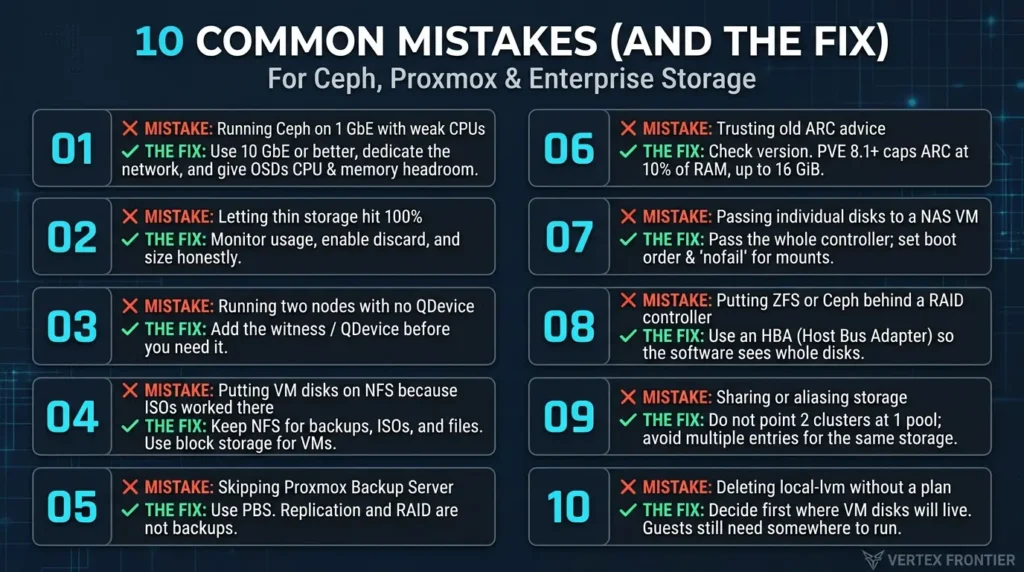
Running Ceph on 1 GbE with weak CPUs
Fix: Use 10 GbE or better, dedicate the network, and give OSDs CPU and memory headroom.
Letting thin storage hit 100%
Fix: Monitor usage, enable discard, and size honestly. See the warning above.
Running two nodes with no QDevice
Fix: Add the witness before you need it.
Putting VM disks on NFS because ISOs worked there
Fix: Keep NFS for backups, ISOs and files, or use block storage.
Skipping Proxmox Backup Server
Fix: Replication and RAID are not backups.
Trusting old ARC advice
Fix: Check your version. New installs from PVE 8.1 cap the ARC at 10% of RAM, up to 16 GiB.
Passing individual disks to a NAS VM
Fix: The usual advice is to pass the whole controller, and to set boot order and nofail for mounts.
Putting ZFS or Ceph behind a RAID controller
Fix: Both docs say to use an HBA so the software sees whole disks.
Sharing or aliasing storage
Fix: Do not point two clusters at one pool, and avoid two storage entries for the same underlying storage.
Deleting local-lvm to reclaim space without a plan
Fix: Decide first where VM disks will live. Removing a storage entry does not delete data, but your guests still need somewhere to run.
Backups: the part storage never solves
Everything above protects you from hardware failing. None of it protects you from a deleted VM, a bad update or ransomware. Replication copies mistakes just as faithfully as data.
Proxmox Backup Server was built for this. Its documentation lists deduplication, incremental backups, compression and authenticated encryption, and its feature page describes client-side AES-256-GCM encryption and synchronizing datastores to other locations for redundancy. Proxmox says most of it, aside from the web interface, is written in Rust, and that Zstandard compression can handle several gigabytes per second (a vendor figure that depends on your hardware). Deduplication savings depend on your data, so measure them with your own VMs.
A sound pattern is the 3-2-1 rule: three copies, on two kinds of media, one off-site. For the ransomware angle, see this ransomware protection strategy and the real cost of a data breach.
Pick storage for uptime. Pick backups for recovery. They solve different problems.
Conclusion
Most people should use ZFS and stop worrying. It handles disk failure, gives you snapshots and checksums, and works on one node or many with replication. Add a QDevice at two nodes. Choose Ceph on purpose, with 10 GbE, good SSDs and the patience to operate it. Keep NFS and SMB for backups and files. And whatever you choose, run Proxmox Backup Server.
One limit to be honest about: this guide publishes no benchmark numbers of its own, and the documented figures it cites come from specific hardware. Test your own workload before you commit.
FAQ
What is local-lvm in Proxmox, and can I delete it?
It is the default LVM-thin storage that a standard install creates for VM disks and containers on the install disk. ZFS installs create local-zfs instead. Removing a storage entry does not delete the data, according to the Proxmox storage documentation, but you should decide where VM disks will live before you remove it.
Is ZFS or Ceph better for a Proxmox homelab?
For one or two nodes, ZFS. With three or more nodes it depends on your network and your tolerance for a rollback window. ZFS with replication is lighter but can lose data written since the last sync. Ceph keeps current copies across nodes, but Proxmox recommends at least three nodes, at least 10 Gbps of dedicated networking, and enough CPU and memory for the OSDs.
Can I run Proxmox HA with only two nodes?
The Proxmox documentation says HA needs at least three nodes for reliable quorum, and that a QDevice can provide a third vote in a two-node cluster. A QDevice is an independent external host. Without quorum, the cluster becomes read-only.
Is NFS good enough for Proxmox VM disks?
It works technically, but it makes the NAS and the network path a single point of failure, and every guest write crosses the network. The Proxmox documentation also warns that internal qcow2 snapshots on file-based storage can block a running VM and are particularly slow on network storage such as NFS. NFS is a better fit for backups, ISOs and templates.
How much RAM does ZFS need in Proxmox?
The documentation advises at least 8 GB to start and recommends ECC memory. New installs from Proxmox VE 8.1 limit the ARC to 10 percent of RAM with a 16 GiB ceiling. If you lower it, the documentation suggests allocating at least 2 GiB plus 1 GiB per TiB of storage.
What are the minimum requirements for Proxmox Ceph?
At least three, preferably identical, servers. The Proxmox documentation recommends at least 10 Gbps used exclusively for Ceph traffic, 25 Gbps or more for fast NVMe setups, SSDs rather than HDDs in small clusters, at least 8 GiB of memory per OSD where the default is 4 GiB, and a host bus adapter instead of a RAID controller.
Does storage replication replace backups?
No. Replication copies guest volumes to another node on a schedule, so it also carries over any mistake made before the next sync. Use Proxmox Backup Server or another backup tool, and keep a copy off-site.
What is the best Proxmox storage for VMs?
It depends on node count and risk. One node: ZFS, preferably mirrored. Two nodes: ZFS with replication and a QDevice. Three or more nodes: ZFS with replication if a rollback window is acceptable, or Ceph if your network and hardware meet the documented requirements.
How often can Proxmox replicate, and what happens if a job fails?
The default interval is 15 minutes, the minimum is one minute and the maximum is once a week. If a job fails, Proxmox suspends the normal schedule and retries every 30 minutes until it succeeds, so your real data-loss window can be longer than the interval.

Was this article helpful?




[…] Planning to host that mail VM on your own Proxmox server instead of a rented VPS? Then choose the storage pool deliberately, LVM-thin, ZFS, and NFS behave very differently under a write-heavy mail stack. See our guide: Proxmox Storage Types Explained (ZFS, Ceph, LVM, NFS). […]
[…] own Proxmox node rather than a rented VPS, the storage type matters just as much as the SSD, our Proxmox storage guide (ZFS, Ceph, LVM, NFS) explains why putting VM disks on shared NFS is a classic […]