

The mailcow login page loads. The padlock is green. You sent yourself a test email and it arrived.
That feels like the finish line. It isn’t.
A running mailcow and a verified mailcow are two different things. The gap between them is where real mail goes missing: a provider that quietly blocks outbound port 25, a PTR record set in the wrong place, a certificate issued for the wrong name, a backup nobody has ever restored.
Notice what those failures have in common. None of them live inside mailcow’s containers. They live around them.
This runbook checks the whole path in seven layers, from the host up to the restore drill. You get exact commands, clear pass and fail signals, and real failure cases that practitioners documented in public threads. If you just finished our production mailcow setup with Docker and Traefik, this is the part that proves it works. If you’re starting from zero, read the complete self-hosted email server guide first, because this article assumes a working install.
One promise and one warning. The promise: you’ll finish with a repeatable runbook and a go-live scorecard. The warning: some problems, like your IP’s reputation at Gmail or Microsoft, can’t be fixed by configuration alone, and I’ll say so plainly when we get there.
This isn’t a horror story, either. Plenty of people run mailcow in production for years and call the experience boring. Boring is the goal. Verification is how you earn it.
Key takeaways
Click any topic to expand or collapseWhat “verified” actually means
Deployment verification is the process of proving, with evidence from outside the server, that every layer a mail message touches works as designed before real traffic depends on it. That covers the network, DNS, TLS, authentication, mail flow, reputation, and recovery. Monitoring is different: it watches a system you already trust.
Here’s the pattern that shaped this runbook. We reviewed 15 public threads, seven on Reddit and eight on the official mailcow forum. The most common production problems sat outside the stack: a cloud provider blocking outbound port 25, a missing PTR record, a reverse proxy in front of the mail ports, and mail landing in Gmail’s spam folder despite correct DNS. It’s a small, non-random sample, so read it as a pattern, not a statistic.
The second pattern is subtler. Many threads read like someone debugging one layer while the fault sits a layer below. You can’t debug DKIM while outbound port 25 is blocked. You can’t trust a spam-test score while the certificate on your submission port is wrong.
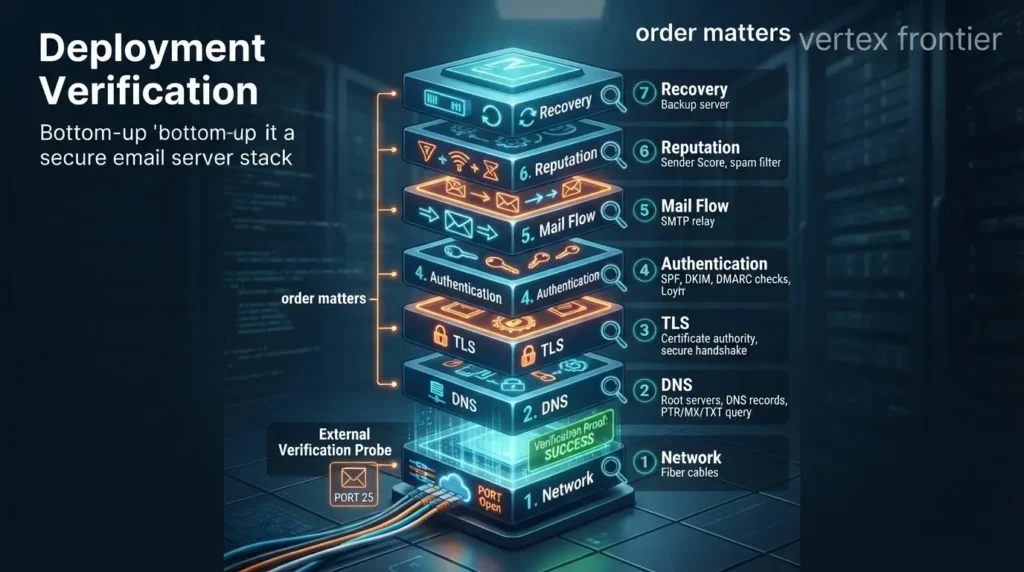
That’s why order matters. Each layer hides the failures of the layer above it. So we test bottom-up, and we refuse to climb until the floor holds.
The verification stack: seven layers, tested bottom-up
Here’s the model. Seven layers, numbered L0 to L6. Test them in order, and don’t move up until the layer below passes.
Read it from the bottom. Each layer assumes the one below it already passes.
The runbook at a glance
If you only read one list, read this one:
- L0 Host: the clock is synced, the platform is supported, the ports are free, and the full container stack is up.
- L1 Reachability: every port you serve answers from outside, and outbound port 25 works (or a relay is planned).
- L2 Identity: MX, A/AAAA, PTR, SPF, DKIM, and DMARC resolve exactly as intended.
- L3 Encryption: every TLS endpoint presents the right names, and renewal is proven.
- L4 Mail flow: mail moves both ways, the queue stays empty, and received headers say pass.
- L5 Reputation: blocklists are clean, the relay decision is made, and expectations are honest.
- L6 Resilience: a backup was restored once, updates are controlled, and alerts leave the building.
Ground rules before you start
- Use a second network. You need a machine that isn’t on the server’s LAN, such as a cheap VPS or a laptop on a phone hotspot.
- Use two outside mailboxes. One at Gmail and one at another provider. Comparing them shows whether a problem is general or provider-specific.
- Work from the install directory. Commands assume
cd /opt/mailcow-dockerized, the path the docs use. Adjust if yours differs. - Keep a log. Write down the date, the change, and each result. When something breaks later, this log is how you find out what changed.
Version and scope boundaries
This runbook is only as current as the facts under it. Here are the boundaries it assumes, and where each one comes from.
| Boundary | What this guide assumes | Source |
|---|---|---|
| mailcow release | The 2026-10 release line on the stable branch. The legacy branch’s support ended in February 2026. | Update docs and release notes |
| Docker | Docker Engine 24.0.0 or newer, and Compose 2.0 or newer. Commands use the plugin syntax, docker compose. | Install guide |
| Platform | A KVM, ESX, or Hyper-V virtual machine, or bare metal. LXC, OpenVZ, Virtuozzo, and NAS devices are unsupported. | System prerequisites |
| Topology | One mailcow node with a public IPv4 address. IPv6 is covered where it applies. Clusters are out of scope, because mailcow isn’t designed for high availability. | Our scope choice |
| Gmail rules | The sender requirements in force since February 2024, with TLS required since December 2023. | Google’s guidelines |
| MTA-STS in the UI | Needs release 2025-09 or newer. | MTA-STS guide |
You’ll also see four evidence labels. Documented means mailcow’s docs or source code say so. Provider-stated means the provider’s own page says so. Community-reported means a public thread says so, with no independent proof. Our recommendation is judgment, not vendor policy.
L0: Host and prerequisites
Layer zero is boring, which is exactly why people skip it. Skip it and you’ll chase ghosts for hours.
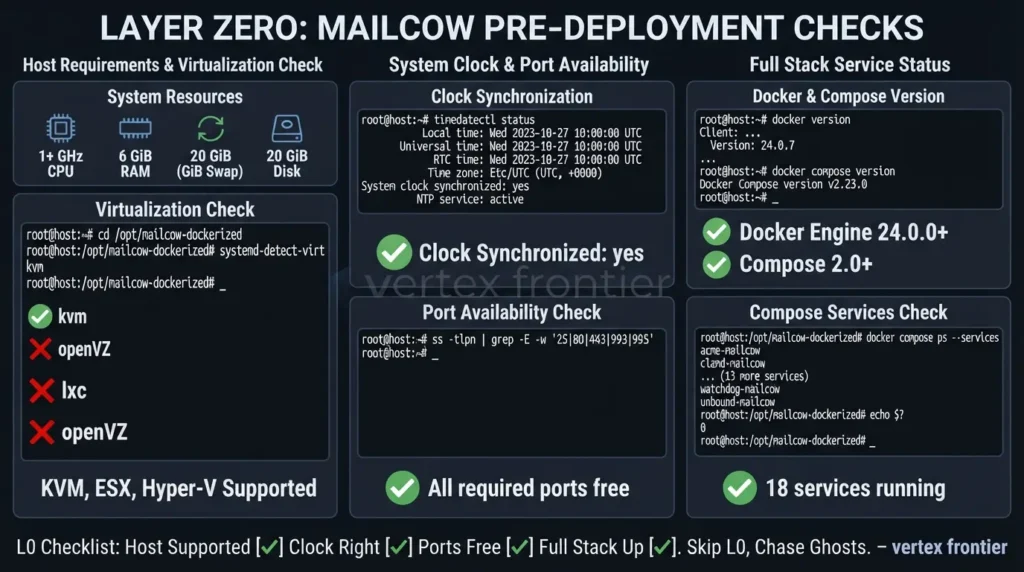
mailcow’s system prerequisites page sets the floor: a 1 GHz CPU, 6 GiB of RAM plus 1 GiB of swap with the default configuration, 20 GiB of disk before any email, and an x86_64 or ARM64 machine. The same page gives sizing examples. Six GiB plus swap is fine for most private installs. Around 8 GiB is recommended for five to ten users. A team with 15 phones on ActiveSync and about 50 concurrent IMAP connections should plan for 16 GiB.
You can trim memory by switching off ClamAV (SKIP_CLAMD=y) or full-text search (SKIP_FTS=y) in mailcow.conf. That’s a trade-off, not a free win.
What isn’t supported matters just as much. OpenVZ, Virtuozzo, and LXC guests are unsupported, and the docs warn against NAS devices and container platforms. KVM, ESX, and Hyper-V are fine. Many cheap VPS plans are containers in disguise, so check instead of assuming.
Three quick host checks catch most early failures:
- The clock. The docs say correct date and time matters for things like two-factor TOTP logins.
timedatectl statusshould show the clock as synchronized with NTP active. - The ports. Before the first start, run the port-conflict check below. Any output means something else already owns a mailcow port. The prerequisites page also carries a footnote about Exim on Debian 12 to 13 upgrades: if Exim gets installed, it can grab port 25, so remove it.
- The firewall. ufw and firewalld are a known trap. The docs warn that they clash with Docker’s own rules, and that mailcow’s published ports follow the DOCKER-USER chain, not your INPUT rules. Plenty of tutorials say “just open the port in ufw.” Skip that advice, and in L1 you’ll test the real exposure from outside instead of trusting rules you read.
Bash:
cd /opt/mailcow-dockerized # # Virtualization type: kvm is fine, lxc or openvz is not supported systemd-detect-virt # # Clock and NTP status timedatectl status # # Docker Engine 24.0.0+ and Compose 2.0+ are required by the install guide docker version docker compose version # # Before the first start this should print nothing. # After mailcow is running it shows mailcow's own listeners. ss -tlpn | grep -E -w '25|80|110|143|443|465|587|993|995|4190' # # The full stack docker compose psThe install guide also asks for the latest Docker Engine, not the version from your distribution’s package sources.
Now the check everyone runs and few people read properly. docker compose ps should list 18 services. Here they are, grouped by job.
18 services in the default compose file. With SKIP_CLAMD=y, clamd-mailcow still starts but sits idle, so the count stays 18.
Run the check twice, a few minutes apart. A container that restarted between runs is a finding, even if it shows Up the second time. An idle clamd-mailcow is normal when you’ve switched ClamAV off.
In our Docker-and-Traefik deployment guide, Traefik sits in front of exactly one of these services: nginx-mailcow, which serves the admin UI, webmail, and autodiscover over HTTP. The rest of the stack isn’t Traefik’s business unless you design it that way on purpose.
Running mailcow in a Proxmox VM? Look at the layer under the VM too. Our guide to Proxmox storage types comparedexplains how ZFS, Ceph, LVM, and NFS differ before you put a mail store on one.
L0 passes when the host is supported, the clock is right, the ports are free, and the full stack stays up across two checks.
L1: Reachability
Layer one asks two blunt questions. Can the internet reach you? And can you reach the internet?
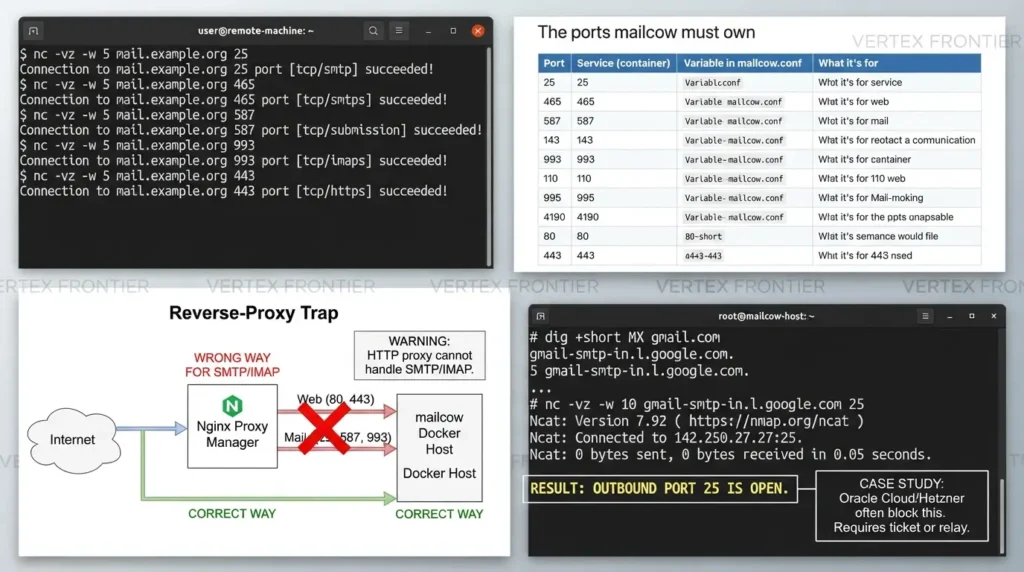
The ports mailcow must own
mailcow publishes ten ports to the world. This table follows the official prerequisites page.
| Port | Service (container) | Variable in mailcow.conf | What it’s for |
|---|---|---|---|
| 25 | SMTP (postfix-mailcow) | SMTP_PORT | Other servers delivering mail to you |
| 465 | SMTPS (postfix-mailcow) | SMTPS_PORT | Authenticated sending, implicit TLS |
| 587 | Submission (postfix-mailcow) | SUBMISSION_PORT | Authenticated sending, STARTTLS |
| 143 | IMAP (dovecot-mailcow) | IMAP_PORT | Mailbox access, STARTTLS |
| 993 | IMAPS (dovecot-mailcow) | IMAPS_PORT | Mailbox access, implicit TLS |
| 110 | POP3 (dovecot-mailcow) | POP_PORT | Legacy mailbox access |
| 995 | POP3S (dovecot-mailcow) | POPS_PORT | Legacy mailbox access, implicit TLS |
| 4190 | ManageSieve (dovecot-mailcow) | SIEVE_PORT | Editing mail filter rules |
| 80 | HTTP (nginx-mailcow) | HTTP_PORT | Redirect to HTTPS, certificate validation |
| 443 | HTTPS (nginx-mailcow) | HTTPS_PORT | Admin UI, SOGo webmail, autodiscover, ActiveSync |
You can remap any port in mailcow.conf. Just remember that HTTP and HTTPS take a separate bind address through HTTP_BIND and HTTPS_BIND. You can’t write IP:PORT inside HTTP_PORT.
Probe from the outside
Run these from a machine on a different network. If you test from the server’s own LAN, NAT loopback (hairpin NAT) can make every port look open while the internet sees nothing.
Bash (run from a different network):
nc -vz -w 5 mail.example.org 25 nc -vz -w 5 mail.example.org 465 nc -vz -w 5 mail.example.org 587 nc -vz -w 5 mail.example.org 993 nc -vz -w 5 mail.example.org 443A port that answers is a pass. A timeout means packets are being dropped somewhere between you and the container: the provider, a cloud firewall, or the host’s forwarding rules. A quick “connection refused” means something answered, but nothing is listening.
The reverse-proxy trap
mailcow is not only a web app. A proxy that understands HTTP can’t carry SMTP or IMAP for you. Keep any proxy on ports 80 and 443 only. mailcow’s reverse-proxy overview changes only the web bind addresses and ports, so mailcow keeps publishing 25, 465, 587, 143, and 993 itself. The docs’ Traefik v3 page is marked community-supported.
A forum thread from early 2026 shows how this goes wrong. A new mailcow could send mail but not receive it. Nginx Proxy Manager sat in front, because other apps on the same VM already used ports 80 and 443. Helpers pointed out that mailcow ships its own nginx and firewall rules, and that proxying adds complexity without helping SMTP or IMAP.
Does that mean mailcow needs a server to itself? Not quite. Forum helpers often recommend a dedicated host, yet a multi-year production report on Reddit runs mailcow on a shared VPS next to other apps. Here’s how we reconcile them: sharing CPU and RAM is fine. Sharing ports 80, 443, and 25 through a proxy is what bites.
The outbound test
Now the other direction. Can your server open a connection to another mail server on port 25?
Bash (run on the mailcow host):
# Find a big provider's mail server, then try to connect to it dig +short MX gmail.com nc -vz -w 10 gmail-smtp-in.l.google.com 25Use whichever host the first command returns. These two commands are standard tooling, not something from mailcow’s docs.
If the connection times out, stop here. Nothing above this layer matters until it’s fixed. mailcow will keep accepting mail from your users and quietly queue it, because Postfix keeps retrying.
Providers block this on purpose. Hetzner’s cloud FAQ says it blocks outbound ports 25 and 465 by default. It opens them on request after your first month and first paid invoice, decides case by case, and leaves port 587 open for sending through an external mail service. Per widespread practitioner reports, Oracle Cloud behaves the same way, and Oracle’s documentation describes a managed Email Delivery service for outbound mail.
You have three honest exits: ask the provider to unblock the port, send through a relay, or move to a provider that allows direct sending. mailcow supports the relay route in its admin UI. The relayhost guide walks through adding a sender-dependent transport under Routing, assigning it to a domain, and using the built-in test button. One caution from that page: the relay credentials are stored in plain text.
Case study: the provider, not the software
- Challenge. A user running mailcow on Oracle Cloud couldn’t send mail, because outbound port 25 was blocked by default. The thread ran to 31 posts.
- Action. Participants laid out the routes: ask Oracle support for an exception, configure a relay host in mailcow, use a third-party relay such as SMTP2GO, or switch VPS provider.
- Outcome. Mixed, and partly luck. One participant said the support ticket worked without trouble. Another said support refused. Others went the relay route. Hetzner’s official policy shows the same pattern from a provider that publishes it.
- Lesson. Treat outbound port 25 as a go-live test, never an assumption. Then choose your exit on purpose.
L1 passes when every port you serve answers from a network you don’t own, and an outbound port 25 connection succeeds or you’ve chosen a relay deliberately.
L2: Identity (DNS)
Layer two is where most setup guides stop. A runbook should slow down here.
We won’t rebuild the record set. Our mailcow DNS setup guide covers every record and the traps around them. Recall those records first, because here we only check that DNS says what you meant it to say.
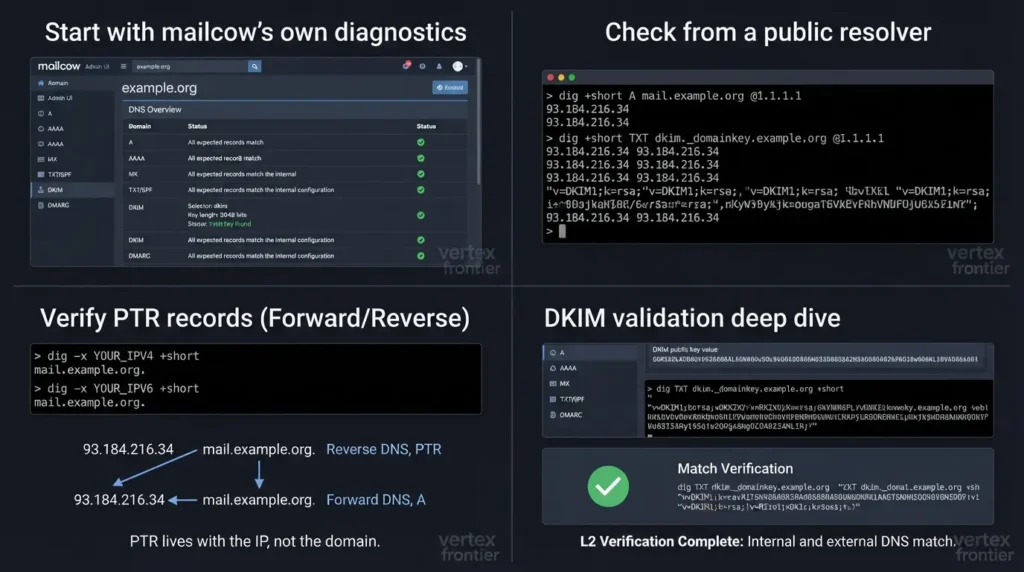
Start with mailcow’s own diagnostics
The admin UI has a DNS overview for each domain. According to mailcow’s source code, it lists the records mailcow expects: the host’s A, AAAA, and PTR, MX, the autodiscover and autoconfig records, the SRV records, SPF, DKIM, DMARC, a TLSA digest for DANE, and the MTA-STS and TLS-reporting entries when MTA-STS is switched on for the domain. Use it as the first pass.
Then get a second opinion from outside. The UI can only compare what it sees against what it expects. It can’t tell you what a receiving server sees.
Check from a public resolver
Ask a public resolver such as 1.1.1.1, not your host’s default. You want the world’s view.
Bash:
dig +short A mail.example.org @1.1.1.1 dig +short AAAA mail.example.org @1.1.1.1 dig +short MX example.org @1.1.1.1 dig +short TXT example.org @1.1.1.1 dig +short TXT dkim._domainkey.example.org @1.1.1.1 dig +short TXT _dmarc.example.org @1.1.1.1 # # Reverse DNS: replace with your real addresses dig -x YOUR_IPV4 +short dig -x YOUR_IPV6 +short| Check | Pass looks like | Common miss |
|---|---|---|
| MX | Returns 10 mail.example.org., your mailcow hostname | Points at a host with no address record, or at an old server |
| A and AAAA | The mail hostname resolves to this server’s public IP. AAAA is empty or your real global IPv6 | A stray AAAA, or a link-local fe80:: address, leaks into public DNS (see Case 3 below) |
| PTR | dig -x returns your mailcow hostname | The record was typed into the domain’s DNS panel instead of requested from the IP owner |
| SPF | One TXT record starting v=spf1 that authorizes this server, and your relay if you use one | Two SPF records, or a relay that isn’t authorized |
| DKIM | A TXT record at dkim._domainkey holding the key the UI shows | Record missing, truncated, or published for the wrong domain |
| DMARC | A TXT record at _dmarc starting v=DMARC1 | No record at all |
What is a PTR record?
A PTR record (reverse DNS) maps an IP address back to a hostname. Receiving servers look up the IP that connects to them and expect a name that matches your mail server’s hostname. mailcow’s DNS prerequisites say the PTR must match your mailcow FQDN, and Google’s sender guidelines require valid forward and reverse DNS for mail sent to Gmail. The PTR hostname must also resolve back to the same IP address, and Google documents an IPv6 variant of this failure: a 550-5.7.1 rejection when the sending IPv6 address has no matching PTR. The owner of the IP sets the record, which is usually your hosting provider, not your domain registrar.
If you typed your PTR into your domain’s DNS panel, it does nothing. Ask your hoster or ISP to set it, for IPv4 and for IPv6 if you use both. Then confirm it with dig -x.
A July 2026 forum thread shows the home-lab version of this problem. A startup ran mailcow on a server at its own office. The ISP offered a static IP but no PTR record without a business account. The replies were blunt: a PTR record is a must-have for reliable sending. The workarounds people suggested were a business plan, a cheap VPS with a tunnel for outbound mail, or a relay.
A Reddit thread describes a quieter failure. A home-hosted mailcow received mail on its static IP but sent it out through the ISP’s dynamic one. The PTR belonged to the static address, so outbound mail came from an IP with no matching identity. Commenters pointed to router fixes, such as a virtual IP with 1:1 NAT on OPNsense or a default route through the static gateway.
The check is simple. Read the Received header on a delivered test message, and make sure the connecting IP is the one your PTR describes.
mailcow runs its own resolver, unbound-mailcow, for the stack. A name your host resolves fine can still fail inside it. In a forum case about Outlook’s name-lookup error, the helpers’ debugging step was to query DNS from inside that container. Treat it as a pattern from one partly read thread, not a guaranteed diagnosis.
Bash:
cd /opt/mailcow-dockerized docker compose exec unbound-mailcow dig +short MX example.net # # Take the hostname from the answer above, then ask for its addresses: docker compose exec unbound-mailcow dig +short A MX_HOSTNAME docker compose exec unbound-mailcow dig +short AAAA MX_HOSTNAMEHow to verify DKIM in mailcow, step by step
- Find the key. Open the ARC/DKIM keys area of the admin UI and confirm a key exists for your domain. mailcow’s default selector is dkim, and the list shows each key’s length. Google requires at least 1,024 bits for mail to Gmail and recommends 2,048. If you chose a different selector when you generated the key, use yours below.
- Copy the UI’s TXT value. Don’t write your own. The UI builds it.
- Build the record name. It’s the selector, then
._domainkey., then your domain:dkim._domainkey.example.org. - Query public DNS with the dig command from earlier.
- Compare. The answer should start with
v=DKIM1, includek=rsa, and end with ap=value that matches the UI. mailcow builds the value without spaces after the semicolons, and a long key may print as two quoted strings. Both are normal. - Prove it in the wild. Send a message from a mailbox on that domain to an outside mailbox. Open the raw headers and look for
dkim=passandheader.s=dkim. You can also send tocheck-auth@verifier.port25.com, which the official DNS docs suggest as a quick authentication check.
Expected output (shortened, example only):
"v=DKIM1;k=rsa;t=s;s=email;p=MIIBIjANBgkqhkiG9w0BAQEFAAOCAQ8A..." "...rest of the public key"L2 passes when DNS, queried from outside, says the same thing as the admin UI, and your PTR (for every IP family you use) matches the mailcow hostname.
L3: Encryption (TLS)
A certificate can be valid and still wrong. Layer three checks what each port actually shows the world.
First: who issues your certificate?
Everything below depends on this answer, so settle it before you test anything.
| Mode | Who issues and renews | How to prove it works | Basis |
|---|---|---|---|
| mailcow’s built-in ACME (the default) | acme-mailcow, using the HTTP-01 challenge on port 80 | openssl on every endpoint, the ACME log, the expiry script, and a forced renewal | Documented in the SSL docs |
| A reverse proxy owns the certificates | The proxy. In the docs’ Traefik v3 page, SKIP_LETS_ENCRYPT=y turns acme-mailcow off, and a certs-dumper container copies the proxy’s certificates into data/assets/ssl and restarts Postfix and Dovecot | The proxy’s own ACME log first. Then openssl on the mail ports, not just the web port | Documented, in a community-supported page |
| DNS-01 with mailcow’s ACME | acme-mailcow, validating through your DNS provider | The same checks as the default, plus a working DNS provider setup | Documented on the DNS challenge page |
The first row is what the rest of this section tests. If a proxy owns your certificates, the force-renew steps below don’t apply. You renew in the proxy, then verify every mail port. The web port can look fine while a mail service still reads an older file. That last point is our inference from the design, not a documented failure.
Read what each endpoint presents
These are the commands from the official SSL page, with the output trimmed to the fields that matter. The port 25 line is our addition, because port 25 is what other mail servers see.
Bash:
HOST=mail.example.org SHOW="openssl x509 -noout -subject -issuer -dates -ext subjectAltName" # echo | openssl s_client -starttls smtp -connect $HOST:25 -servername $HOST 2>/dev/null | $SHOW echo | openssl s_client -connect $HOST:465 -servername $HOST 2>/dev/null | $SHOW echo | openssl s_client -starttls smtp -connect $HOST:587 -servername $HOST 2>/dev/null | $SHOW echo | openssl s_client -starttls imap -connect $HOST:143 -servername $HOST 2>/dev/null | $SHOW echo | openssl s_client -connect $HOST:993 -servername $HOST 2>/dev/null | $SHOW echo | openssl s_client -connect $HOST:443 -servername $HOST 2>/dev/null | $SHOWThe `-ext` option needs OpenSSL 1.1.1 or newer. On older versions, use `-text` and scroll. Add `-showcerts` to the `s_client` part when you want to see which intermediate certificates the server sends.
| Field | Pass looks like | If it’s wrong |
|---|---|---|
| Subject and SAN | Includes your MAILCOW_HOSTNAME, plus the autodiscover and autoconfig names for domains you serve | Clients reject the name (see Case 3) |
| Issuer | The CA you expect. Let’s Encrypt by default | Self-signed or unknown-issuer warnings |
| Not after | Comfortably in the future, and it moves when renewal runs | ACME can’t validate. Read its log |
| Chain | Your certificate plus intermediates. The root isn’t needed | Some clients fail on missing intermediates |
| Same everywhere | The same certificate on every endpoint you tested | One endpoint serves an old or different certificate |
How default-mode renewal works, and how to test it
By default, mailcow’s acme-mailcow container uses the HTTP-01 challenge, so port 80 must reach the host. It requests your MAILCOW_HOSTNAME plus autodiscover and autoconfig names for each domain, but, as the Advanced SSL docs explain, only names that resolve at request time make it onto the certificate.
Before it asks Let’s Encrypt for anything, the container checks your public IP and tries an HTTP validation. If the IP check passes but the HTTP validation fails, the docs say the usual cause is a firewall, such as firewalld or ufw, that blocks traffic from br-mailcow to your external interface. Both block it by default. NAT reflection problems are the other suspect. The docs discourage skipping the validation with SKIP_HTTP_VERIFICATION=y, because that hides the misconfiguration instead of fixing it.
If you can’t expose port 80 at all, or you need a wildcard, the docs describe a DNS-01 route.
Check the logs and the expiry dates first:
Bash:
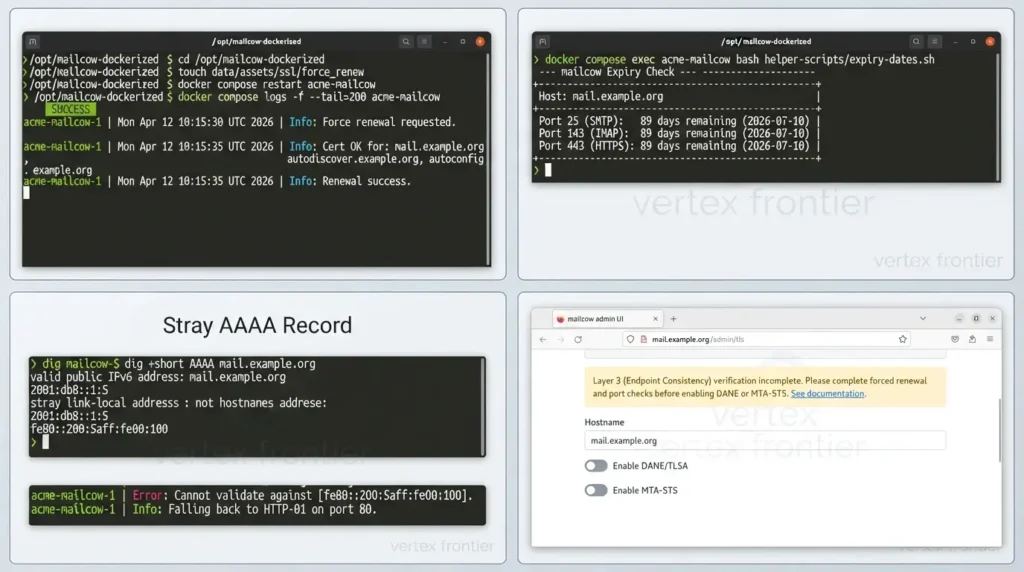
cd /opt/mailcow-dockerized docker compose logs --tail=200 acme-mailcow bash helper-scripts/expiry-dates.shThe expiry script reads three certificates: SMTP on port 25, IMAP on port 143, and the web port. It doesn’t look at 465, 587, or 993, so keep the `openssl` commands above for those.
How to force a certificate renewal in mailcow (default mode)
- Confirm the basics. Port 80 reaches the host (L1), the names you need resolve (L2), and no firewall blocks the container’s validation traffic (L0).
- Create the force flag. Run the touch command below.
- Restart the ACME container.
- Watch the log. You’ll see success or the reason for failure.
- Re-run the checks. Repeat the
opensslcommands and the expiry script.
Bash:
cd /opt/mailcow-dockerized touch data/assets/ssl/force_renew docker compose restart acme-mailcow docker compose logs -f --tail=200 acme-mailcowExperimenting? Set `LE_STAGING=y` first, so your test runs don’t burn through Let’s Encrypt’s real rate limits.
Case study: one stray AAAA record
- Challenge. In an April 2026 forum thread, mailcow’s ACME container requested a certificate for the autoconfig name instead of the mail host name. Mail clients rejected the mismatched certificate.
- Action. A mailcow maintainer asked for one DNS answer:
dig +short AAAA mail.<domain>. According to the thread, it showed a stray link-localfe80::address in public DNS. - Outcome. The recommended fix was to remove the stray AAAA records so ACME could choose the right names. The posts we could retrieve don’t show the final confirmation, so treat the result as likely, not proven.
- Lesson. Certificate trouble is often DNS trouble in disguise. Check what your AAAA records actually say before you touch ACME settings.
The chain argument you can skip
Practitioners in another forum thread argued about whether SMTP peers fetch missing intermediate certificates the way browsers do. You don’t have to settle that. Serve the full chain, meaning your certificate plus intermediates and not the root, and the argument is moot.
Optional layers on top
Two optional protections sit above plain TLS. mailcow’s DNS diagnostics can generate a TLSA digest for DANE, and since the 2025-09 release the admin UI can manage an MTA-STS policy, as the official MTA-STS guide describes. Both protect SMTP delivery, not the web UI. Our MTA-STS vs DANE comparison helps you choose. Finish L0 to L4 before you touch either.
L3 passes when every endpoint presents the right names and a full chain, and you’ve watched renewal work at least once.
L4: Mail flow
Now we send real mail. Six probes, one table.
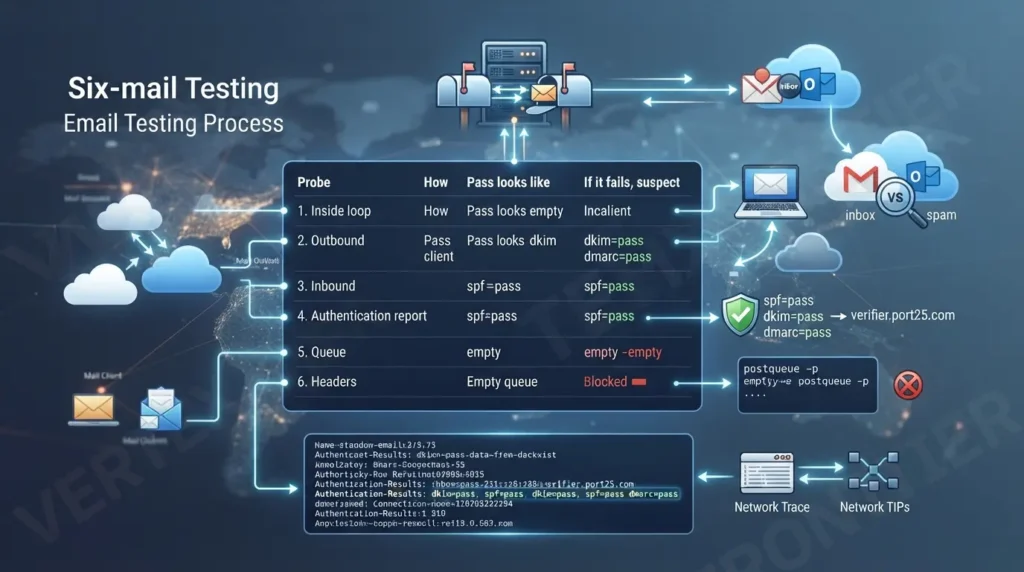
Send your tests the way users do: from a mailbox, through a real client or SOGo webmail, over authenticated submission. Mail you inject from the server’s shell skips part of the path you’re trying to test.
| Probe | How | Pass looks like | If it fails, suspect |
|---|---|---|---|
| 1. Inside loop | Mailbox A to mailbox B on the same server | Arrives within seconds | L0: a container is down or unhealthy |
| 2. Outbound | Your mailbox to your Gmail and your second outside provider | Arrives. Note separately whether it lands in the inbox or spam | L1 outbound port 25, L2 PTR or DNS, L5 reputation |
| 3. Inbound | From Gmail and the second provider to your mailbox | Arrives | L1 port 25 or a proxy in front, L2 MX record |
| 4. Authentication report | Send to check-auth@verifier.port25.com | The reply shows SPF, DKIM, and DMARC passing | L2 records |
| 5. Queue | postqueue -p on the Postfix container | The queue is empty | Anything stuck: read the reason text beside it |
| 6. Headers | Raw headers of a delivered message | spf=pass, dkim=pass, dmarc=pass | L2, or an IP that doesn’t match your PTR |
Read the queue and the log
Bash:
cd /opt/mailcow-dockerized docker compose exec postfix-mailcow postqueue -p docker compose logs -f --tail=100 postfix-mailcow # # Save evidence before you restart or recreate anything docker compose logs --tail=500 postfix-mailcow > ~/postfix-evidence.logIn the Postfix log, `status=sent` means the next server accepted the message. `status=deferred` means Postfix is retrying, and the text in brackets tells you why. The admin UI also has a queue manager if you prefer clicking.
An empty queue is the goal. A growing queue is a symptom, and its reason text usually names the layer.
One more habit: capture evidence before you restart anything. mailcow’s logging docs say containers are transient and keep no persistent logs of their own. Docker’s logging driver, JSON by default, holds the raw lines, and the admin UI shows a filtered copy that mailcow keeps in Redis. Removing a container removes its default Docker logs, so save the relevant lines before you run docker compose down or an update.
Read the headers at the other end
The most honest verdict on your mail comes from the receiving side. Open the raw headers of a delivered message and find the Authentication-Results line. Here’s an illustrative example, using documentation IP addresses:
Email headers (illustrative example):
Authentication-Results: mx.google.com; dkim=pass header.i=@example.org header.s=dkim; spf=pass (google.com: domain of me@example.org designates 203.0.113.10 as permitted sender) smtp.mailfrom=me@example.org; dmarc=pass (p=REJECT sp=REJECT dis=NONE) header.from=example.orgYou want three passes. Then look at the first `Received` line and compare the connecting IP with the one your PTR describes. If they differ, you’ve found the egress problem from L2.
When only some senders fail
Inbound mail that arrives from most senders but not from a few is a different animal. In a March 2026 Reddit thread, a user couldn’t receive mail from certain large senders, and the logs showed nothing obvious. The replies are a useful triage pattern:
- Check Rspamd. One helper noted that a big sender can score badly on your server and get blocked there.
- Ask for the bounce. Another helper said that without the sender’s delivery log or bounce message, you’re guessing.
- Test from outside. A third pointed to aboutmy.email as an external way to send a test message.
To see Rspamd’s verdicts, open the admin UI, go to System, then Configuration, then Access, and set the Rspamd UI password. After that, the Rspamd UI lives at https://your-mailcow-hostname/rspamd. The Rspamd section of the docs covers the details.
The DNS diagnostics from L2 and the Rspamd UI are already on your server. Between them they answer “does DNS look right?” and “why did this message score badly?” without installing anything. Reach for them before you reach for a third-party checker.
L4 passes when mail moves both ways, the queue stays empty, and the receiving side’s headers say pass.
L5: Deliverability and reputation
This is the layer where good engineers lose weeks.
Everything so far was about being correct. Layer five is about being trusted. Those aren’t the same thing.
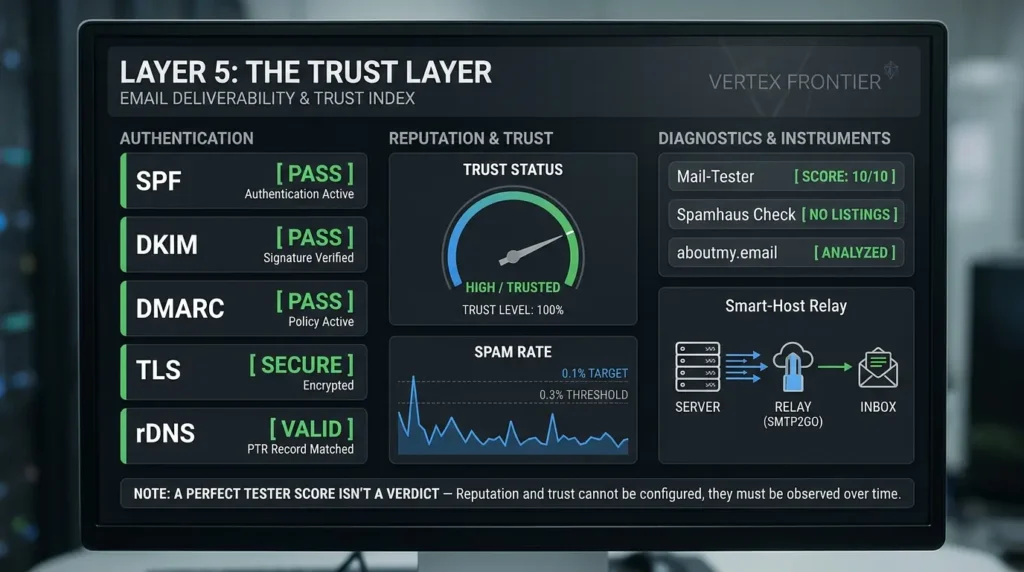
Google’s sender guidelines set the minimum for mail to Gmail. Every sender needs SPF or DKIM, valid forward and reverse DNS, and TLS. Anyone sending more than 5,000 messages a day to Gmail also needs SPF, DKIM, and DMARC. Google also asks senders to keep the spam rate in Postmaster Tools below 0.1% and to avoid ever reaching 0.3%.
Meeting that list gets you through the door. It doesn’t buy you the inbox.
The same page documents what helps a new sender. It advises starting with low volume to engaged recipients, sending at a steady rate instead of in bursts, and raising volume gradually while you watch Postmaster Tools. It also says Gmail tracks volume and feedback per domain and per IP address. Those are real levers. Waiting, on its own, isn’t a plan.
Most guides end with “now check your score on an online tester.” A perfect score tells you one message looked right once. It says nothing about how Gmail or Microsoft feels about your IP and your domain.
Pick your instruments
No single tool gives the full picture. Use several, and know what each one can’t tell you.
| Tool | What it tells you | Watch out for |
|---|---|---|
| Mail-tester | A score and report for one test message | It’s a snapshot of one message, not your reputation |
| aboutmy.email | An outside view of a test message, suggested by community helpers | Same limit: one message at one moment |
| Email Spam Tester | DKIM, DMARC, SPF, blocklists, and inbox placement at Gmail, Yahoo, and AOL, per mailcow’s DNS docs | A placement test is one message at one moment, not a promise |
check-auth@verifier.port25.com | SPF, DKIM, and DMARC results | Authentication only. Nothing about reputation |
| Spamhaus check | Whether your IP is on Spamhaus lists | The PBL lists end-user ranges by policy, not by your behavior |
| MultiRBL | Your IP across many blocklists at once | A listing on a minor list may not matter to large providers |
| Google Postmaster Tools | Spam rate, reputation, and authentication data for Gmail | Needs domain verification and enough volume. Small senders report seeing no data |
| Microsoft sender support | Microsoft’s official path for sender problems | Slow, and outcomes vary |
Spamhaus’s PBL deserves a sentence of its own. It lists IP ranges that aren’t supposed to send mail directly, mostly dynamic ranges plus some static end-user ones. If you’re on it, the cause is your network, not your behavior. Where your network’s policy allows it, you can ask for an exclusion. Otherwise the fix is a relay or a different IP.
Microsoft is its own puzzle. A Reddit thread from April 2026 describes mail to Outlook and Hotmail that was delivered, but to the junk folder. By the poster’s account, Microsoft’s mitigation reply was a generic sending guide whose requirements they already exceeded. One commenter wondered whether Microsoft is now following Google in penalizing missing PTR records. That’s a community guess, not a documented policy. There’s no public formula, so treat Microsoft deliverability as something you observe, not something you configure.
The smart-host decision
A smart host is a relay that sends your outbound mail from an IP with an established reputation. Using one isn’t defeat. In a long-running Reddit thread praising mailcow in production, one operator said they send through a smart host like SMTP2GO even without any reputation problems, simply to avoid them.
SMTP2GO’s pricing page lists a free tier of up to 1,000 emails a month. Commenters in a forum thread add a 200-a-day cap that isn’t on that page, so check the current limits before you depend on it. And weigh the trade-offs: the relay credentials sit in plain text in mailcow, your SPF must authorize the relay, and a third party now handles your outbound mail.
If the reputation fight drags on and you’d rather not run the infrastructure at all, compare hosted private-email alternatives before you decide. Walking away is a legitimate result of verification. It’s far cheaper to learn that now than in month six.
L5 passes when you’ve checked the blocklists, set honest expectations about reputation, and made a deliberate choice about relaying.
L6: Resilience
Everything above proves mail works today. Layer six proves it keeps working, and that you can rebuild it.
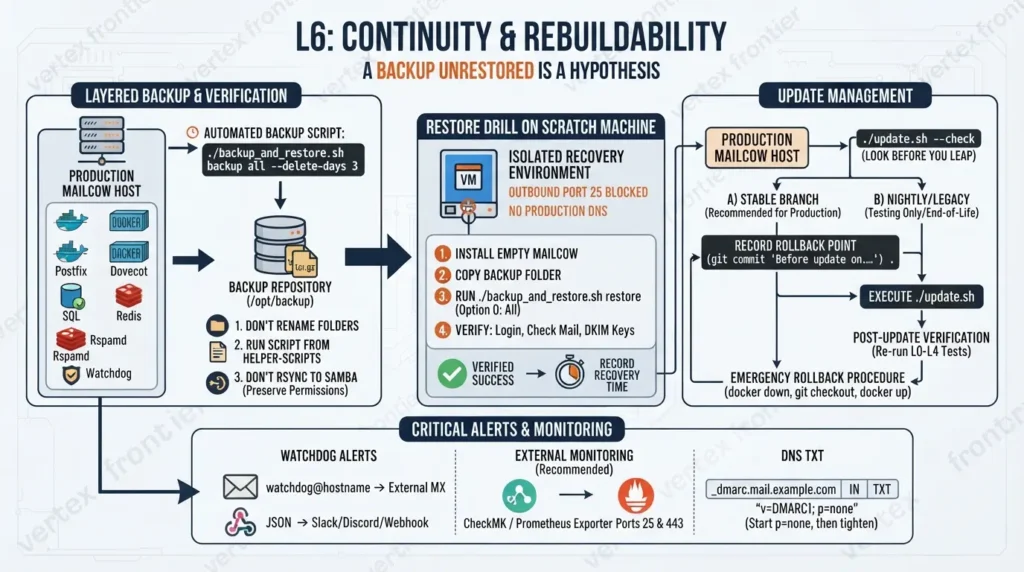
Backups
mailcow ships a backup script, described in the official backup guide. A typical run looks like this:
Bash:
cd /opt/mailcow-dockerized MAILCOW_BACKUP_LOCATION=/opt/backup THREADS=2 ./helper-scripts/backup_and_restore.sh backup all --delete-days 3`–delete-days 3` removes backups older than three days, and `all` covers the mail directory, the SQL database, Redis, Rspamd data, Postfix data, and crypt data. The docs suggest setting `THREADS` to your core count minus two, so mailcow keeps enough CPU for itself.
Three rules from the docs keep restores working:
- Don’t rename the dated backup folders. The restore script depends on their names.
- Don’t copy the script elsewhere. Run it from
helper-scripts. - Don’t rsync backups to a Samba share. You’d lose the permissions you need.
Now the line that matters most in this section: a backup you’ve never restored is a hypothesis.
How to run a restore drill
First, an honest note. As far as we could find, mailcow’s docs describe restoring but give no procedure for verifying a restore, and we found no public postmortem of a failed one. Evidence here is limited. So the steps below are our recommended practice, built on the official restore guide, not an official checklist.
- Build a scratch machine. Use a fresh VM with the same CPU architecture and, ideally, the same mailcow release. The restore guide says Rspamd data from a different architecture can’t be restored. Keep the machine off the internet’s mail path: block outbound port 25 and point no DNS at it.
- Install mailcow and let it start empty. The restore guide says mailcow must be initialized and running first. Also check
MAILDIR_SUBin the oldmailcow.conf. If the old install doesn’t set it, don’t set it on the new one, or no mail will show up. - Copy one backup folder over, keeping its name unchanged.
- Run the restore script, pick a restore point, then pick a component. Option 0 restores everything.
- Verify what matters. Log in as an admin and as a user. Open a mailbox and check recent messages. Compare domains and aliases. Confirm the DKIM keys exist.
- Write down how long it took, then destroy the scratch machine. That duration is your real recovery time.
Bash:
cd /opt/mailcow-dockerized ./helper-scripts/backup_and_restore.sh restore # The script asks for the backup location (an absolute path), # lists the restore points, asks you to choose one by number, # then shows a component menu: 0 for everything, or one component at a time.A restored copy carries your real hostname and signing keys, and possibly queued state. Never let it reach the internet’s mail path, and never point production DNS at it by accident.
Updates
Updates are where verification pays off, because every update is a change that could break a layer.
- Stay on the stable branch. The update docs say stable releases suit production and arrive at least once a month, and that the nightly branch is for testing only. The legacy branch’s support ended in February 2026, so move off it if you’re still there.
- Look before you leap.
./update.sh --checkshows what’s pending. - Record the way back. Each update creates a git commit labelled “Before update on” plus the date. The docs show how to find it and how to roll back.
- Read the notes. The project’s release notes on GitHub show what changed.
- Re-run L0 to L4 afterwards. Verification is regression testing.
Bash:
cd /opt/mailcow-dockerized ./update.sh --check ./update.sh # # Later, to find the rollback point: git log --pretty=oneline | grep -i "before update" # # To roll back (replace COMMIT_ID with the commit you found): docker compose down git checkout COMMIT_ID docker compose pull docker compose up -dAlerts that survive an outage
mailcow’s watchdog restarts unhealthy containers and can notify you. Its two notification paths fail in different ways, so choose on purpose.
| Path | How it works | Fails when | Basis |
|---|---|---|---|
Email (WATCHDOG_NOTIFY_EMAIL) | The watchdog container sends mail straight to the recipient’s MX, unsigned, as watchdog@ plus your hostname. It’s built to work even when Postfix, Rspamd, or Redis isn’t. | Outbound port 25 is blocked, because direct delivery to an MX needs it (our inference). Or the recipient distrusts unsigned mail from a hostname with no SPF or DMARC. | Documented on Authorize Watchdog and Bounce Mails |
Webhook (WATCHDOG_NOTIFY_WEBHOOK) | A POST request with a JSON body to the URL you set, such as a Discord or Slack webhook. | The receiving service is down, or the URL leaks. Treat the URL as a secret. | Documented in the comments of mailcow.conf, generated by the setup script |
| An outside monitor you run | A separate system connects to ports 25 and 443 from outside and alerts you. | Only when the monitor itself breaks. It doesn’t depend on the mailcow host. | Our recommendation |
The docs page says alerts and bounce messages both use `MAILCOW_HOSTNAME` as the sender domain. It also says `WATCHDOG_NOTIFY_EMAIL` should point to external recipients, because a broken instance may not be able to accept or show its own alert. So your hostname’s DNS zone needs its own SPF and DMARC records.
The two primary sources disagree on the DMARC value. The docs page shows p=reject for the hostname, while the comment in mailcow.conf suggests p=none. A reject policy is only safe once the SPF record for that hostname is correct. So we’d start with p=none while you verify, then tighten it. That’s our recommendation, not either source’s rule.
DNS zone for the mailcow hostname (example only):
; Documentation addresses only. Replace them with your hostname and IPs. _dmarc.mail.example.com. IN TXT "v=DMARC1; p=none" mail.example.com. IN TXT "v=spf1 ip4:203.0.113.10/32 ip6:2001:db8::10/128 -all"Drop the `ip6:` part if you don’t use IPv6.
A July 2026 forum thread describes a Postfix container that stopped while every other container kept running. One participant offered a theory about why the watchdog didn’t bring it back. We couldn’t confirm that theory in the source, so we don’t repeat it. The practical lesson doesn’t depend on the cause: don’t let the watchdog be your only alarm.
Add an outside check that connects to ports 25 and 443. mailcow’s docs list CheckMK and a Prometheus exporter among their third-party integrations if you want ready-made options.
What good looks like
Case study: the boring production setup
- Challenge. Many people assume self-hosted mail is fragile, and the failure threads above can make it look that way.
- Action. In a February 2026 r/selfhosted thread, one operator reported running mailcow in production for years on a VPS costing roughly 15 euros a month, shared with Nextcloud and Immich. They posted passing checktls.com results as evidence. Another commenter reported four domains and about 40 accounts on a Hostinger VPS. A third said they relay through SMTP2GO as insurance.
- Outcome. Few delivery problems, and updates that were uneventful. All of it is self-reported, with no independent audit. The same thread also includes sharp criticism of the SOGo webmail, so it isn’t a sales pitch.
- Lesson. Boring is a result you earn: sensible defaults, routine updates, and reputation insurance.
L6 passes when a backup has been restored once, updates have a rollback point, and alerts reach you from outside the server.
When a check fails: the troubleshooting decision tree
Here’s the map from symptom to layer. Open the branch that matches what you see.
The order inside each branch is deliberate. We ranked checks by how often each cause appears in the threads we reviewed and by how cheap it is to test. That’s a judgment call, not a measured ranking.
Tap the symptom that matches yours. Each branch lists checks in the order that rules out the most causes for the least effort.
Mail to my domain never arrives
- L1Is anything else holding ports 25, 80, or 443, or does a proxy sit in front of the mail ports? Re-run the
sscheck from L0 and take the proxy out of mail traffic. - L1Does port 25 answer from a network you don’t own? If not, look at the provider’s inbound policy, any cloud firewall, and the DOCKER-USER chain. Rules in ufw’s INPUT chain won’t help.
- L2Does
dig +short MX yourdomain @1.1.1.1return your mail hostname, and does that hostname resolve to this server? The full DNS records walkthrough covers each record. - L4Is the domain active in the admin UI, and does the mailbox exist?
- L4If only some senders fail, check Rspamd’s history for their scores and ask the sender for the bounce message. Without a bounce, you’re guessing.
I can send, but mail sits in the queue or bounces
- L4Run
postqueue -pand read the reason text beside each queued message. - L1Run the outbound port 25 test. A timeout means the provider is blocking it: ask for an exception, use a relay, or change provider.
- L2If the reason says “Host or domain name not found,” query DNS from inside
unbound-mailcow(see L2). - L2Check that your PTR exists and matches, for IPv6 as well if you use it.
- L4If you use a relay, run the test button under Routing and re-check the credentials.
Mail arrives, but in spam
- L4Open the full headers at the receiving end. Any
failin SPF, DKIM, or DMARC sends you back to L2. - L2Compare the connecting IP in the first
Receivedline with your PTR. A mismatch means mail leaves from the wrong IP. - L2Confirm that PTR and forward DNS match, for IPv4 and IPv6.
- L5Check Spamhaus and a multi-list lookup. Look at Postmaster Tools if your volume is high enough to show data.
- L5If everything passes, you’re dealing with reputation. Keep sending wanted mail, be patient, and consider a smart host. Don’t expect a configuration fix.
Clients or other servers complain about the certificate
- L3Who issues the certificate:
acme-mailcowor a proxy? If a proxy owns it, start with the proxy’s ACME log and its certificate-dump job. - L3Run the
opensslchecks on every endpoint and compare the SAN list with the name that’s failing. - L3Read the ACME log. HTTP-01 needs port 80 to reach the host.
- L2Run
dig +short AAAA mail.example.org. A stray or link-localfe80::address can break issuance. - L3Check that intermediates are served. Add
-showcertsto see them. - L1If a proxy terminates HTTPS, confirm the mail ports still present a certificate with the right names.
A container is down or restarting
- L0Run
docker compose psto find it, thendocker compose logs --tail=200 NAME. - L0Check disk and memory with
df -handfree -h. - L6Look for the watchdog’s alert (email to an external address, or your webhook), then restart the container with
docker compose restart NAME. - L6If one container stays dead while the rest run, don’t wait for it to heal itself. Restart it by hand, then verify.
- L6Did this start after an update? Find the rollback commit from the update section.
Before and after: what the runbook changes
This is a composite built from patterns in the threads we reviewed, not a single case. It shows the shift in how you operate.
- The login works, so the job feels finished.
- The PTR was typed into the domain’s DNS panel.
- Outbound port 25 is blocked, and the queue grows unseen.
- Tests ran from the server’s own LAN.
- The backup ran once and was never restored.
- Watchdog alerts go to a mailbox on the same server.
- Every layer has outside evidence: a port probe, dig, openssl, and received headers.
- The PTR was requested from the IP owner and confirmed with
dig -x. - Egress was tested before go-live, and the relay-or-ticket decision is made.
- Tests ran from a second network and two outside mailboxes.
- A restore drill finished on a separate machine, with a recorded time.
- Alerts reach an external address, and updates have a rollback point.
The honest part of “after”: reputation still takes time. The runbook removes your own mistakes. It can’t hurry Gmail.
Common mistakes and how to avoid them
These are ranked by how often they appear in the threads we reviewed, with the most common first.

Putting an HTTP reverse proxy in front of the mail ports
Fix: proxy ports 80 and 443 only, and let mailcow publish the mail ports itself.
Assuming outbound port 25 is open
Fix: run the egress test before go-live, then choose a ticket, a relay, or another provider.
Setting the PTR in your domain’s DNS panel
Fix: request it from the IP owner and confirm it with dig -x.
Testing from the server’s own network
Fix: use a second network, so NAT loopback can’t flatter you.
Ignoring the DNS zone of the mailcow hostname
Fix: publish SPF and a deliberate DMARC policy for it, because watchdog alerts and bounce messages are sent from that name.
Trusting one online tester
Fix: combine the authentication report, the receiving headers, and blocklist lookups.
Leaving a stray AAAA record, or forgetting the IPv6 PTR
Fix: run dig AAAA, then make IPv6 match fully or remove it.
Never restoring a backup
Fix: run the restore drill, and time it.
Relying on the watchdog alone
Fix: send alerts to an external address and add an outside port check.
Treating Gmail reputation as a configuration problem
Fix: measure it, be patient, and consider a smart host.
The go-live scorecard
Tick what you can prove today, with evidence, not what you believe. The unticked boxes are your to-do list.
When to re-run which layers
Verification is regression testing, so re-run the layers a change can break.
| Trigger | Re-run | Basis |
|---|---|---|
| After a mailcow update | L0, L3, and L4 | Our recommendation: updates recreate containers and can touch certificates and mail flow |
| After a DNS, IP, or provider change | L1 to L5 | Our recommendation: identity and reputation follow the IP and the records |
| After a proxy or certificate change | L1, L3, and L4 | Our recommendation: ports and certificates are what a proxy changes |
| When you add a domain | L2, L4, and L5 for that domain | Our recommendation: SPF, DKIM, and DMARC are set per domain |
| Monthly | The full scorecard, plus a restore drill at least once and again after major changes | The monthly rhythm follows the stable release cycle in the update docs. The rest is our recommendation |
Go-live scorecard
0 checks passed
Where mailcow fits in the bigger picture
This isn't a comparison post, but one question keeps coming up. Stalwart is the rival most often suggested next to mailcow in search autocomplete, and some practitioners prefer it. If you're weighing the two, notice what carries over: ports, DNS, TLS, mail flow, and reputation don't care which software answers. L1 to L5 apply to any self-hosted mail server. Only L0 and L6 are mailcow-specific.
Provider rules keep moving, too. According to Google's own guidelines page, its TLS requirement arrived in December 2023 and its wider sender requirements in February 2024. Re-read the provider pages whenever you re-run this runbook.
And relay services are the market's answer to port blocking and reputation friction. Your real decision isn't "self-host or not." It's whether to buy that answer or design your setup so you don't need it.
Verification is a habit, not a milestone
A green login page was never the finish line. The finish line is evidence: from outside the server, at every layer, on a date you wrote down.
Remember the shape of the work. Test bottom-up, because layers hide each other's failures. Test from outside, because inside checks flatter you. Respect the parts that aren't yours, like provider port policy, PTR ownership, and IP reputation. And restore your backup once, before you need it.
Then do it all again after the next update. That's the quiet secret behind the "boring" production setups in those threads. It isn't luck. It's a runbook someone actually ran.
If you want a place to start, open the scorecard above and tick what you can prove today.
FAQs: verify a production mailcow deployment
How do I check if my mailcow deployment is working?
Don't trust a single check. Confirm the full container stack is up with docker compose ps, probe your ports from a network outside the server, check MX, PTR, SPF, DKIM, and DMARC from a public resolver, read the certificate on each TLS endpoint, and send mail both ways with an empty queue and passing headers. The runbook above puts those checks in order.
How do I verify DKIM is working in mailcow?
Open the ARC/DKIM keys area in the admin UI and confirm a key exists for the domain. The default selector is dkim, and the list shows each key's length. Google requires at least 1,024 bits and recommends 2,048. Query dkim._domainkey.yourdomain from a public resolver and compare the p= value with the UI. Then send a message to an outside mailbox and look for dkim=pass in the received headers.
Do I need a PTR record, and who sets it?
Yes, for reliable delivery. mailcow's docs say the PTR must match your mailcow hostname, and Google's sender guidelines require valid forward and reverse DNS. The owner of the IP address sets it, usually your hosting provider or ISP, not your domain's DNS panel. Set one for IPv6 too if you use it, and confirm it with dig -x.
Why are my mailcow emails going to spam in Gmail?
Passing SPF, DKIM, and DMARC is necessary but not sufficient. Check the received headers, your PTR (and IPv6), and blocklists. Then consider reputation: a new domain and IP can sit in spam for a long time, as one reported case of about three months shows. Postmaster Tools may show nothing at low volume. If everything passes, a smart host can help while your own reputation builds.
Why can't I send email to Outlook or Hotmail?
There are several possible causes. Postfix may fail to resolve the recipient's mail server inside mailcow's own resolver, so test with dig from inside unbound-mailcow. A missing or mismatched PTR can hurt too. And Microsoft sometimes delivers to junk even when everything is configured correctly, with no public formula for fixing it. Read your queue's reason text first, because it usually points to the layer.
Can mailcow run behind a reverse proxy?
Only for the web interface. mailcow's reverse-proxy guides cover ports 80 and 443. SMTP and IMAP should stay with mailcow itself, and putting an HTTP proxy in front of the mail ports is one of the most common self-inflicted failures in the forum threads we reviewed.
Which ports does mailcow need open?
Ten: 25, 465, and 587 for SMTP, 143 and 993 for IMAP, 110 and 995 for POP3, 4190 for ManageSieve, and 80 and 443 for the web. Which ones the internet must reach depends on what you offer, but port 25 is essential for receiving mail. Your server also needs outbound port 25 to deliver to other servers, unless you use a relay.
How do I force-renew the mailcow TLS certificate?
In the default setup, where acme-mailcow issues the certificate, create the flag file with touch data/assets/ssl/force_renew in the mailcow directory, restart the container with docker compose restart acme-mailcow, and watch docker compose logs -f acme-mailcow. Port 80 must be reachable, and the names you need must resolve. If a reverse proxy owns your certificates, renew in the proxy instead, then check the mail ports.

Was this article helpful?